Outsourcing archive storage
Video recordings of user sessions are systematically stored on the Edge Gateway server by default. Three different directories are used on this server to store sessions:
/var/ipdiva/care/sshrecord/- This directory is used for storing SSH archives.
/var/lib/ipdiva/carerecord/recording/- This directory is used during users' graphical sessions (RDP, VNC, and Web) to store the recording locally and temporarily store the current recording.
/var/lib/ipdiva/carerecord/archives/- This directory is used for long-term storage of graphic archives (RDP, VNC, and Web) after the user's session has ended. These are therefore the files previously present in
/var/lib/ipdiva/carerecord/recording/.
Information
It is not recommended to outsource the temporary storage directory /var/lib/ipdiva/carerecord/recording/.
In order to outsource archives, it is necessary to set up a mount point NFS or SMB Edge Gateway. Two approaches can be taken:
- Create a file share by archive type, which is mandatory for NFS sharing and the recommended method followed in this documentation.
- Create a single file share for both graphic and non-graphic archives.
Warning
The instructions in this documentation do not cover the migration of archives already stored to the file share.
Special prerequisites for NFS
Remote NFS file sharing must:
- be able to have modified owners and permissions (cyberelements.io and cyberelements Cleanroom require specific owners and permissions)
- have the
no_root_squashoption, otherwise you may experience blockages when upgrading the Edge Gateway
Set up external sharing
Prerequisites
Have SSH or console access to the Edge Gateway + superuser access root. The Edge Gateway server must be able to contact the Debian repositories (TCP stream 80). The Edge Gateway server must have an open flow to the file server (TCP 445 for SMB and TCP/UDP 111,2049 NFS).
Tip
The SFTP or SSH connection to the Edge Gateway can be initiated by a cyberelements.io or cyberelements Cleanroom SSH application.
First, before mounting the external file share, let's create the following directory tree:
1 2 3 4 | |
The Graphical directory will be used to store graphic archives (RDP, VNC, and Web), while SSH will store SSH archives.
The directories can be created with the following command:
1 | |
After creating the directory tree, you will need to download packages that allow the system to mount file shares:
1 2 | |
1 2 | |
Once all prerequisites are in place, follow these instructions to set up file sharing on the Edge Gateway:
Let's start by creating two files that will store the SMB share login credentials:
1 2 3 | |
Each file must be completed with the SMB share authentication information, following this model:
1 2 3 | |
Example
If the connection to the file share for SSH sessions requires a svc_ssh_share_account user to log in with the str0ngP@ssw0rd password and belonging to the my-domain.local domain, then the /root/.smbCreds_sshExternalArchives file would be completed as follows:
1 2 3 | |
After completing the two login information files, add the share mount configuration at the end of the /etc/fstab file:
1 2 | |
The first line corresponds to the share for graphical sessions, while the second is for SSH sessions. Replace the different variables according to your configuration:
<SMB_SERVER1>with the DNS name or IP address of the graphical session file share<SHARE1>by the file share path of the graphical sessions<SMB_SERVER2>by the DNS name or IP address of the SSH session file share<SHARE2>by the file share path of the SSH sessions
Example
If you only want to externalize the graphical sessions, then only use the first line. If access to SMB file sharing for graphical sessions is available via the smb.my-domain.local server and the path to the share is fileSharing\cyberelements\GraphicalArchives then the line to add to /etc/fstab is as follows:
1 | |
After adding the SMB share access configuration, all that remains is to test the mounting of the shares with the command:
1 | |
If no error message appears, then the file sharing configuration is complete. However, if an error message appears, either the network stream is not open or the credentials entered in the file are incorrect.
Add the share mount configuration to the end of the /etc/fstab file:
1 2 | |
The first line corresponds to the share for graphical sessions, while the second is for SSH sessions. Replace the different variables according to your configuration:
<NFS_SERVER1>with the DNS name or IP address of the graphical session file share<PATH_TO_MOUNT_1>by mounting the remote file sharing path for graphical sessions<NFS_SERVER2>by the DNS name or IP address of the SSH session file share<PATH_TO_MOUNT_2>via the remote file sharing path to be mounted for SSH sessions
Example
If you only want to externalize the graphical sessions, then only use the first line. If access to SMB file sharing for graphical sessions is available via the nfs.my-domain.local server and the path to the share is /opt/cyberelements/Graphical then the line to add to /etc/fstab is as follows:
1 | |
After adding the NFS share access configuration, all that remains is to test the mounting of the shares with the command:
1 | |
If an error message appears, you will need to review the NFS server configuration (access permissions) or network traffic.
If no error message appears, the final setting concerns the permissions assigned to the share:
1 2 3 4 | |
Configure the use of external file sharing
Once the external file shares have been mounted on the desired Edge Gateways, all that remains is to configure their use. To do this, you need to edit the Edge Gateway settings in the administration console and specify the new directories: 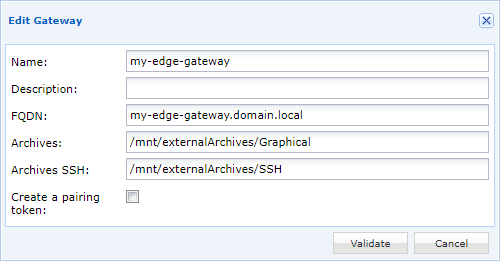
If you have followed this documentation without making any changes, you will need to enter the following directories:
- For archives (meaning graphic archives):
/mnt/externalArchives/Graphical - For SSH archives:
/mnt/externalArchives/SSH