Create/Modify Matching Rules
Matching rules are actually the different rules where, on the one hand, we will pair the objects from the authoritative and target sources and, on the other hand, define the actions to be performed on the different actions: creation, modification, deletion.
The matching rules therefore consist of five parts:
- Rule for pairing two objects
- Rule for comparing attributes between two paired objects
- Rule for creating an object
- Rule for modifying an object
- Rule for deleting an object
Create/Modify pairing rules
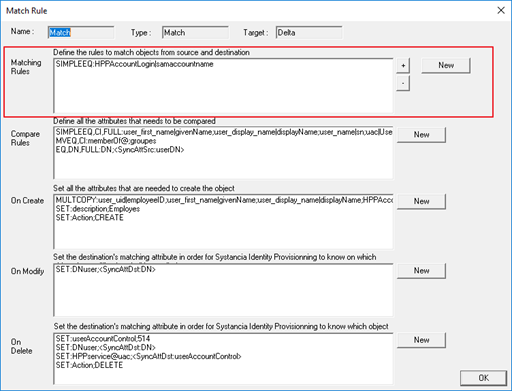
A matching rule consists of defining the attributes of the authoritative source and the attributes of the target source that must match to stipulate that the object in the authoritative source corresponds to the object in the target source.
In the “Matching” rule, pairing rules are defined in the first box on the screen. Click “New ” to create a new rule. Select a rule and click “Modify” to modify it or “Delete” to delete it.
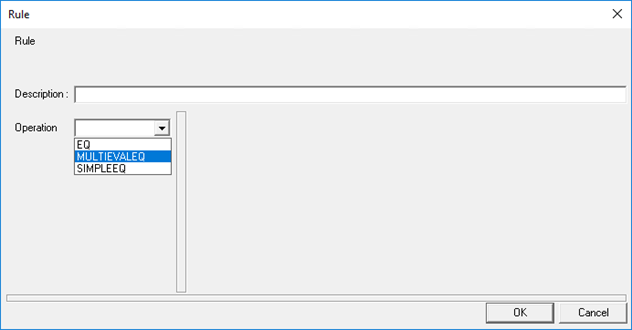
Matching rules are created from an operation. Refer to the List of available operations by rule page to choose the operation you need to meet your use case.
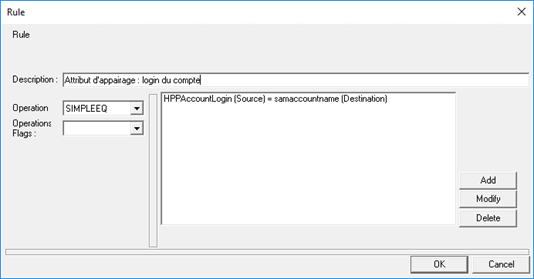
Example of a matching rule: For downstream provisioning (accounts and authorizations), we have configured object matching on account logins.
It is possible to configure multiple matching rules and define the order in which they are applied.
Create comparison rules
A comparison rule consists of defining the attributes of the authoritative source and the attributes of the target source that will be compared with each other in order to define the changes to be made.
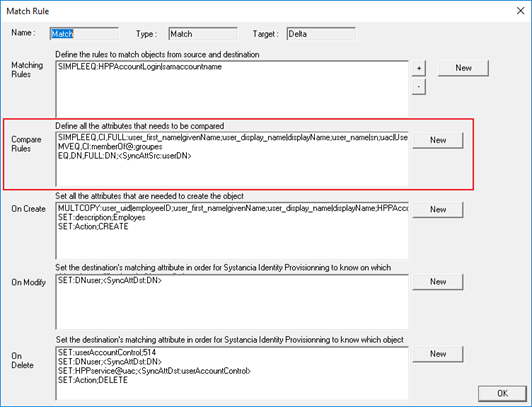
In the “Matching” rule, the comparison rules are defined in the second box on the screen. Click “New ” to create a new rule. Select a rule and click “Modify” to modify it or “Delete” to delete it.
A comparison rule is created from an operation. Refer to the List of available operations by rule page to choose the operation you need to meet your use case.
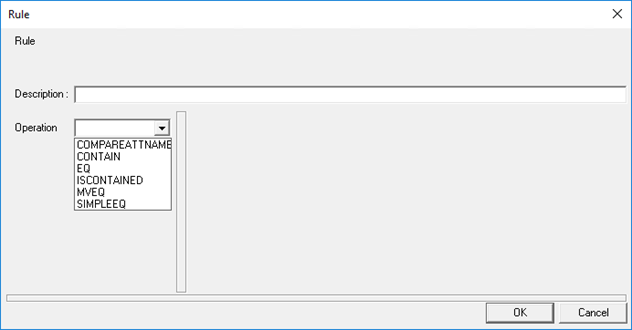
Example of a comparison rule: a list of single-valued attributes is compared between the two sources.
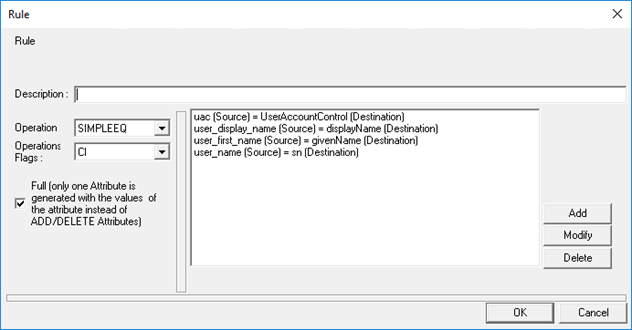
“Full” option: the results of a comparison rule can be exported and written in two ways for multi-valued attributes:
- Option checked: if a change is detected between two attributes, the exported tag, which will bear the name of the target source attribute, will contain only the final values of the attribute. We do not know the details of the deleted values and the new values added, nor even the values that have not been modified.
- Option unchecked: if a change is detected between two attributes, there may be two exported tags bearing the name of the target source attribute. A first tag containing an “ADD” sub-operation and a second tag containing a “DEL” sub-operation. The “ADD” sub-operation tag will only contain the new values to be added, and the “DEL” sub-operation tag will only contain the new values to be deleted. In this case, we do not know if there are any unmodified values.
This option should be chosen based on the connector and the operations to be performed in the various creation, modification, or deletion rules.
It is possible to configure several comparison rules, all of which will be applied to all paired objects.
Create/Modify creation rules
A creation rule consists of defining, on the one hand, the value of the identification attribute that will be used when writing creations, and on the other hand, the attributes and their values that will be provisioned into the target source for all objects defined as creations. An object is defined as a creation when it is present in the authoritative source but not in the target source. Attribute values can be fed from attributes in the authoritative source; this is referred to as attribute mapping. Attribute values can also come from attributes configured in conversion rules or be specified using operations and keywords.
In the “Matching” rule, creation rules are defined in the third box on the screen. Click “New ” to create a new rule. Select a rule and click “Modify” to modify it or “Delete” to delete it.
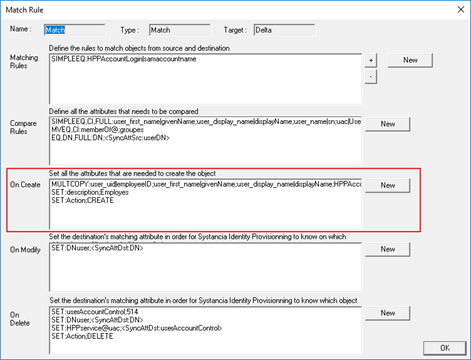
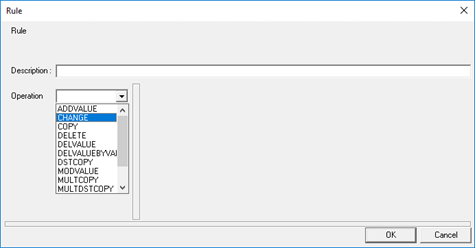
A creation rule is created from an operation. Refer to the List of available operations by rule page to choose the operation you need to meet your use case.
Example of a creation rule: Mapping of single-valued or multi-valued attributes between the authoritative source and the target source.
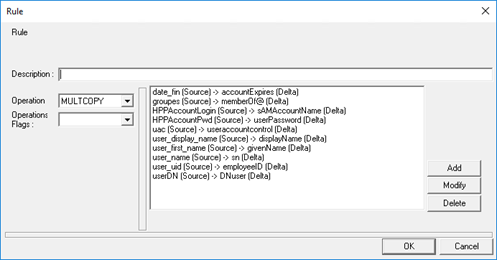
It is possible to configure several creation rules, all of which will be applied to all objects identified as being created.
Create/Modify modification rules
A modification rule consists of defining, on the one hand, the value of the identification attribute that will be used when writing the modifications and, on the other hand, optionally defining the attributes and their values that will be provisioned into the target source on all objects defined for modification. It should be noted that, in objects defined for modification, the results of the comparison rules are automatically specified in the modification rule.
In the “Matching” rule, the modification rules are defined in the fourth box on the screen. Click “New ” to create a new rule. Select a rule and click “Modify” to modify it or “Delete” to delete it.
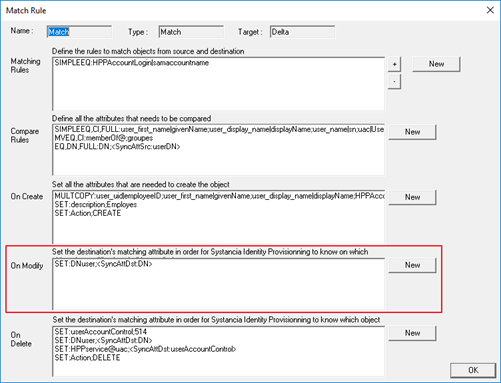
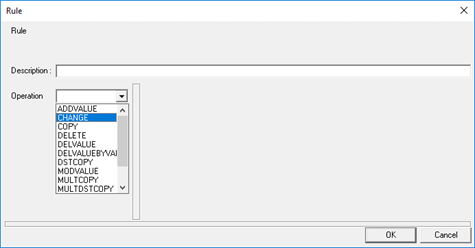
A modification rule is created from an operation. Refer to the List of available operations by rule page to choose the operation you need to meet your use case.
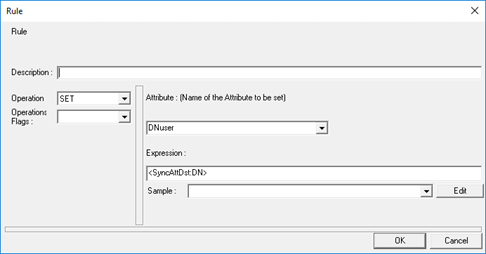
Example of a modification rule: Definition of the identification attribute of the object to be modified in the target source (directory). The “DNuser” attribute is specified using an expression that uses the “SyncAttDst” keyword to retrieve the value of the DN attribute in the target source.
Create/Modify deletion rules
A deletion rule consists of defining, on the one hand, the value of the identification attribute that will be used when writing deletions, and on the other hand, optionally, the attributes and their values that will be fed into the target source on all objects defined for deletion. Attribute changes on objects defined for deletion are only possible when there is no actual deletion of the object. An object is defined for deletion when it is present in the target source but not in the authoritative source. Consequently, attribute values can only come from attributes configured in conversion rules or be specified directly in deletion rules using operations and keywords.
In the “Matching” rule, deletion rules are defined in the fifth box on the screen. Click “New ” to create a new rule. Select a rule and click “Modify” to modify it or “Delete” to delete it.
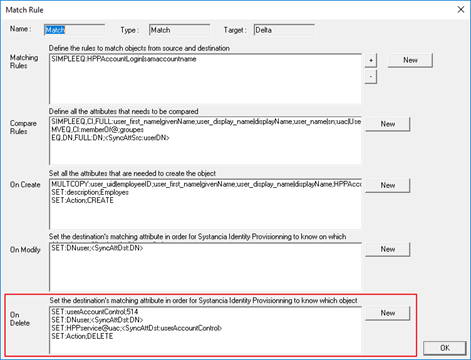
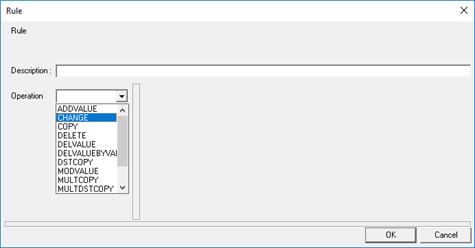
A deletion rule is created from an operation. Refer to the List of available operations by rule page to choose the operation you need to meet your use case.
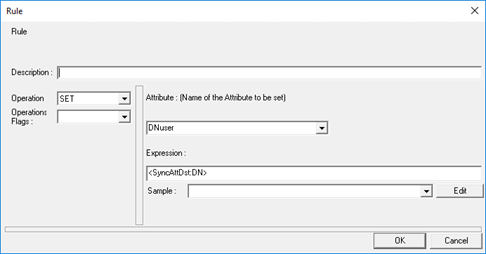
Example of a deletion rule: Definition of the identification attribute of the object to be deleted in the target source (directory). The “DNuser” attribute is specified using an expression that uses the “SyncAttDst” keyword to retrieve the value of the DN attribute in the target source.
It is possible to configure multiple deletion rules, all of which will be applied to all objects identified for deletion.