Installing a Windows Edge Gateway
The Windows Edge Gateway is a lightweight cyberelements.io or cyberelements Cleanroom Edge Gateway that can be installed like any other Windows program.
It does not include any recording components and is therefore listed as a basic Edge Gateway in the administration console.
Windows Edge Gateways are therefore only compatible with:
- Launching standard applications:
- RDP & HTML5 RDP
- SSH & HTML5 SSH
- VNC & HTML5 VNC
- Generic Tunnel
- Connecting an LDAP domain to a site (the RDS server management feature is also compatible)
- Using the Windows Edge Gateway as an embedded Edge Gateway for privileged RDP & VNC applications
The following features are therefore not supported:
- Launching privileged applications
- Launching standard applications:
- Citrix ICA & Storefront
- SMB & netBIOS
- Web & Reverse Proxy
- VPN
- The password modification feature for an LDAP domain
- Alias password rotation for the Vault
- Offloading the Vault database
- Deployment of the recording agent or ACM agent from the administration console
- All forms of direct RDP or SSH access
- Reporting of machine disk space usage
Note that the Windows Edge Gateway can be used either as a Basic Edge Gateway or as an Embedded Edge Gateway.
The Embedded Edge Gateway acts as a rebound for an Edge Gateway with recording features for privileged RDP and VNC applications. This use case is mainly used for connecting to PAW workstations.
Where can I download the Windows Edge Gateway?
The Windows Edge Gateway is available for download on all cyberelements.io or cyberelements Cleanroom platforms using a link similar to this one:
1 | |
Replace <CYBERELEMENTS-DNS> with the name of your cyberelements.io tenant or the DNS name or IP address that allows you to access the cyberelements Cleanroom web interface.
Example
For a cyberelements.io tenant named my-tenant, the download address will be:
https://my-tenant.cyberelements.io/static/applications/setup_Gate_Gateway.exe
For a cyberelements Cleanroom platform with a Web IP of 10.0.10.10, the download address will be:
https://10.0.10.10/static/applications/setup_Gate_Gateway.exe
If access is possible with a DNS name such as cyberelements-cleanroom.domain.local, then the download address will be:
https://cyberelements-cleanroom.domain.local/static/applications/setup_Gate_Gateway.exe
Installing Windows Edge Gateway
Administrator rights required
Administrator rights are required to install Windows Edge Gateway.
Windows Edge Gateway compatibility
For information on Windows Edge Gateway compatibility with various Microsoft Windows operating systems, refer to the compatibility matrix.
Graphical installation
-
Run the
setup_Gate_Gateway.exesetup as an administrator (a request to run as an administrator will appear if necessary) -
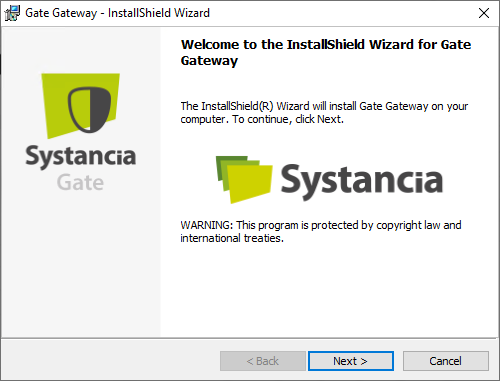
Click Next on the first window:
-
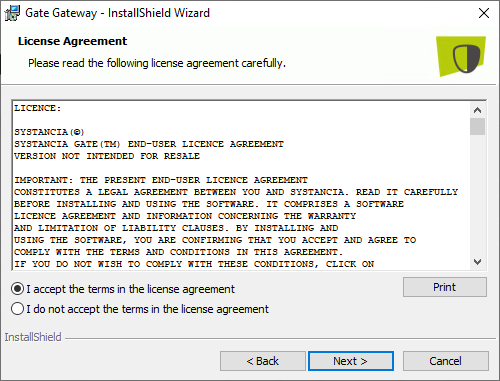
Accept the terms of use:
-
Change the installation directory as desired. By default, it is
C:\Program Files (x86)\Systancia\: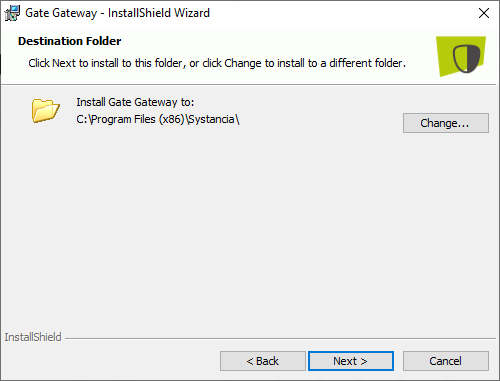
-
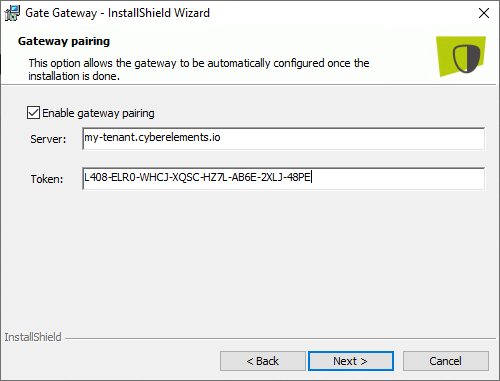
Enable or disable Edge Gateway pairing. To do this, you must obtain a pairing token. If enabled, you will need to enter the name of your cyberelements.io tenant or the DNS name or web IP address of your cyberelements Cleanroom platform, as well as the pairing token.
Tip
To create a cyberelements Cleanroom pairing token, you do not need to create and enter a certificate for the recording service, as the Windows Edge Gateway does not have one.
-
Validate the installation of the Windows Edge Gateway
-
If Windows Edge Gateway pairing has been configured but automatic configuration has failed, the following message will appear:
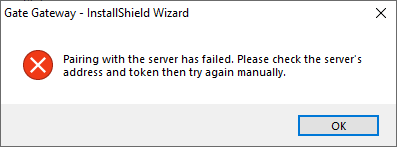
In this situation, you have two options:Resubmit a new pairing request OR Manually configure the Edge Gateway
Silent installation
Prerequisites
You must obtain a pairing token before deploying the Windows Edge Gateway.
To install the Windows Edge Gateway silently from the command line, use the following command as an administrator to perform pairing:
1 | |
Replace:
<CYBERELEMENTS_DNS>with the DNS name of your cyberelements.io tenant or with the DNS name or IP address that allows you to access the web interface of your cyberelements Cleanroom platform<TOKEN>with the pairing token retrieved from the administration console
Example
For a cyberelements.io tenant named my-tenant and with a token 4G7V-VIMF-JXZO-5X7B-PIJ9-0TOC-ME5E-2FHC, the command to execute is as follows:
setup_Gate_Gateway.exe /S /v/qn"/L PAIRING=1 SERVER=my-tenant.cyberelements.io TOKEN=4G7V-VIMF-JXZO-5X7B-PIJ9-0TOC-ME5E-2FHC"
For a cyberelements Cleanroom platform with a web IP of 10.0.10.10 and a token of 4G7V-VIMF-JXZO-5X7B-PIJ9-0TOC-ME5E-2FHC, the command to execute is as follows:
If access is possible with a DNS name such as cyberelements-cleanroom.domain.local, then the command will be:
setup_Gate_Gateway.exe /S /v/qn"/L PAIRING=1 SERVER=cyberelements-cleanroom.domain.local TOKEN=4G7V-VIMF-JXZO-5X7B-PIJ9-0TOC-ME5E-2FHC"
You can customize the installation directory (by default C:\Program Files (x86)\Systancia\) by adding a parameter INSTALLDIR:
1 | |
Replace <INSTALLDIR> with the destination path for installing the Windows Edge Gateway.
Warning!
Please note that when specifying the installation path, you must escape all backslashes (\\ instead of \).
For example, the directory C:\Program Files (x86)\Systancia\ will become INSTALLDIR=C:\\Program Files (x86)\\Systancia\\.
Example
With the following conditions:
- cyberelements.io tenant name:
my-tenant - Pairing token:
4G7V-VIMF-JXZO-5X7B-PIJ9-0TOC-ME5E-2FHC - Installation path:
C:\Path\To\Edge-Gateway-Windows\
The command to be executed is as follows:
setup_Gate_Gateway.exe /S /v/qn"/L PAIRING=1 SERVER=my-tenant.cyberelements.io TOKEN=4G7V-VIMF-JXZO-5X7B-PIJ9-0TOC-ME5E-2FHC INSTALLDIR=C:\\Path\\To\\Edge-Gateway-Windows\\"
To install the Windows Edge Gateway silently from the command line, use the following command as an administrator:
1 | |
You can customize the installation directory (by default C:\Program Files (x86)\Systancia\) by adding a parameter INSTALLDIR:
1 | |
Replace <INSTALLDIR> with the destination path for installing the Windows Edge Gateway.
Warning!
Please note that when specifying the installation path, you must escape all backslashes (\\ instead of \).
For example, the directory C:\Program Files (x86)\Systancia\ will become INSTALLDIR=C:\\Program Files (x86)\\Systancia\\.
Example
To install the Windows Edge Gateway without pairing in the C:\Path\To\Edge-Gateway-Windows\ directory, run the following command:
setup_Gate_Gateway.exe /S /v/qn"/L PAIRING=0 INSTALLDIR=C:\\Path\\To\\Edge-Gateway-Windows\\"
Extracting the MSI
The MSI can be retrieved from setup_Gate_Gateway.exe. To do so, run the following command:
1 | |
Replace <TARGET-PATH> with the destination path where the MSI will be extracted.
Post-installation operations
-
Restart pairing
If the pairing attempt during installation failed or if it is necessary to connect to a new Mediation Controller, this documentation specifies the steps required without reinstalling Windows Edge Gateway.
-
Adding a new instance
If you need to connect to multiple Mediation Controllers, you must create new instances of Windows Edge Gateway on the machine.
-
Configuring the connection to a Mediation Controller manually
For secondary instances, or because pairing with the Windows Edge Gateway is not possible, it is necessary to perform a manual configuration to establish the connection to the Mediation Controller.