Management of contexts
The concept of context has been added to Systancia Identity in order to manage authorization models that are adapted to different contexts. For example, you may want to define broader rights models in certain cases, such as when activating a contingency plan, or, conversely, to limit access as much as possible in the event of a cyberattack.
This feature allows you to apply a set of predefined authorization rules in a single operation to quickly assign or, conversely, remove rights from the users concerned. The change of context immediately triggers the recalculation of all these rules.
Create/modify/delete a context
To access the context management page, go to the “Access Management / Contexts” menu.
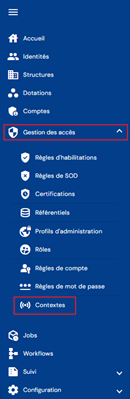
You will be taken directly to the context search page, preloaded without any filters applied but respecting the permissions associated with the logged-in user's profile.

The “STANDARD” context is the default context, automatically created when the Systancia Identity solution is installed.
You can filter the list of contexts by performing a search. The search is performed in “contains” mode and covers all “Code” and “Name” columns.

A pagination system is implemented with a default display of 10 results.

It is possible to change the number of results to display and navigate between the different pages.
Creation
To create a new context, click on the “ ” button.

To create a context, fill in the following information:
- Code: code of the context. Must be unique, without spaces or special characters. Mandatory.
- Name: name of the context. Label that will be displayed in the various forms of the application. Mandatory.
- Description: field for entering a description of the context. Optional.

Modification
To view and modify a context, click on the “ ” button located to the right of the corresponding table row.

You can switch to edit mode directly from the context viewing page.

In edit mode, all fields can be modified.
Actions on buttons in edit or create mode:
- Cancel: cancels the current entry and returns to the context list page.
- Save: Validate the form and switch the page to view mode
- Save and quit: Validate the form and return to the context list page.
Deletion
To delete a context, click on the “ ” button located to the right of the corresponding table row.

A confirmation message will appear before the context is deleted.
Warning: it is not possible to delete the “STANDARD” context. A context linked to objects (authorization rules) cannot be deleted. The objects must be unlinked beforehand.
View the current context
The applied context is displayed in the main banner of the Systancia Identity application.

The display of the context is subject to the permissions of the logged-in user.
Changing the context
The context can be changed on the context management page.
Click on the “ ” icon located to the right of the table header.

Select the desired context and click on the “Validate” button or on the “Cancel” button to cancel the change.
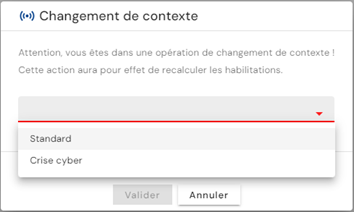
Warning: changing the context involves an immediate recalculation of authorization rules and may have consequences on the access policies applied to your applications.