Creating a pairing token for an Edge Gateway
To create a pairing token, you need to create a new Edge Gateway or HTML5 Gateway (or edit an existing Edge Gateway or HTML5 Gateway by recreating a pairing token).
Access the Mediation Controller server's web interface with the URI /system.
Examples
If access to the Mediation Controller on its web IP address is 10.0.10.10, then access to the system interface will use the URL: https://10.0.10.10/system.
If access to the Mediation Controller is possible with a DNS name, for example cyberelements-cleanroom.domain.local, then access to the system interface will use the URL: https://cyberelements-cleanroom.domain.local/system.
Important !
For any changes to the password, license, or certificates (SSL Router, Watchdog, and cyberelements Cleanroom client), connect to the actual IP address for clusters (RIP_MED_WEB_MASTER or RIP_MED_WEB_SLAVE).
Once logged in, follow the steps below according to your platform type and the type of Edge Gateway that needs to be created.
-
Open the Edge Gateway management module:
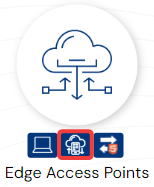
-
Create a new Edge Gateway by clicking on the + icon:
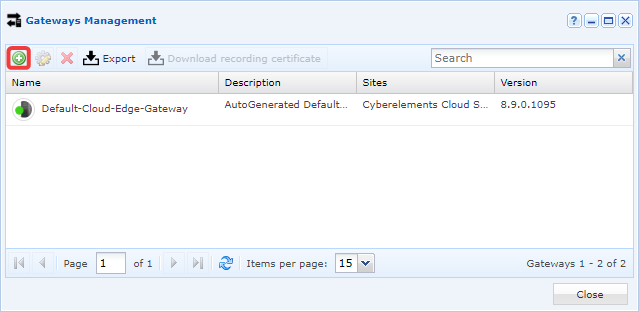
-
Fill in the various fields requested by the interface:
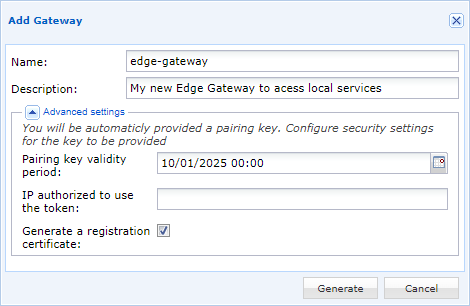
- Name the new Edge Gateway.
- Optionally, enter a description to better identify it or understand its use.
- Define the pairing token's validity period.
- Optionally, restrict the use of the token to an IP address. Please note that this is the IP address seen by the Mediation Controller hosted by Systancia, so a public IP address must be entered.
- Optionally (recommended for creating the first Edge Gateway instance on the machine), leave the
Generate a registration certificateoption checked.
-
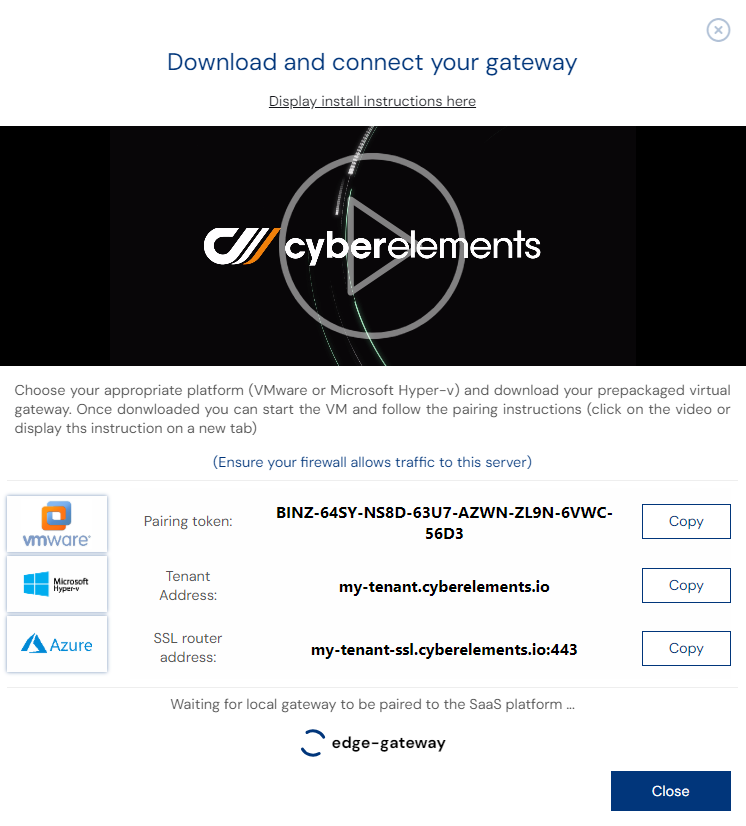
The pairing token is then generated and displayed on the screen:
Required prerequisites
In order to successfully create a new Edge Gateway, you must obtain at least one certificate for the Edge Gateway connection and a second optional certificate for the direct access recording service to function.
The certificate for the Edge Gateway must be a client authentication certificate and have a CN in the form edge-gateway-name@organization-name. Where:
edge-gateway-namecorresponds to the logical name of the Edge Gateway (since a single Edge Gateway machine can have several instances running in parallel, the name of the Edge Gateway may differ from the name assigned to the machine). The name must not contain accented characters or spaces, and the only special characters allowed are-and_.organization-namecorresponds to the name of the organization to which the Edge Gateway will connect. Since a Mediation Controller can have several organizations, this information is essential for it to know which organization it is attached to.
The certificate for the recording service must be a server authentication certificate, preferably with a CN that corresponds to the FQDN of the Edge Gateway machine.
Please note that the Mediation Controller will reject any certificate that does not come from a trusted PKI/certification authority. To add a new trusted PKI/certification authority, please follow the instructions on the following page: Add a trusted certificate authority
-
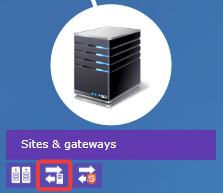
Open the Edge Gateway management module:
-
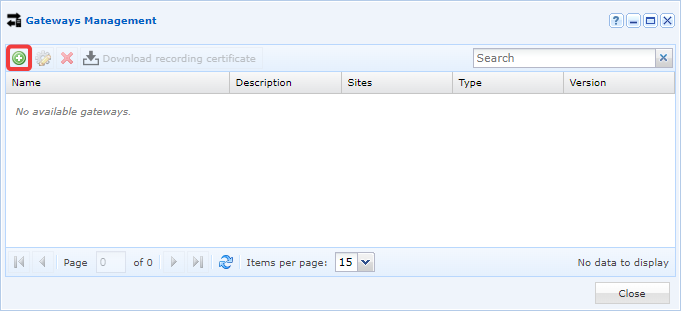
Create a new Edge Gateway by clicking on the + icon:
-
Fill in the various fields requested by the interface:
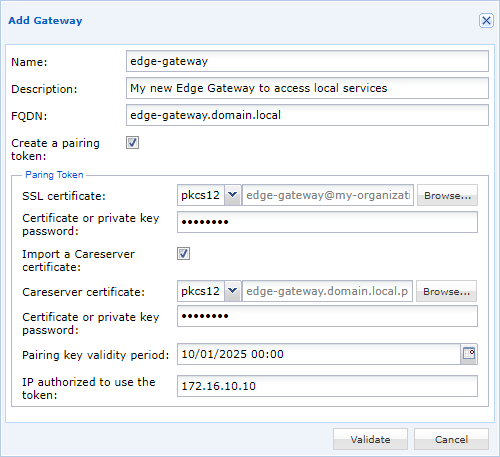
- Name the new Edge Gateway.
- Optionally, enter a description to better identify it or understand its use.
- Define the FQDN of the machine. This is important information that must match the CN of the certificate for the recording service.
- Check the option to create a pairing token.
- Find and enter the password for the Edge Gateway certificate.
- Optionally (recommended when creating the first Edge Gateway instance on the machine), add the recording service certificate with its associated password after checking
Import a Careserver certificate. - Define the pairing token's validity period.
- Optionally, restrict the use of the token to an IP address. Please note that this is the IP address seen by the Mediation Controller. If the Edge Gateway is part of the same network as the Mediation Controller, it will probably be the private IP address; otherwise, it will be the public IP address.
-
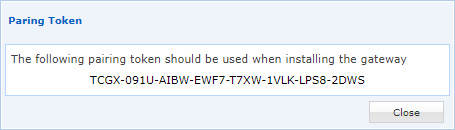
The pairing token is then generated and displayed on the screen:
Required prerequisites
In order to successfully create a new HTML5 Gateway, you must obtain a certificate for connecting to it.
The certificate for the HTML5 Gateway must be a client authentication certificate and have a CN in the form html5-gateway-name@organization-name. Where:
html5-gateway-namecorresponds to the logical name of the HTML5 Gateway (since a single HTML5 Gateway machine can have several instances running in parallel, the name of the HTML5 Gateway may differ from the name assigned to the machine). The name must not contain accented characters or spaces, and the only special characters allowed are-and_.organization-namecorresponds to the name of the organization to which the HTML5 Gateway will need to connect. Since a Mediation Controller can have several organizations, this information is essential for it to know which organization it is attached to.
Please note that the Mediation Controller will reject any certificate that does not come from a trusted PKI/certification authority. To add a new trusted PKI/certification authority, please follow the instructions on the following page: Add a trusted certificate authority
-
Open the HTML5 Gateway management module:
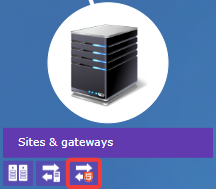
-
Create a new HTML5 Gateway by clicking on the + icon:
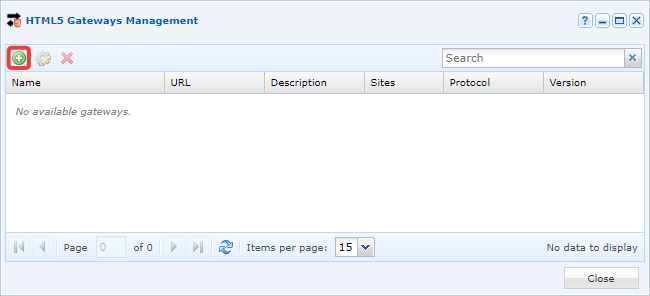
-
Fill in the various fields requested by the interface:
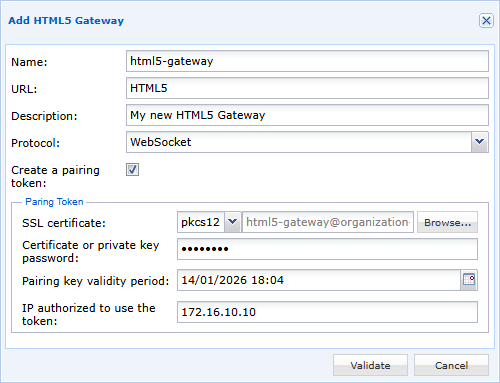
- Name the new HTML5 Gateway.
- Specify the access URL (for a first instance in standalone architecture, this is commonly
HTML5; for a cluster, it isHTML5-1andHTML5-2). - Optionally, enter a description to better identify it or understand its use.
- Set the protocol to
WebSocket. - Check the option to create a pairing token.
- Find and enter the password for the HTML5 Gateway certificate.
- Define the pairing token's validity period.
- Optionally, restrict the use of the token to an IP address. Please note that this is the IP address seen by the Mediation Controller. If the HTML5 Gateway is part of the same network as the Mediation Controller, it will probably be the private IP address; otherwise, it will be the public IP address.
-
The pairing token is then generated and displayed on the screen:
Tip
If the token has been lost or could not be retrieved after creation, editing the settings of the new Edge Gateway will display it again.
Once the pairing token has been obtained, it can be used on an Edge Gateway or HTML5 Gateway with the following instructions: Connecting an Edge Gateway with a pairing token.