Installing and using the recording agent for Windows
The Windows recording agent is used by cyberelements.io / cyberelements Cleanroom to add new features for RDP sessions:
- Ability to filter TCP and UDP streams accessible by the user
- Ability to trigger session recording for any user connecting to the server without going through the user portal or Desktop client (
direct accessfeature)
In addition, additional events are captured during user sessions:
- Window opening
- Window closing
- Program launch
- Program closing
- Clipboard contents
- User activity
Prerequisites
Client compatibility
To find out whether the agent is compatible with different Microsoft Windows operating systems, refer to the compatibility matrix.
The recording agent requires a few prerequisites to function properly. Some of these are only intended for agent-based recording functionality for RDP and HTML5 RDP applications, while others concern direct agent-based access.
General prerequisites
The recording agent sends the user session recording back to cyberelements.io and cyberelements Cleanroom by connecting to the Edge Gateway on port TCP 8443. This requires the network flow between the two machines to be open.
To securely send the recording back to the Edge Gateway, the recording agent establishes a secure connection with the latter using TLS. TLS relies on the use of certificates, and the following constraints must be validated for the connection to be considered reliable and secure:
- The server certificate, in this case the Edge Gateway, must not have expired (maximum validity date).
-
The server certificate, in this case the Edge Gateway, must be issued by a certification authority recognized as trustworthy by the machine on which the recording agent is installed.
Additional information
The server on which the recording agent is installed must have, at a minimum, the root certification authority (CA) of the recording server certificate in its local store of trusted certification authorities.
It is therefore necessary to:
- Retrieve the root CA of the certificate from the recording service on the Edge Gateway.
- Upload this CA to the server where the recording agent is installed.
- Install the CA in the “Trusted Root Certification Authorities” certificate store on the local machine.
Example with PowerShell
You can easily import a certificate in
.cerformat via PowerShell.
To do this, open a PowerShell terminal as the machine administrator and run the following command:Replace1Import-Certificate -FilePath "<PAHT_TO_CERT>" -CertStoreLocation "Cert:\LocalMachine\Root"<PATH_TO_CERT>with the path to the certificate file.Example with PowerShell for the Systancia certificate without sending files
This example involves installing the Systancia root CA, which is used by default on cyberelements.io or for cyberelements Cleanroom clients using certificates provided by Systancia.
It is also possible to import the certificate without having to send/download the file to the machine where the recording agent is installed.
To do this, open a PowerShell terminal as the machine administrator and run the following commands:1 2 3 4 5 6 7 8 9 10 11 12 13 14 15 16 17 18 19 20 21 22 23 24 25 26 27 28 29 30 31 32 33 34 35 36 37 38 39 40 41 42
# Systancia Root certificate $base64Cert = "MIIFIDCCBAigAwIBAgIBADANBgkqhkiG9w0BAQUFADCBjTELMAkGA1UEBhMCRlIx FDASBgNVBAoTC0lQZGl2YSBSb290MR0wGwYDVQQLExRJUGRpdmEgU2VjdXJpdHkg RGVwdDEqMCgGA1UEAxMhSVBkaXZhIFJvb3QgQ2VydGlmaWNhdGUgQXV0aG9yaXR5 MR0wGwYJKoZIhvcNAQkBFg5wa2lAaXBkaXZhLmNvbTAeFw0wNTA4MjIxNTAwMzla Fw0zMDA4MjIxNTAwMzlaMIGNMQswCQYDVQQGEwJGUjEUMBIGA1UEChMLSVBkaXZh IFJvb3QxHTAbBgNVBAsTFElQZGl2YSBTZWN1cml0eSBEZXB0MSowKAYDVQQDEyFJ UGRpdmEgUm9vdCBDZXJ0aWZpY2F0ZSBBdXRob3JpdHkxHTAbBgkqhkiG9w0BCQEW DnBraUBpcGRpdmEuY29tMIIBIjANBgkqhkiG9w0BAQEFAAOCAQ8AMIIBCgKCAQEA ua59tx+RkIPZbGaSwkV0w5fuPBpY3sbLTk/eR2uN7j9zMu0pq38LfibCVsNGlifh GfT5CEbrNL7KvlEVY/It1QluYxNgknlcBP1roJG/xHNcUNmbvCFYLy9N3Nd0J/gC Vd8tdB4exqyKEoNuqX18rLpSJJOUZdQCeGdF9r+w6vmHdRMeVS44qIiBPv9Bxzgf GXBxAlSqfuDDJ3eZEMsWF/kJrbm4Uhav2ACl5qjHgSSTKMoGoEWOJNkB7Mq/khxc TnixIpM2s1rpEfhIetPo4BHsyKv7wqWrS6ouwu5AbzT5t3UqaN77CLqcZJGQ3vC0 IGKBuEcwigd7W6qkX1/XMwIDAQABo4IBhzCCAYMwDwYDVR0TAQH/BAUwAwEB/zAd BgNVHQ4EFgQU+lu7XBGohR2DKD+D+abZEODRHjkwgboGA1UdIwSBsjCBr4AU+lu7 XBGohR2DKD+D+abZEODRHjmhgZOkgZAwgY0xCzAJBgNVBAYTAkZSMRQwEgYDVQQK EwtJUGRpdmEgUm9vdDEdMBsGA1UECxMUSVBkaXZhIFNlY3VyaXR5IERlcHQxKjAo BgNVBAMTIUlQZGl2YSBSb290IENlcnRpZmljYXRlIEF1dGhvcml0eTEdMBsGCSqG SIb3DQEJARYOcGtpQGlwZGl2YS5jb22CAQAwCwYDVR0PBAQDAgEGMBkGA1UdEQQS MBCBDnBraUBpcGRpdmEuY29tMBkGA1UdEgQSMBCBDnBraUBpcGRpdmEuY29tMBEG CWCGSAGG+EIBAQQEAwIABzA+BglghkgBhvhCAQ0EMRYvSVBkaXZhIFJvb3QgQ2Vy dGlmaWNhdGlvbiBBdXRob3JpdHkgQ2VydGlmaWNhdGUwDQYJKoZIhvcNAQEFBQAD ggEBACaAgBQK7TATXieb9OdKm+l7/GpePo8f2bRKnkqeRS+HXBKYkvqVJdbJnhJm YPOdmhr9ATzt+488tQREAGzqPCp5eiVExPgvomNeG77X57KqbgCA1F7zGJqjP1FL 771FIWvFXp80ReM/zhcM+MY3sa5LADgOEl5NhoMNHT8AhLKwZ81j5nuwxyG9ICCN 5GjwgsnK/agmum4+RKeybIWuC/JTsSnu5OImXsmrlUiakp2l+VsZ1rRRNRNUlSbg Q3T8kj5ajB0lv2I0kj4fN9wDxzdHEn7nEAmv0t6Y5Te0g/VK3VWhuqeLStaahgip hmOVxbu5Ijfug5/3Eemep34NsYk=" # Convert the certificate and store it in memory $certBytes = [Convert]::FromBase64String($base64Cert) # Create a certificate object $cert = New-Object System.Security.Cryptography.X509Certificates.X509Certificate2 $cert.Import($certBytes) # Open the trusted root certificate store on the local machine and add the Systancia root certificate $store = New-Object System.Security.Cryptography.X509Certificates.X509Store("Root", "LocalMachine") $store.Open([System.Security.Cryptography.X509Certificates.OpenFlags]::ReadWrite) $store.Add($cert) $store.Close()To use this method with another CA, please change the value of the
base64Certvariable to the base 64-encoded certificate of your choice. -
The server certificate, in this case the Edge Gateway, must not be revoked.
- The machine on which the recording agent is installed must be able to contact the server, in this case the Edge Gateway, with a DNS name or IP address that is covered by the server certificate via its Common Name (CN).
Specific prerequisites for RDP applications with agents used on a macOS or Ubuntu user workstation
Warning
The following prerequisites are only necessary if the user launches an RDP application with an agent and their workstation is not Windows (macOS or Ubuntu).
If cyberelements.io or cyberelements Cleanroom users have workstations exclusively running Windows or, if not, exclusively use HTML5 RDP applications, then the following prerequisites can be ignored.
The following registry keys are required on the target server where the recording agent is deployed.
First, the first key will disable the list of authorized startup programs (Microsoft document). By default, a Windows machine only allows explorer.exe as a startup program.
1 2 | |
If the machine is not an RDS server, then applying the following registry key is always recommended in order to allow the recording agent to open as a startup program:
1 2 | |
Specific requirements for direct access
Direct access feature
The direct access feature allows you to trigger a recording of the user's session for RDP or console access (physical connection to the machine or via the hypervisor's console mode) that does not go directly through cyberelements.io or cyberelements Cleanroom.
If the user has permission to access the server, their session will be recorded. If this is not the case, then by default, the user will be disconnected.
For the recording agent to operate in direct access mode, an x509 certificate is required. This certificate must meet the following requirements:
- The certificate must still be valid (validity period not expired).
- The certificate must be of the type (advanced key usage field)
authentification du client(OID: 1.3.6.1.5.5.7.3.2). - The certificate must not be revoked.
- Constraints arising from OpenSSL security level 2 imply that:
- The certificate must have a private key of at least 2048 bits with RSA, DSA, and DH ciphers; for elliptic curve keys (ECC), they must be at least 224 bits.
- The certificate signature must not be MD5 or SHA-1 (SHA-512 is preferred).
- The recording server will use the
Common Name(CN) field to identify the certificate and therefore the machine where a direct recording is triggered. This field must be completed.
Using the recording agent with RDP and HTML5 RDP applications
Enabling the use of the recording agent
If the recording agent is correctly installed and configured, then enabling the use of the agent is done at the level of the preferred RDP or HTML5 RDP application:
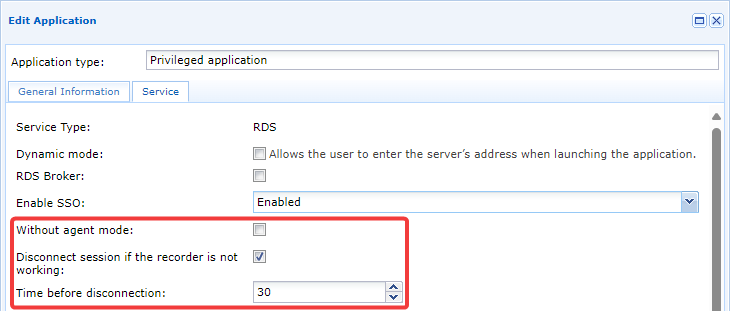
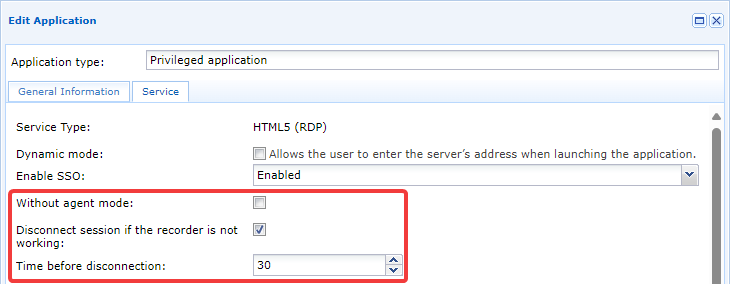
Three parameters are involved in the mechanism:
Without agent mode- This option must remain unchecked for the recording agent to work.
Disconnect session if the recorder is not working- This enables or disables a security feature when session recording fails for various reasons. If recording cannot be performed, the user's RDP or HTML5 RDP session will be terminated. We recommend enabling this setting to prevent user connections without recording (for example, in the event of a recording agent malfunction).
Time before disconnection- If the previous option is enabled, this option allows you to set the time in seconds before the disconnection is performed. The default setting is 30 seconds, but it can be reduced to increase responsiveness or increased if, for example, user sessions are known to be long.
Limit lateral movement
Limiting lateral movement is a feature that restricts network connections for the user session. This feature blocks all TCP/UDP traffic within the user session by default, but administrators can open different access flows.
Restrictions are configured in the access policy and can therefore vary depending on the user and have different settings for a single user (by multiplying the access policies assigned to them). A user with multiple access policies for the same application will see network restrictions based on the most permissive access.
Once an RDP or HTML5 RDP application with agent is authorized in an access policy, the Network connections tab becomes available. From there, it is possible to enable filtering and specify authorized networks for the user: 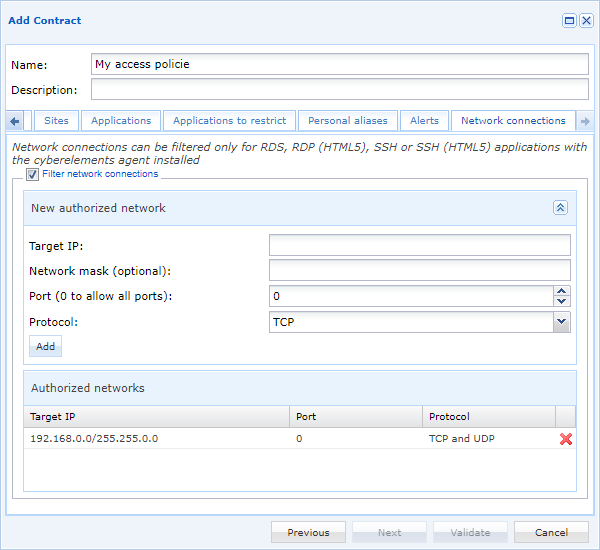
Information
Any changes to these settings will only be applied to users when they next use the relevant RDP or HTML5 RDP application.
Configure direct access recordings with agent
Declare servers prepared for direct access with agent
To declare a server that must operate in direct access with agent mode, you must first open the Machines management module:
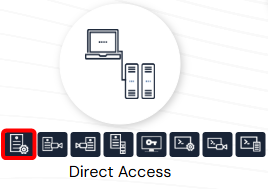
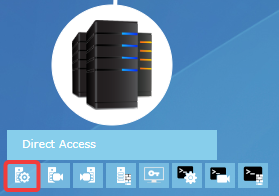
Then click on the button to add a new server. A new window will appear to configure the new server: 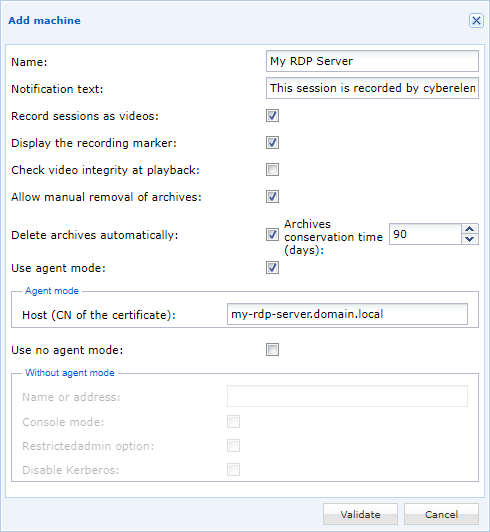
Name- Machine name as displayed in the cyberelements.io console or cyberelements Cleanroom.
Notification text- Notification message that users will receive when connecting to the server.
Record sessions as videos- Enables or disables video recording of the session. If disabled, only session events will be captured and recorded.
Check video integriyt at playback- When creating the video archive, a hash (SHA-256) of the video file is calculated and stored. When administrators view the archive, they will check that the hash has not been modified. If it has been modified, an alert message will be sent to the administrator, as there will likely be changes to the video recording (e.g., replacement or cut sequences).
Allow manual removal of archives- Allow or deny administrators the ability to delete video archives.
Information
The archives generated retain the settings that were in effect at the time of recording. Changing this setting will only affect new archives. Delete archives automatically- Setting up automatic deletion of archives after exceeding a specific number of days.
Information
The archives generated retain the settings that were in effect at the time of recording. Changing this setting will only affect new archives. Use agent mode- Option that must be enabled for the server to have the direct access mechanism with active agent.
Host (CN of the certificate)- Indication of the CN of the certificate used by the recording agent to authenticate itself with the Edge Gateway. This corresponds to the machine certificate settings.
Use no agent- If a parameter is not useful for the desired operating mode, it can be unchecked.
Configuring direct access rights with an agent
Configuring direct access rights with an agent is similar to configuring access policies for applications. New rights are declared and existing rights are modified via Configurations d'enregistrement direct:
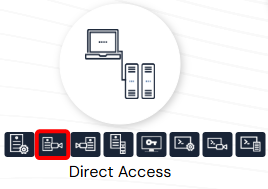
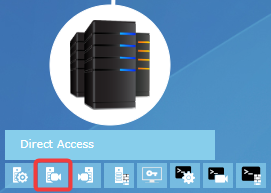
You can add a new configuration by clicking on the button .
The various settings tabs are similar to those for application access policies, except for the groups tab, which allows you to add a group manually: 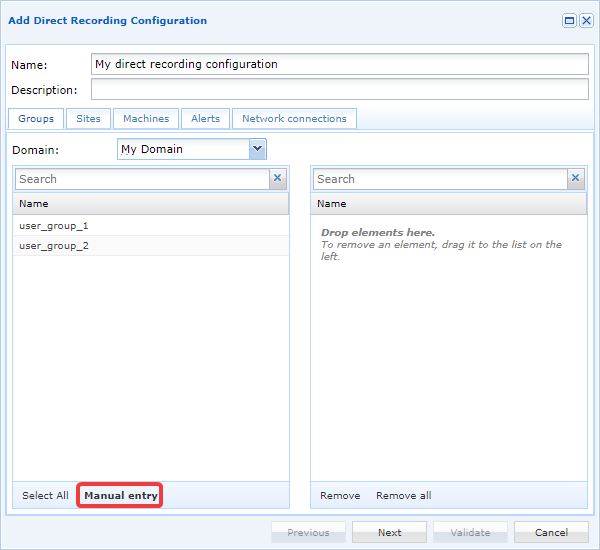
After clicking on the manual add button, a new window will appear to retrieve the name of the group and its domain: 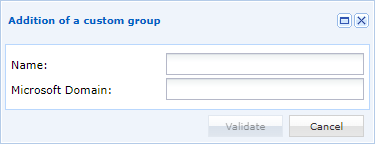
Tip
This feature is particularly useful if you want to add a local group or a group in a different OU than the one set in the LDAP domain configurations.
The other tabs are:
Sites: locate the configuration on one or more sites, and by extension, allow the recording agent to connect to one or more Edge Gateways attached to the authorized sites.Machines: add RDP servers declared in the previous chapter.Alerts: link alerts to the configuration.Network connections: limit users' lateral movements during their sessions with functionality identical to the lateral movement limitations of RDP and HTML5 RDP applications.
Recording agent logs
Enabling recording agent logs
Warning!
Enabling logs requires restarting the recording agent service, which will stop any session recordings currently in progress on the server.
Depending on the LogOffOnFailure key settings, the user will either be logged out or remain logged in.
To enable logging for the recording agent, you must perform the following steps:
-
Create a directory named
Login the agent installation directory (by default, this isC:\Program Files (x86)\Systancia\Safefor cyberelements Cleanroom andC:\Program Files (x86)\Systancia\cyberelementsfor cyberelements.io). -
Restart the
CleanroomAgentservice, for example with the following PowerShell administrator command:1Restart-Service -Name 'CleanroomAgent'
Each time the recording agent service is started, a new log file will be generated in the Log directory created in step 1.
Contents of the recording agent logs
The logs generated by the recording agent will look like this:
1 2 3 4 5 6 7 8 9 10 11 12 13 14 15 16 17 18 19 20 21 22 23 24 25 26 27 28 29 30 31 32 33 34 35 36 37 38 39 40 41 42 43 44 45 46 47 48 49 50 51 52 53 54 55 56 57 58 59 60 61 62 | |
Initializing the recording agent (lines 1-21)
When the recording agent is initialized (lines 1-18), various information about the system is logged.
1 2 3 4 5 6 7 8 9 10 11 12 13 14 15 16 17 18 | |
Line 19 specifies the number of Edge Gateways found in the gateways.xml file for direct mode operation.
19 | |
Line 20 indicates a problem loading keys in a non-existent directory. This is an old function that does not affect the overall operation of the agent. This error log can therefore be ignored.
20 | |
Line 21 specifies the action of copying the CareInit.exe executable to System32 in order to cover cases where an RDP application with agent is launched from a macOS or Ubuntu machine.
In this condition, the connection to the server requests to run CareInit.exe as a startup program.
21 | |
Connection of an HTML5 RDP or RDP application with agent (lines 22-39)
When a new RDP session is detected, the following logs are written to indicate the detection of a new RDP session and record the username that logged in:
22 23 24 25 | |
In the logs above, it is the cyberelements_user user who connected via RDP.
When launching an HTML5 RDP or RDP application with an agent, a specific virtual RDP channel is created in order to send the Edge Gateway connection address and the unique password for connecting to the Edge Gateway recording service to the recording agent.
This indicates two things:
- The recording agent has detected that this is an RDP connection initiated by cyberelements Cleanroom or cyberelements.io, so it should not treat the session as direct access.
- The recording agent was able to retrieve the address of the Edge Gateway to which it must send the video recordings and events.
This information corresponded to lines 27-29, where in the example the recording agent retrieved the connection address for the Edge Gateway (my-edge-gateway.domain.local) and a one-time password (K5efPBwVM2cIU0LaYQucZp0FV19nRIE5f5VYoBZz6EqlZOxNGM):
29 30 31 | |
Next come the logs concerning the application of network filtering rules, which are detailed in another information section further down the page.
A log specifies when the recording agent initiates the connection with the Edge Gateway and which unique password it uses to authenticate itself.
35 | |
Finally, when the user initiates a disconnection, it is captured by the recording agent in order to end the recording and remove any network filtering rules. This corresponds to lines 36-39 of the example log file:
36 37 38 39 | |
Direct RDP access connection (lines 40-61)
When a new RDP session is detected, the following logs are written to indicate the detection of a new RDP session and record the username that logged in:
40 41 42 43 | |
In the logs above, it is the cyberelements_user user who connected via RDP.
During a live RDP connection, the specific RDP virtual channel for running RDP or HTML5 RDP applications with an agent is not used. The recording agent therefore concludes that the open session is a direct access session.
44 | |
Due to the detection of direct access, the recording agent logs the different user groups of the user who has just connected:
46 | |
Tip
With this information, you can determine the reasons why direct access recordings are not triggered: if the direct access contract does not authorize one of the user's groups, or if the domain name specified must be the short name (netBIOS name) or the full name.
The recording agent specifies which Edge Gateways it will be able to connect to in order to upload the user's session recording.
As a reminder, these are the Edge Gateways that are part of the gateways.xml file configured during the configuration of the recording agent.
47 | |
Next is the client certificate that the recording agent uses to authenticate with the recording service.
By default, the recording agent will look for a certificate containing the name of the RDP server in its CN, unless the MachineName key has been defined.
The recording agent then specifies the selected certificate and the information about the certification authority that generated it.
48 49 50 51 | |
In the example above, the recording agent searched for a certificate containing my-rds-server and found one with the CN my-rds-server.domain.local issued for the certification authority SUB-CA.
Next come the logs concerning the application of network filtering rules, which are detailed in another information section further down the page.
A log specifies when the recording agent initiates the connection with the Edge Gateway and which unique password it uses to authenticate itself.
57 | |
Finally, when the user initiates a disconnection, it is captured by the recording agent in order to end the recording and remove any network filtering rules. This corresponds to lines 58-61 of the example log file:
58 59 60 61 | |
Applying network filtering rules (lines 31 and 53-56)
For each session detected by the logging agent, the latter will determine whether it is necessary to apply network filtering rules to the user's session.
If no network filtering rules need to be applied, the recording agent will indicate Filter not enabled.
31 | |
If network filtering rules need to be applied, the message Net filter enabled will appear.
Following this filter activation line, each of the applied filters is indicated, one per line:
53 54 55 56 | |
As a reminder, when network filtering is activated, the default behavior is to block all TCP/UDP traffic. Therefore, the filters indicated are the only TCP/UDP traffic authorized for programs running in the user's context.
In the example above, connections to TCP 10.10.1.42:443 and UDP 10.10.20.1:53 are allowed. In addition to these two flows authorized by the administrator, the connection flow to the recording service is also open to allow the session recording to be sent back by the program responsible for it.
Tip
If no flows are authorized for the user, only the lines indicating that filtering is active and that the recording process can contact the Edge Gateway recording service will be displayed.
Failed to connect to recording service
Several issues can cause the recording agent to be unable to connect to the recording service on an Edge Gateway.
The first is a network flow block. In this case, when the recording service attempts to connect to the recording service, it writes logs similar to these:
1 2 3 4 | |
In this example, line 1 indicates that the flow could not be initiated, while line 3 specifies the Edge Gateway concerned and the connection failure (note also the number 242 at the end of line 3 for this type of problem).
The second problem that may be encountered is the inability of the recording agent, and by extension the RDP server, to resolve the name of the Edge Gateway:
1 2 3 | |
In this example, line 1 confirms the DNS resolution problem with the name of the Edge Gateway.
The second line specifies the connection failure and the name of the Edge Gateway. Note that the line ends with the number 232 when there is a DNS resolution failure.
The third problem that may occur is a connection to a service that is not a recording service, for example, a web server listening on port 8443.
In this case, the following logs are obtained:
1 2 3 | |
Line 1 indicates a fault with the exchanged data, line 2 confirms the connection problem and specifies error 140 at the end of the line.
No direct access contract allows direct session recording to be triggered.
During direct access, not all users are necessarily required to be logged in. If this is the case, we find the following logs:
1 2 3 4 5 6 7 8 9 10 11 12 13 14 | |
The logs obtained begin like all direct sessions captured by the recording agent. However, once the connection to the Edge Gateway recording service is established, the latter returns information to the recording agent indicating that the user who connected is not subject to recording.
The recording agent therefore indicates that there is no need to record the user's session (line 14 of the example above).
Line 7 lists all the groups retrieved by the recording agent for the user who connected.
This information allows you to determine the reasons why direct access recordings are not triggered: if the direct access contract does not authorize one of the user's groups, or if the domain name specified must be the short name (netBIOS name) or the full name.