Create/modify/delete a job
A job consists of one or more sequences.
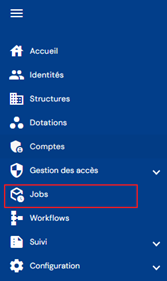
To access job management, go to the “Jobs” menu:
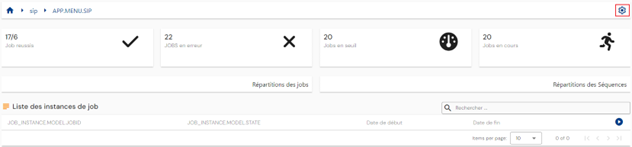
You will be taken to the job and sequence tracking page.
Click on the icon “ ” located at the top right of the screen.
Then click on the “Jobs” tab.
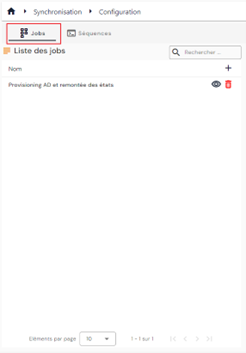
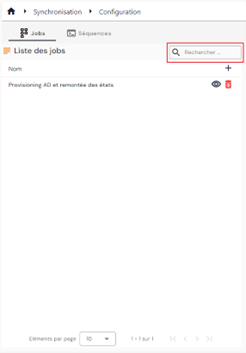
The list of existing jobs is displayed on the left side of the screen.
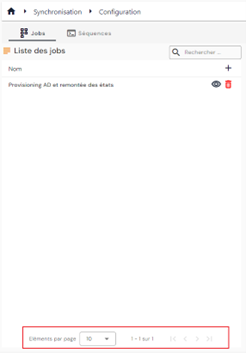
Pagination is set up to display only 10 jobs.
A search field is available at the top right of the table. The search covers job codes and names.
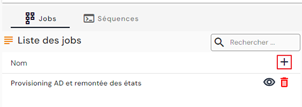
To create a new job, click on the “ ” button.
Enter the general parameters for a job:
- Code: code of the job. Mandatory.
- Name: name of the job. Mandatory.
- Description: optional.
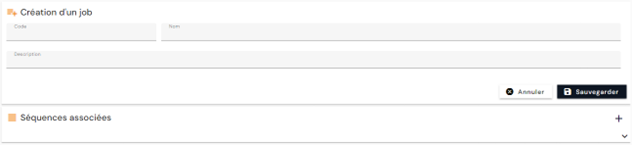
Click on the “Save” button to save the job.
To view or modify a job, click on the icon “ ” located on the right in the corresponding table row.
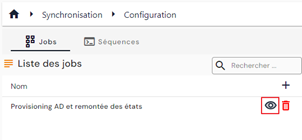
It is possible to switch to edit mode directly from the job viewing page.
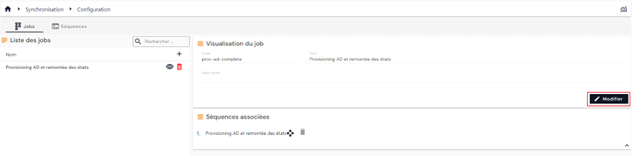
In edit mode, all fields can be modified except for the code.
To add or delete sequences in a job, open the job in edit mode.
You can add as many sequences as you want and change the order in which they are executed.
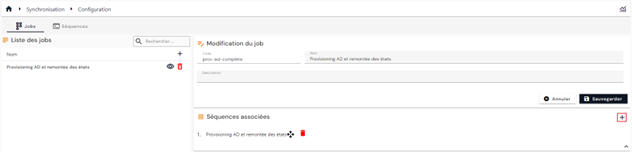
- To add a sequence, click on the “” button. Select the desired sequences.
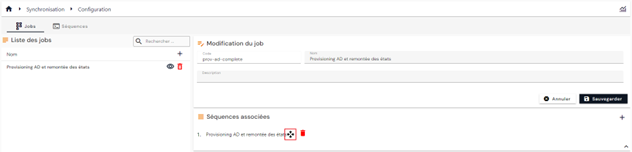
- To move a sequence in the schedule, click on the “
 ” button.
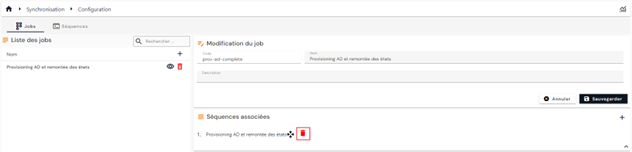
- To delete a sequence, click on the “
 ” button.
Actions on buttons in edit or create mode:
- Cancel: cancels the current entry and returns to the list of person types page.
- Save: Validates the form and switches the page to view mode.
To delete a job, click on the icon “” located to the right of the corresponding table row.
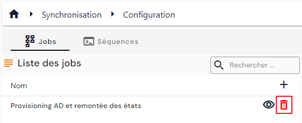
A confirmation message will appear before the job is deleted.