Technical prerequisites
Introduction
This section describes the technical prerequisites to be met before installing Systancia Identity 7.0.
For server sizing, it is necessary to contact an integrator to adjust the prerequisites according to the context (number of identities, use cases to be deployed, etc.).
The customer is responsible for setting up the prerequisites.
Operating system and prerequisites
The minimum prerequisites are provided for information purposes only. They may change depending on the number of identities managed or the solution configurations implemented. We recommend that you contact a Systancia consultant or an expert integrator to help you correctly size the server parameters according to your context.
To monitor SQL server performance, you can visit this page.
Server prerequisites - Configuration 1 (2 servers)
This architecture is recommended
-
Server 1 hosting the database, the Systancia Identity web application, the audit server and the Identity API:
- OS: Microsoft Windows Server 2019 minimum
- SQL Server 2019 / 2022 (Standard and Entreprise Server are supported)
- Minimum prerequisites: 4 VCPU / RAM 32 GB / 100 GB
- Framework .NET 4.8
- Native SQL server client driver 11.0 minimum
- See the Windows Components section for complete prerequisites.
The customer is responsible for managing the database instance.
-
Server 2 hosting Systancia Identity Provisioning
- OS: Microsoft Windows Server 2019 minimum
- Minimum prerequisites: 4 VCPU / RAM 16 GB / 100 GB
- See the Windows Components section for complete prerequisites.
Server prerequisites - Configuration 2 (1 server)
This architecture hosts all components of the solution and is suitable for environments with low volume and simple configuration (Systancia Identity web application, Identity API (REST compatible with SCIM protocol), audit server, database, and SIP (provisioning engine)).
- OS: Microsoft Windows Server 2019 minimum
- SQL Server 2019 / 2022 (Standard and Entreprise Server are supported)
- Framework .NET 4.8
- Minimum prerequisites: 6 VCPU / RAM 32 GB / 100 GB
- Native SQL server client driver 11.0 minimum
- See the Windows Components section for complete prerequisites.
Server prerequisites - Configuration 3 (3 servers)
-
Server 1 hosting the Data Base:
- OS: Microsoft Windows Server 2016 minimum
- SQL Server 2019 / 2022 (Standard and Entreprise Server are supported)
- Framework .NET 4.8
- Minimum prerequisites: 4 VCPU / RAM 16 GB / 50 GB
The management of the database server is the responsibility of the customer
-
Server 2 hosting the Systancia Identity web application, the audit server, and the Identity API
- OS: Microsoft Windows Server 2019 minimum
- Framework .NET 4.8
- Minimum prerequisites: 4 VCPU / RAM 16 GB / 50 GB
- Native SQL server client driver 11.0 minimum
- See the Windows Components section for complete prerequisites.
-
Server 3 hosting the provisioning engine
- OS: Microsoft Windows Server 2019 minimum
- Minimum prerequisites: 4 VCPU / RAM 16 GB / 100 GB
- See the Windows Components section for complete prerequisites.
Windows components
Prerequisites for older consoles to be installed on the SID server:
- Framework 4.8 if not installed by default on the server
- Windows prerequisite script to be run depending on the server version
- Windows prerequisites [corresponding version].bat
Prerequisites to be installed on SID and SIP servers:
- Install-DotNetCore8.ps1
- Install-IIS-Features.ps1
- Install-URLRewrite.ps1
For the SIP server:
- PowerShell WebAdministration and PsIni modules for SIP installation
Valid domain certificate
To install Cyberelements Identity, you must have a valid domain certificate on the servers where the following are located:
- Web sites
- Identity API
- SIP API (with SIP)
Windows services accounts
For the solution to work properly, you need to have three Windows service accounts:
- Account 1: to run the Identity API, the website (generation 7), and Federation
- Account 2: to run the SIP API
- Account 3: to run the website (generation 6)
Account 1 must have sysadmin rights on the database instance for the installation phase. It can be reset to dbowner of the Hpliance database after installation.
These accounts must be standard domain accounts:
- No password expiration.
- No password change on first authentication to the domain.
- Must have the right to start tasks (batch job).
Case of AD repository provisioning with siloing:
It is necessary to have third-party service accounts with the permissions described above.
Windows administrator accounts
During the integration phase, the integrator needs an administrator account to carry out the various operations.
This account must be a standard domain account:
- Must have the right to start as a service.
- Must have the right to start tasks (batch job).
- Must have the DBOwner role on the Hpliance database (performed during installation of Systancia Identity 6.1 SP2 and higher).
The administrator account must have the rights to:
- Open a session as a service.
- Open a session as a task.
This account can be disabled at the end of the integration phase.
Roles and features control
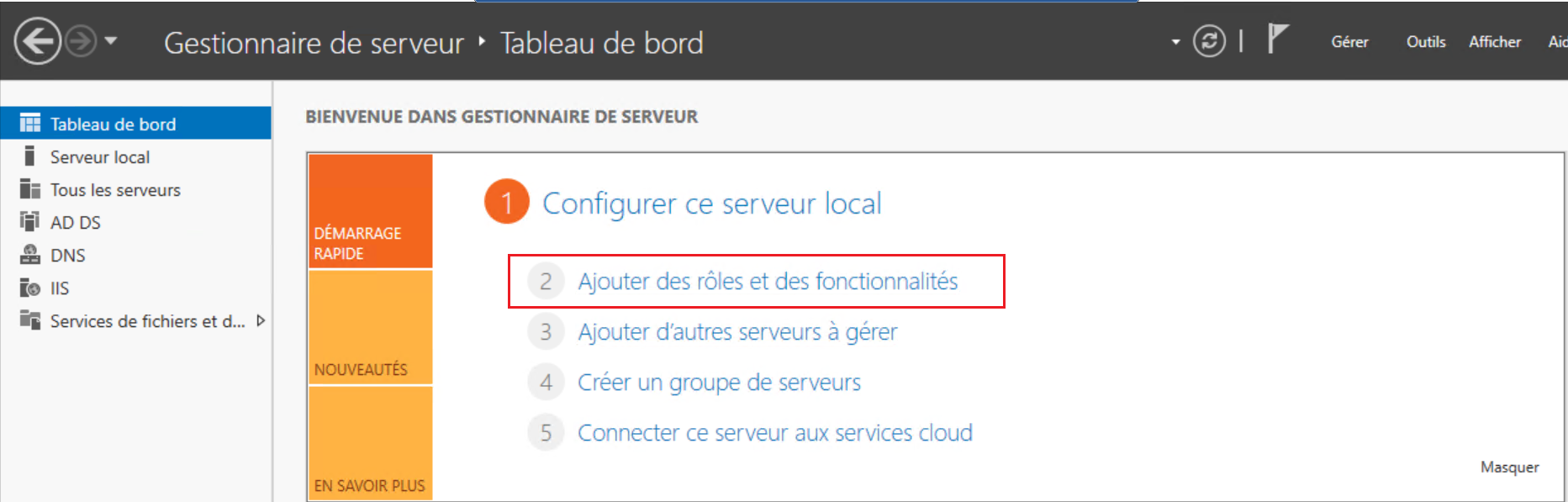
On the server where the Identity solution is located, it is necessary to install the IIS role to host the Identity administration interface.
From the server manager, go to the “Add roles and features” menu.
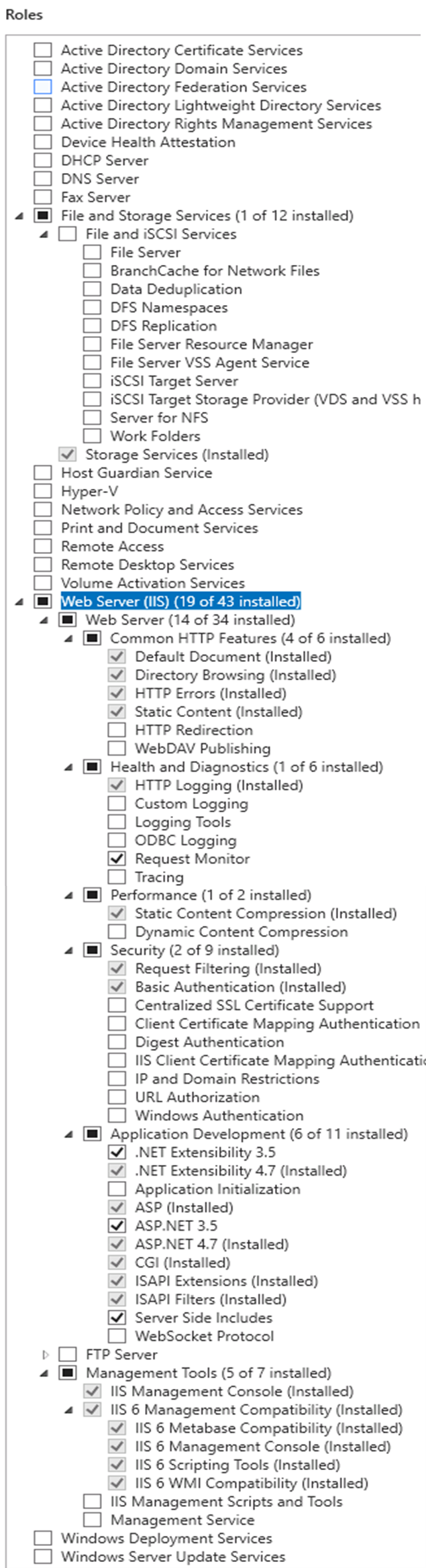
The role "Web Server (IIS)" must be checked with at least the following options:
- Integrity and diagnostics:
- HTTP logs
- Request watcher
- Security:
- Windows authentication
- Development of applications:
- ASP.NET
- Extensibility.NET
- ASP
- CGI
- ISAPI Extensions
- ISAPI Filters
- Files Included on the Server Side
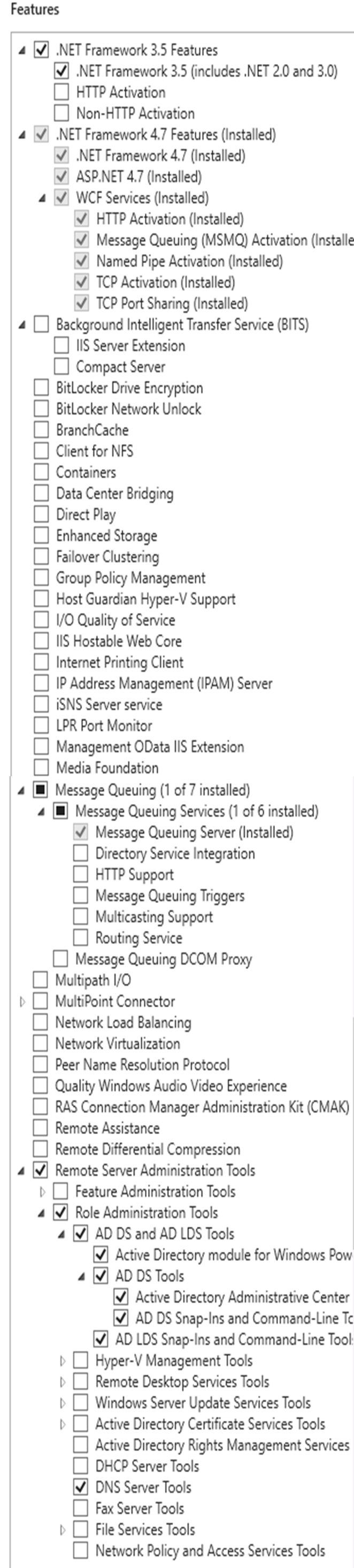
On the next screen, the following features must be checked with at least the following options:
- .NET Framework 3.5 Features
- .NET Framework 3.5
- .NET Framework 4.6 (for Windows Server 2016), 4.7 (for Windows Server 2019) features
- .NET Framework 4.6 (or 4.7)
- ASP.NET 4.6 (or 4.7)
- WCF Services
- TCP Port Share
- Windows Defender Features
- Windows Defender
- Windows Defender graphical user interface
- Remote Server Administration Tools
- Role Administration Tools
- AD DS and AD LDS tools
- Plug-in software components and command line tools
- Active Directory Module
- AD DS Tools
- Active Directory Administration Center
- Plug-in software component and command line tools
- AD DS and AD LDS tools
- Role Administration Tools
- WoW64 Support
- Windows Power Shell/
- Windows PowerShell 5.1
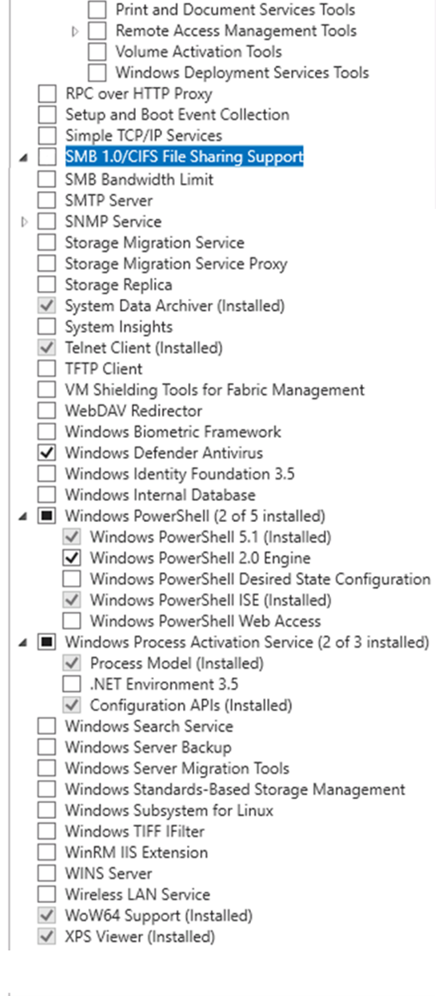
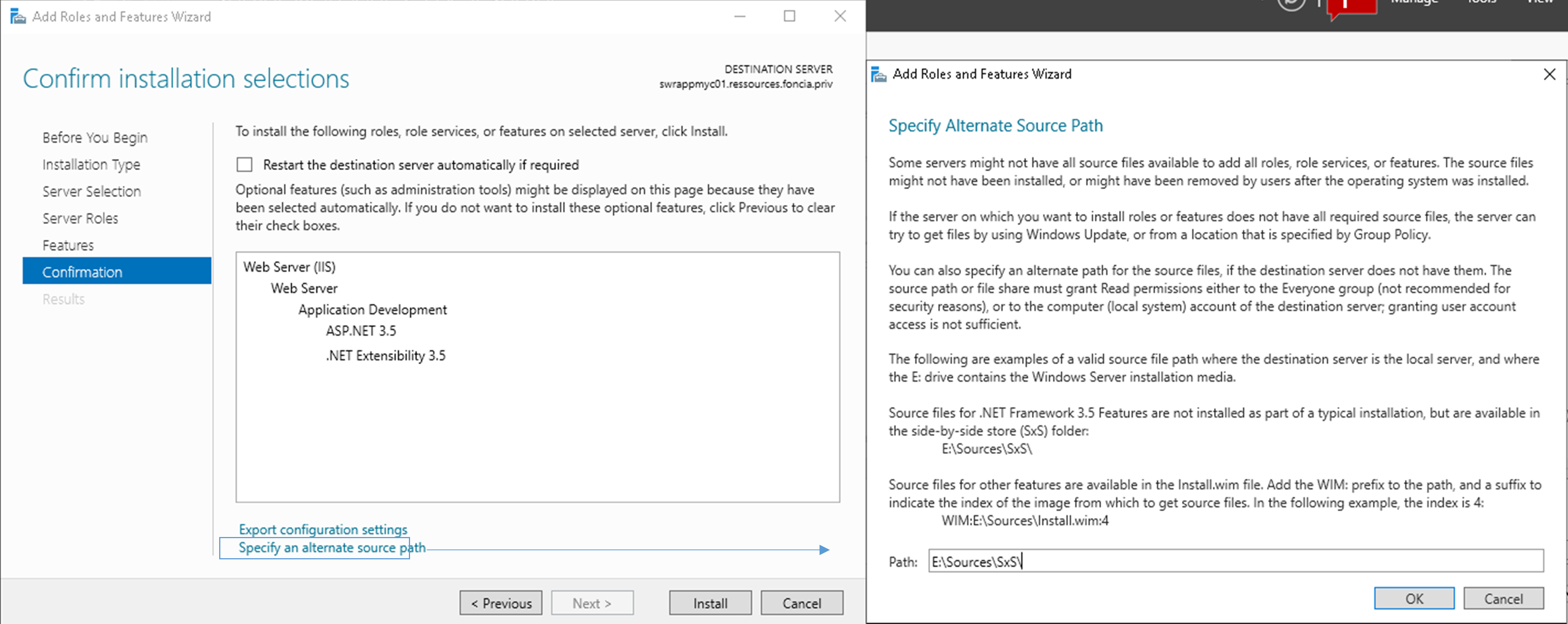
Adding the Net Framework 3.5 role and features
If you need to add the Net Framework 3.5 feature, you must:
- Reassemble the ISO used to install the server.
- Give the drive letter of the ISO completed by [:\Sources\Sxs] as illustrated below.
Path example
E:\Sources\Sxs\
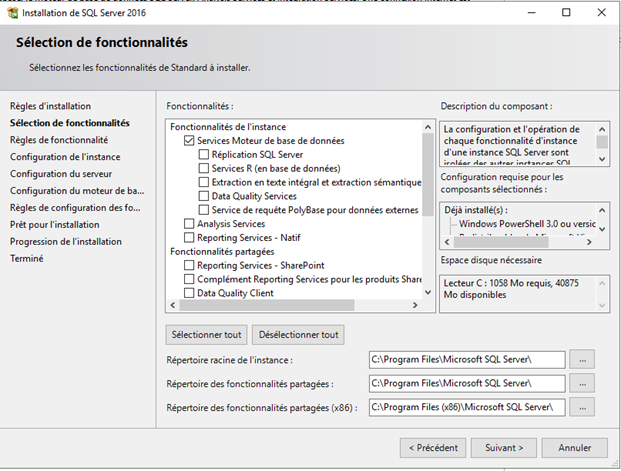
Installing an SQL Server instance
Start the SQL Server installation.
Check the following features:
- Services Database engine
Then, leave the default installation directory “C:\Program Files\Microsoft SQL Server”.
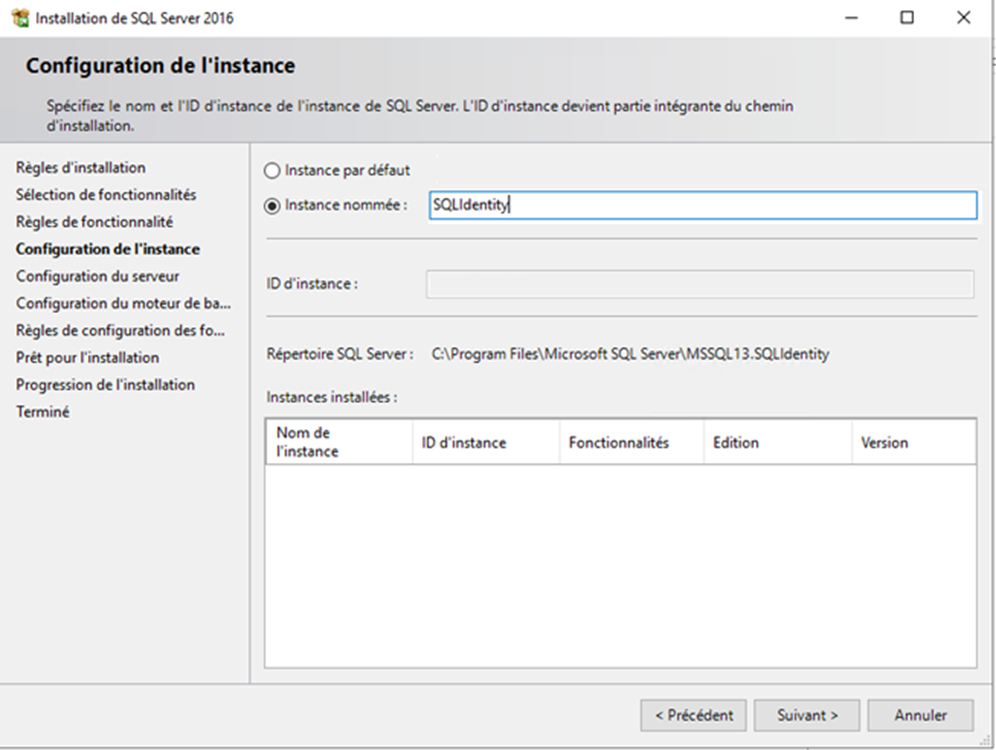
Create a named instance (example: “SQLIdentity”)
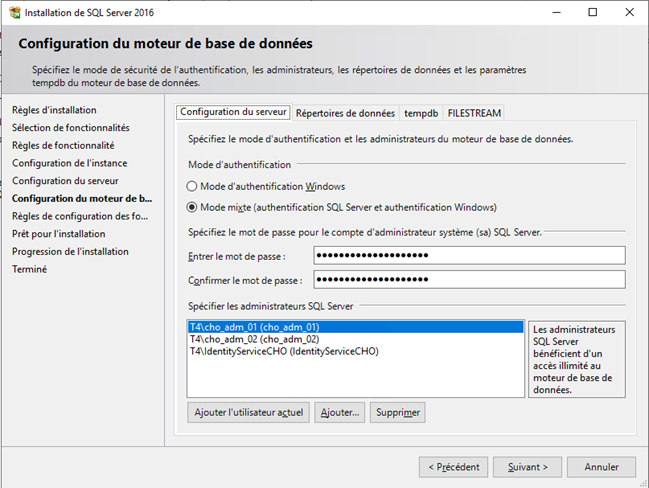
In the Database Engine Configuration, choose “Mixed Mode (SQL Server authentication and Windows authentication)” and enter the domain administrator account password.
Add the accounts that will be database administrators.
The service account must be added to the list of database administrators.
To install the Identity solution and ensure that the database is created or updated, the service account must have the ‘sysadmin’ role. This role can be removed after the solution has been installed or updated.
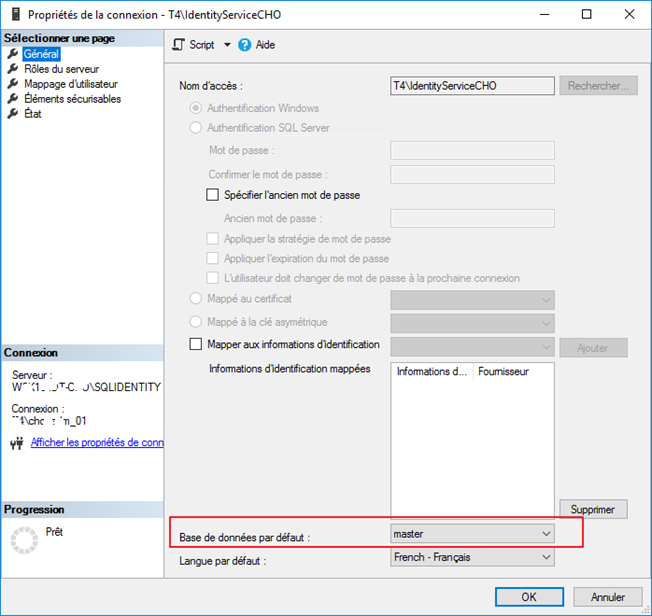
Check the service account properties in the connections to ensure that the default database is set to ‘master’.
Other prerequisites
- An Internet connection is recommended to facilitate installation and general configuration operations.
- For the configuration of the Identity solution, it is essential to install the SQL Server Management Studio application.
- To allow certain database processing operations to be carried out, it is necessary to be able to use the SQLCMD command in batch files. It is therefore essential to install the SQLCMD utility. It is available at the following address.
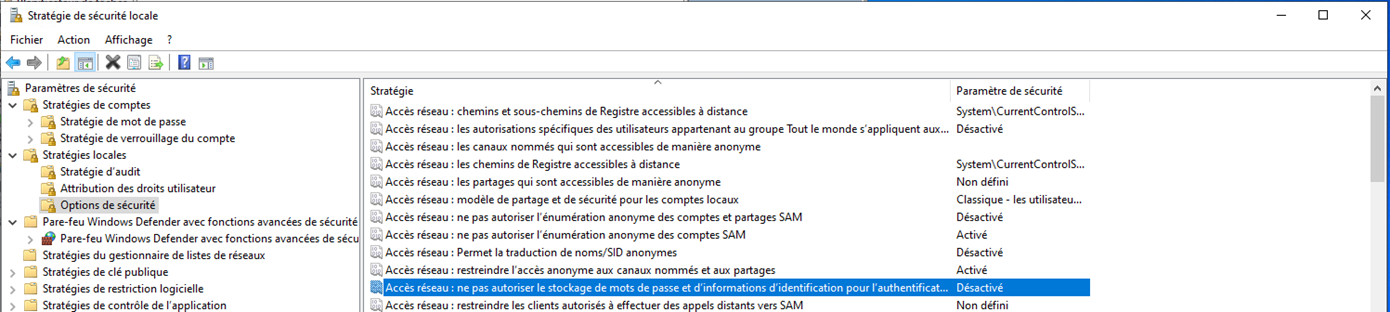
- In the network settings, the option Network access: Do not allow passwords and credentials for network authentication must be disabled: