Skip to content

Installation of the Edge Gateway Server

Note

As a reminder, switching to root on Debian machines must be done with the following command:

1
su -

Downloading the mirror and necessary tools

The cyberelements Cleanroom 4.6 mirror and the Systancia repository signature key can be downloaded from this link (requires the creation of a client account): Systancia Marketplace

In addition to the mirror and key, third-party tools will be required for the upgrade process:

  • An SSH client (on Windows, you can use PuTTY)
  • An SCP client (on Windows, the WinSCP or FileZilla tools can be used)

Use the SSH client to connect remotely to your server.

Use the SCP client to transfer files to your remote machine.

Preparing for installation

Configuration of the network

It is highly recommended to define a static network address for the Edge Gateway server. To do this, you first need to retrieve the name of your machine's network interface and its MAC address. Run the following command as root:

1
ip -br link | grep -ve "^lo"

This command displays the name of the network interface, its status, its MAC address, and the interface settings.

??? example “Example” After the command is executed, the following output is displayed:

1
2
3
4
5
```
ens192           UP             00:50:56:a1:56:9f <BROADCAST,MULTICAST,UP,LOWER_UP>
```

The name of the network interface is `ens192` and its MAC address is `00:50:56:a1:56:9f`.

Once the network interface name and MAC address have been obtained, it is now possible to edit the machine's network configuration.
Edit the /etc/network/interfaces file to modify it using the following template:

 1
 2
 3
 4
 5
 6
 7
 8
 9
10
11
12
13
14
15
16
17
18
19
20
21
22
# This file describes the network interfaces available on your system
# and how to activate them. For more information, see interfaces(5).

source /etc/network/interfaces.d/*

# The loopback network interface
auto lo
iface lo inet loopback

# The primary network interface
auto br0
iface br0 inet static
    bridge_ports INTERFACE_NAME
    bridge_stp off
    bridge_fd 0
    bridge_maxwait 2
    bridge_hw MAC_ADDRESS
    address IP_GW
    netmask NETMASK
    gateway NETWORK_GATEWAY
    dns-nameservers IP_DNS_1 IP_DNS_2
    dns-search DNS_SUFFIX

Where:

  • INTERFACE_NAME must be replaced by the name of the network interface previously retrieved.
  • MAC_ADDRESS must be replaced with the MAC address previously retrieved.
  • IP_GW must be replaced with the server's IP address.
  • NETMASK must be replaced by the network mask associated with the IP address.
  • NETWORK_GATEWAY must be replaced by the default network gateway.
  • IP_DNS must be replaced by the IP address of the DNS server. If several servers need to be configured (3 maximum), separate them with a space.
  • DNS_SUFFIX must be replaced by the DNS suffix to be used. If no suffix needs to be entered, delete the line.

??? example “Example”

 1
 2
 3
 4
 5
 6
 7
 8
 9
10
11
12
13
14
15
16
17
18
19
20
21
22
# This file describes the network interfaces available on your system
# and how to activate them. For more information, see interfaces(5).

source /etc/network/interfaces.d/*

# The loopback network interface
auto lo
iface lo inet loopback

# The primary network interface
auto br0
iface br0 inet static
    bridge_ports ens192
    bridge_stp off
    bridge_fd 0
    bridge_maxwait 2
    bridge_hw 00:50:56:a1:56:9f
    address 172.16.10.10
    netmask 255.255.255.0
    gateway 172.16.10.254
    dns-nameservers 172.16.11.2 172.16.11.3
    dns-search domain.local
Before applying the configuration, there are three more steps to complete.

The first is to install packages resolvconf and bridge-utils so that the DNS configuration specified in the previous file can be applied and the br0 interface can be used:

1
apt install -y resolvconf bridge-utils

The second is to check the configuration of the /etc/hosts file with regard to the machine's primary IP address (IP_GW).
To do this, edit the /etc/hosts file and check that the second line is in the following format:

2
IP_GW   FQDN    MACHINE_NAME

??? example “Example” If the machine is named EDGE-GATEWAY without belonging to a domain and its IP address IP_GW is 172.16.10.10, then the file would be completed as follows:

1
2
3
4
5
6
7
8
9
``` linenums="2"
172.16.10.10  EDGE-GATEWAY
```

If the machine belongs to the `DOMAIN.LOCAL` domain, then the file would be completed as follows:

``` linenums="2"
172.16.10.10  EDGE-GATEWAY.DOMAIN.LOCAL   EDGE-GATEWAY
```

Attention!

An incorrect configuration of the file may cause an error when installing the collectd package.

All that remains is to restart the server:

1
reboot

Configuring the APT package manager

Upload the files downloaded from the Systancia Marketplace to the /tmp/ directory on the server using an SCP client:

  • systancia.gpg
  • cleanroom-4.6.1-build33.1096.D12-full.tgz

Log in to the server as root, then run the following commands to unzip the Systancia repository, configure its use in APT, and authenticate it.

1
2
3
4
5
mv /tmp/systancia.gpg /etc/apt/trusted.gpg.d/
mkdir -p /opt/systancia/repository/
tar xvzf /tmp/cleanroom-4.6*.tgz -C /opt/systancia/repository/
echo "deb file:///opt/systancia/repository/ bookworm ipdiva" > /etc/apt/sources.list.d/systancia.list
apt update

We strongly recommend disabling the installation of unnecessary packages when running apt commands. To do so, run the following command:

1
echo -e 'APT::Install-Recommends false;\nAPT::Install-Suggests false;' > /etc/apt/apt.conf.d/99norecommends

Installation of the cyberelements Cleanroom Edge Gateway server

Installation of basic components

Start installing the components using the following command as root:

1
apt install -y ipdiva-base

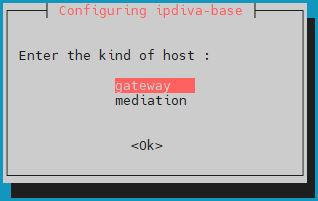
After downloading all dependencies, a window will open asking you to select the server type. Select gateway:

What should I do if there is an error?

If there is an error in the information you entered, continue installing the ipdiva-base package and then use the following command to reconfigure the server:

1
dpkg-reconfigure ipdiva-base

Instalation of Edge Gateway components

Next, start the installation of the Edge Gateway-specific components using the following command:

1
apt install -y ipdiva-safe-gateway ipdiva-gateway-setup

The Edge Gateway server components are now installed. All that remains is to restart the machine so that the newly installed components can initialize:

1
reboot

Installation of HTML5 Gateway components

Use the following command to start installing the HTML5 Gateway components on the Edge Gateway server:

1
apt install -y ipdiva-html5gateway ipdiva-html5-webapp ipdiva-guacamole-server1

Use the following command lines to enable and configure the file transfer and virtual printer features:

1
2
3
apt install -y ghostscript
echo -e "printer=cyberelements HTML5 Printer\nprinterDriver=MS Publisher Imagesetter" > /etc/guacamole/printer-config
mkdir /home/systanciahtml5share

Settings specific to cyberelements Cleanroom operation

Once the network settings have been applied, you still need to connect the Edge Gateway and HTML5 Gateway instances to the Mediation Controllers.
To do this, the first Edge Gateway and HTML5 Gateway instances will connect to the MASTER Mediation Controller, while the second instances will connect to the SLAVE Mediation Controller.

Attention!

If the Edge Gateway installation is not located within the LAN and therefore the addresses RIP_MED_SSL_MASTER and RIP_MED_SSL_SLAVE are not accessible (even with NAT).
In that case, you will only need to configure the first instance of Edge Gateway and HTML5 Gateway, which will be set up to connect to VIP_MED_SSL.

In this context, the Standalone virtual appliance can be used. The Cluster virtual appliance is preconfigured with two instances, whereas its Standalone counterpart is preconfigured with a single instance.

Before continuing with the following instructions, make sure you have the following items:

  • Certificate for the Edge Gateway and HTML5 Gateway instances to be connected
  • Certificate for the recording service
  • An SSH client (on Windows, you can use PuTTY)
  • An SCP client (on Windows, the WinSCP or FileZilla tools can be used)

Transfer the certificates to the /tmp/ directory of the machine.

Creation of instances to connect to the SLAVE Mediation Controller

Run the following commands as root to declare a new instance of Edge Gateway and HTML5 Gateway that will be used to connect to the SLAVE Mediation Controller:

1
2
/usr/local/ipdiva/gateway/bin/gatewayCloner -slave
/usr/local/ipdiva/html5gateway/bin/gatewayCloner -slave

Connecting Edge Gateways

Copy the certificate file from the Edge Gateway to the /etc/ipdiva/gateway/ssl/ and /etc/ipdiva/gateway-slave/ssl/ directories. You can do this by running commands similar to the following as root (replace <CERT_NAME> with the name of the certificate for the Edge Gateway):

1
2
cp /tmp/<CERT_NAME> /etc/ipdiva/gateway/ssl/
mv /tmp/<CERT_NAME> /etc/ipdiva/gateway-slave/ssl/

Configure the Edge Gateway instances to allow them to connect to the Mediation Controllers.
The configurations differ depending on the Mediation Controller to be contacted. Perform both settings:

Edit the file /etc/ipdiva/gateway/gateway.xml and fill it in using the following information (several sections have been omitted and are indicated by […]):

 1
 2
 3
 4
 5
 6
 7
 8
 9
10
<gateway>
    <server>_FILL_ME_WITH_SERVER_ADDRESS_::ssl</server>
[…]
    <ssl>
        <cert>/etc/ipdiva/gateway/ssl/keyfile.pem</cert>
        <password>PASSWORD</password>
[…]
    </ssl>
[…]
</gateway>

Replace the following elements:

  • _FILL_ME_WITH_SERVER_ADDRESS_:: must be replaced with the RIP_MED_SSL_MASTER address, the : character, and the SSL router's listening port, which is normally set to 443
  • keyfile.pem: must be replaced with the name of the certificate file
  • PASSWORD: must be replaced with the certificate password

??? example “Example” Taking into account the following information:

  1
  2
  3
  4
  5
  6
  7
  8
  9
 10
 11
 12
 13
 14
 15
 16
 17
 18
 19
 20
 21
 22
 23
 24
 25
 26
 27
 28
 29
 30
 31
 32
 33
 34
 35
 36
 37
 38
 39
 40
 41
 42
 43
 44
 45
 46
 47
 48
 49
 50
 51
 52
 53
 54
 55
 56
 57
 58
 59
 60
 61
 62
 63
 64
 65
 66
 67
 68
 69
 70
 71
 72
 73
 74
 75
 76
 77
 78
 79
 80
 81
 82
 83
 84
 85
 86
 87
 88
 89
 90
 91
 92
 93
 94
 95
 96
 97
 98
 99
100
101
102
103
104
- `RIP_MED_SSL_MASTER` equals: `10.0.10.11`
- SSL Router listening port: `443`
- Certificate file name: `edge-gateway.p12`
- Certificate password: `Str0ngP@ssw0rd`

The `/etc/ipdiva/gateway/gateway.xml` file would be configured as follows:

``` xml hl_lines="2 5 6"
<gateway>
    <server>10.0.10.11:443:ssl</server>
[…]
    <ssl>
        <cert>/etc/ipdiva/gateway/ssl/edge-gateway.p12</cert>
        <password>Str0ngP@ssw0rd</password>
[…]
    </ssl>
[…]
</gateway>
```

??? example "Complete file"
    ``` xml hl_lines="2 26 27"
    <gateway>
            <server>10.0.10.11:443:ssl</server>
            <pipe>
                    <ping-timeout>60000</ping-timeout>
                    <rout-max-lock>20000</rout-max-lock>
            </pipe>
            <timeout>
                    <reconnect>15000</reconnect>
            </timeout>
            <ticket><hmac></hmac></ticket>
            <proxy>
                    <type>no</type>
                    <address></address>
                    <login></login>
                    <password></password>
                    <domain></domain>
            </proxy>
            <periodic-licence-check>false</periodic-licence-check>
            <session>
               <sslconf name="default">
                  <ca-dir>/etc/ssl/certs</ca-dir>
                  <verify-cert>true</verify-cert>
               </sslconf>
            </session>
            <ssl>
                    <cert>/etc/ipdiva/gateway/ssl/edge-gateway.p12</cert>
                    <password>Str0ngP@ssw0rd</password>
                    <ca-dir>/etc/ipdiva/gateway/ssl/ca</ca-dir>
                    <min-version>tls1.3</min-version>
                    <max-version></max-version>
                    <cipherlist>!ADH:!AECDH:!MD5:kEECDH+AES:kEDH+AES:AES256+RSA:3DES+RSA</cipherlist>
                    <cipherlist-tls1.3>TLS_CHACHA20_POLY1305_SHA256:TLS_AES_256_GCM_SHA384:TLS_AES_128_GCM_SHA256</cipherlist-tls1.3>
                    <verify-cert>true</verify-cert>
                    <verify-certhostnamematch>true</verify-certhostnamematch>
            </ssl>
            <webaccess>
                    <proxy></proxy>
                    <useragent>true</useragent>
                    <autoauth>true</autoauth>
                    <forceauth>false</forceauth>
                    <forcebasic>false</forcebasic>
                    <persistentbasicauth>true</persistentbasicauth>
                    <cache-date>Thu, 14 Dec 2006 09:28:00 GMT</cache-date>
                    <reverse-proxy>
                            <headers>
                                    <x-forwarded-for enabled='false'/>
                                    <x-forwarded-host enabled='false'/>
                            </headers>
                    </reverse-proxy>
                    <davenport compatibilityMode="false">127.0.0.1:8070</davenport>
            </webaccess>
            <rpc-listen>127.0.0.1:9080</rpc-listen>
            <network-id></network-id>
            <services>/etc/ipdiva/gateway/services.xml</services>
            <compression>zlib</compression>
            <vlan>
                    <prefixe></prefixe>
            </vlan>

            <openvpn>
                    <ssl>
                            <cert>/usr/local/ipdiva/share/gw-controller-openvpnng/keys/allInOne.pem</cert>
                            <ca-file>/usr/local/ipdiva/share/gw-controller-openvpnng/keys/tmp-ca.crt</ca-file>
                            <version>tls1</version>
                    </ssl>
                    <client-ov>
                            <ip-type>V4</ip-type>
                            <dev-type>tun</dev-type>
                            <link-mtu>1507</link-mtu>
                            <tun-mtu>1500</tun-mtu>
                            <proto>TCPv4_CLIENT</proto>
                            <cipher>[null-cipher]</cipher>
                            <auth>[null-digest]</auth>
                            <keysize>0</keysize>
                            <key-method>2</key-method>
                            <tls-type>tls-client</tls-type>
                    </client-ov>
            </openvpn>
        <useoldprotocol>false</useoldprotocol>
        <rate>0</rate>
    </gateway>
    ```

Finally, start the Edge Gateway instance to load the new settings and connect it to the MASTER Mediation Controller:

1
/usr/local/ipdiva/gateway/bin/start

Edit the /etc/ipdiva/gateway-slave/gateway.xml file and complete it using the following information (several sections have been omitted and are indicated by […]):

 1
 2
 3
 4
 5
 6
 7
 8
 9
10
11
12
<gateway>
    <server>@SERVER@:@SERVERPORT@:ssl</server>
[…]
    <ssl>
        <cert>/etc/ipdiva/gateway-slave/ssl/keyfile.pem</cert>
        <password>PASSWORD</password>
[…]
    </ssl>
[…]
    <rpc-listen>127.0.0.1:@RPC_PORT@</rpc-listen>
[…]
</gateway>

Replace the following elements:

  • @SERVER@: must be replaced with the address RIP_MED_SSL_SLAVE
  • @SERVERPORT@: must be replaced with the SSL router's listening port, normally set to 443
  • keyfile.pem: must be replaced with the name of the certificate file
  • PASSWORD: must be replaced with the certificate password
  • @RPC_PORT@: must be replaced with an available TCP port on the machine; port 9081 is commonly used

??? example “Example” Taking into account the following information:

  1
  2
  3
  4
  5
  6
  7
  8
  9
 10
 11
 12
 13
 14
 15
 16
 17
 18
 19
 20
 21
 22
 23
 24
 25
 26
 27
 28
 29
 30
 31
 32
 33
 34
 35
 36
 37
 38
 39
 40
 41
 42
 43
 44
 45
 46
 47
 48
 49
 50
 51
 52
 53
 54
 55
 56
 57
 58
 59
 60
 61
 62
 63
 64
 65
 66
 67
 68
 69
 70
 71
 72
 73
 74
 75
 76
 77
 78
 79
 80
 81
 82
 83
 84
 85
 86
 87
 88
 89
 90
 91
 92
 93
 94
 95
 96
 97
 98
 99
100
101
102
103
104
105
106
107
- `RIP_MED_SSL_SLAVE` is equal to: `10.0.10.13`
- SSL Router listening port: `443`
- Certificate file name: `edge-gateway.p12`
- Certificate password: `Str0ngP@ssw0rd`
- Available RPC port: `9081`

The `/etc/ipdiva/gateway-slave/gateway.xml` file would be configured as follows:

``` xml hl_lines="2 5 6 10"
<gateway>
    <server>10.0.10.13:443:ssl</server>
[…]
    <ssl>
        <cert>/etc/ipdiva/gateway-slave/ssl/edge-gateway.p12</cert>
        <password>Str0ngP@ssw0rd</password>
[…]
    </ssl>
[…]
    <rpc-listen>127.0.0.1:9081</rpc-listen>
[…]
</gateway>
```

??? example "Complete file"
    ``` xml hl_lines="2 26 27 52"
    <gateway>
            <server>10.0.10.13:443:ssl</server>
            <pipe>
                    <ping-timeout>60000</ping-timeout>
                    <rout-max-lock>20000</rout-max-lock>
            </pipe>
            <timeout>
                    <reconnect>15000</reconnect>
            </timeout>
            <ticket><hmac></hmac></ticket>
            <proxy>
                    <type>no</type>
                    <address></address>
                    <login></login>
                    <password></password>
                    <domain></domain>
            </proxy>
            <periodic-licence-check>false</periodic-licence-check>
            <session>
               <sslconf name="default">
                  <ca-dir>/etc/ssl/certs</ca-dir>
                  <verify-cert>true</verify-cert>
               </sslconf>
            </session>
            <ssl>
                    <cert>/etc/ipdiva/gateway-slave/ssl/edge-gateway.p12</cert>
                    <password>Str0ngP@ssw0rd</password>
                    <ca-dir>/etc/ipdiva/gateway-slave/ssl/ca</ca-dir>
                    <min-version>tls1.3</min-version>
                    <max-version></max-version>
                    <cipherlist>!ADH:!AECDH:!MD5:kEECDH+AES:kEDH+AES:AES256+RSA:3DES+RSA</cipherlist>
                    <cipherlist-tls1.3>TLS_CHACHA20_POLY1305_SHA256:TLS_AES_256_GCM_SHA384:TLS_AES_128_GCM_SHA256</cipherlist-tls1.3>
                    <verify-cert>true</verify-cert>
                    <verify-certhostnamematch>true</verify-certhostnamematch>
            </ssl>
            <webaccess>
                    <proxy></proxy>
                    <useragent>true</useragent>
                    <autoauth>true</autoauth>
                    <forceauth>false</forceauth>
                    <forcebasic>false</forcebasic>
                    <persistentbasicauth>true</persistentbasicauth>
                    <cache-date>Thu, 14 Dec 2006 09:28:00 GMT</cache-date>
                    <reverse-proxy>
                            <headers>
                                    <x-forwarded-for enabled='false'/>
                                    <x-forwarded-host enabled='false'/>
                            </headers>
                    </reverse-proxy>
                    <davenport compatibilityMode="false">127.0.0.1:8070</davenport>
            </webaccess>
            <rpc-listen>127.0.0.1:9081</rpc-listen>
            <network-id></network-id>
            <services>/etc/ipdiva/gateway-slave/services.xml</services>
            <compression>zlib</compression>
            <vlan>
                    <prefixe></prefixe>
            </vlan>

            <openvpn>
                    <ssl>
                            <cert>/usr/local/ipdiva/share/gw-controller-openvpnng/keys/allInOne.pem</cert>
                            <ca-file>/usr/local/ipdiva/share/gw-controller-openvpnng/keys/tmp-ca.crt</ca-file>
                            <version>tls1</version>
                    </ssl>
                    <client-ov>
                            <ip-type>V4</ip-type>
                            <dev-type>tun</dev-type>
                            <link-mtu>1507</link-mtu>
                            <tun-mtu>1500</tun-mtu>
                            <proto>TCPv4_CLIENT</proto>
                            <cipher>[null-cipher]</cipher>
                            <auth>[null-digest]</auth>
                            <keysize>0</keysize>
                            <key-method>2</key-method>
                            <tls-type>tls-client</tls-type>
                    </client-ov>
            </openvpn>
        <useoldprotocol>false</useoldprotocol>
        <rate>0</rate>
    </gateway>
    ```

Finally, start the Edge Gateway instance to load the new settings and connect it to the SLAVE Mediation Controller:

1
/usr/local/ipdiva/gateway-slave/bin/start

Configuration of the recording service

Move the certificate for the recording service to the /etc/ipdiva/careserver/ directory with a command similar to this (replace <CERT_NAME> with the name of the intended certificate):

1
mv /tmp/<CERT_NAME> /etc/ipdiva/careserver/

Next, configure the service by modifying the following file: /etc/ipdiva/careserver/careserver.xml. The configuration of the file should be something like this (the following section omits many lines in the file marked with […]):

 1
 2
 3
 4
 5
 6
 7
 8
 9
10
11
12
13
14
15
<?xml version="1.0" ?><careserver>

    <listen>0.0.0.0:8443</listen>
[…]
    <ssl>
        <cert>/etc/ipdiva/careserver/recording_service.p12</cert>
        <password>PASSWORD</password>
[…]
    </ssl>
    <xmlrpc-connect>
        <element>http://127.0.0.1:9080</element>
        <element>http://127.0.0.1:9081</element>
    </xmlrpc-connect>
[…]
</careserver>

Make the following changes:

  • Change the listening IP address of the recording service to 0.0.0.0 (listens on all available IP addresses)
  • Replace recording_service.p12 with the name of the certificate for the recording service
  • Replace PASSWORD with the password for the recording service certificate
  • Add the line <element>http://127.0.0.1:9081</element>

??? example “Example” Taking into account the following information:

 1
 2
 3
 4
 5
 6
 7
 8
 9
10
11
12
13
14
15
16
17
18
19
20
21
22
23
24
25
26
27
28
29
30
31
32
33
34
35
36
37
38
39
40
41
42
43
44
45
46
47
48
49
50
51
52
53
54
55
56
57
- Certificate file name: `fqdn.edge-gateway.local.p12`
- Certificate password: `Str0ngP@ssw0rd`

The file `/etc/ipdiva/careserver/careserver.xml` would be configured as follows:

```xml hl_lines="3 6 7 12"
<?xml version="1.0" ?><careserver>

    <listen>0.0.0.0:8443</listen>
[…]
    <ssl>
        <cert>/etc/ipdiva/careserver/fqdn.edge-gateway.local.p12</cert>
        <password>Str0ngP@ssw0rd</password>
[…]
    </ssl>
    <xmlrpc-connect>
        <element>http://127.0.0.1:9080</element>
        <element>http://127.0.0.1:9081</element>
    </xmlrpc-connect>
[…]
</careserver>
```

??? example "Complete file"
    ```xml hl_lines="3 9 10 29"
    <?xml version="1.0" ?><careserver>

        <listen>0.0.0.0:8443</listen>


        <archivesdirectory>/var/lib/ipdiva/carerecord/archives</archivesdirectory>
        <recordingdirectory>/var/lib/ipdiva/carerecord/recording</recordingdirectory>
        <ssl>
            <cert>/etc/ipdiva/careserver/fqdn.edge-gateway.local.p12</cert>
            <password>Str0ngP@ssw0rd</password>
            <ca-dir>/etc/ipdiva/gateway/ssl/ca</ca-dir>
            <min-version>tls1.2</min-version>
            <max-version/>
            <cipherlist>!ADH:!AECDH:!MD5:kEECDH+AES:kEDH+AES:AES256+RSA:3DES+RSA</cipherlist>
            <cipherlist-tls1.3>TLS_CHACHA20_POLY1305_SHA256:TLS_AES_256_GCM_SHA384:TLS_AES_128_GCM_SHA256</cipherlist-tls1.3>
            <verify-cert>true</verify-cert>
            <no-fail-if-no-peer-cert>true</no-fail-if-no-peer-cert>
        </ssl>
        <gopsize>10</gopsize>
            <webgopsize>5</webgopsize>
        <webfakeframespersec>2</webfakeframespersec>
            <webhlslistsize>20</webhlslistsize>
        <webcaptureinterval>10000</webcaptureinterval>
        <webcapturetimeout>30000</webcapturetimeout>
        <captureinterval>250</captureinterval>
        <hlslistsize>20</hlslistsize>
        <xmlrpc-connect>
            <element>http://127.0.0.1:9080</element>
            <element>http://127.0.0.1:9081</element>
        </xmlrpc-connect>
    </careserver>
    ```

Validate the new settings by restarting the recording service:

1
systemctl restart ipdivacarerecord

Connecting HTML5 Gateway instances

If the HTML5 Gateway instance needs to be configured, run the following command on the Edge Gateway server as root to enable automatic startup of the instance:

1
chmod +x /etc/ipdiva/services/50html5gateway

Copy the certificate file from the HTML5 Gateway to the /etc/ipdiva/html5gateway/ssl/ and /etc/ipdiva/html5gateway-slave/ssl/ directories. You can do this by running commands similar to the following as root (replace <CERT_NAME> with the name of the certificate for the HTML5 Gateway):

1
2
cp /tmp/<CERT_NAME> /etc/ipdiva/html5gateway/ssl/
mv /tmp/<CERT_NAME> /etc/ipdiva/html5gateway-slave/ssl/

Configure the HTML5 Gateway instances to allow them to connect to the Mediation Controllers.
The configurations differ depending on the Mediation Controller to be contacted. Perform both settings:

Edit the /etc/ipdiva/html5gateway/html5gateway.xml file and complete it using the following information (several sections have been omitted and are indicated by […]):

 1
 2
 3
 4
 5
 6
 7
 8
 9
10
<gateway>
    <server>_FILL_ME_WITH_SERVER_ADDRESS_::ssl</server>
[…]
    <ssl>
        <cert>/etc/ipdiva/html5gateway/ssl/keyfile.pem</cert>
        <password>PASSWORD</password>
[…]
    </ssl>
[…]
</gateway>

Replace the following elements:

  • _FILL_ME_WITH_SERVER_ADDRESS_:: must be replaced with the RIP_MED_SSL_MASTER address, the : character, and the SSL router's listening port, which is normally set to 443
  • keyfile.pem: must be replaced with the name of the certificate file
  • PASSWORD: must be replaced with the certificate password

??? example “Example” Taking into account the following information:

 1
 2
 3
 4
 5
 6
 7
 8
 9
10
11
12
13
14
15
16
17
18
19
20
21
22
23
24
25
26
27
28
29
30
31
32
33
34
35
36
37
38
39
40
41
42
43
44
45
46
47
48
49
50
51
52
53
54
55
56
57
58
- `RIP_MED_SSL_MASTER` equals: `10.0.10.11`
- SSL Router listening port: `443`
- Certificate file name: `html5-gateway.p12`
- Certificate password: `Str0ngP@ssw0rd`

The `/etc/ipdiva/html5gateway/html5gateway.xml` file would be configured as follows:

``` xml hl_lines="2 5 6"
<gateway>
    <server>10.0.10.11:443:ssl</server>
[…]
    <ssl>
        <cert>/etc/ipdiva/html5gateway/ssl/html5-gateway.p12</cert>
        <password>Str0ngP@ssw0rd</password>
[…]
    </ssl>
[…]
</gateway>
```

??? example "Complete file"
    ``` xml hl_lines="2 20 21"
    <gateway>
            <server>10.0.10.11:443:ssl</server>
            <pipe>
                    <ping-timeout>60000</ping-timeout>
                    <rout-max-lock>20000</rout-max-lock>
            </pipe>
            <timeout>
                    <reconnect>15000</reconnect>
            </timeout>
            <ticket><hmac></hmac></ticket>
            <proxy>
                    <type>no</type>
                    <address></address>
                    <login></login>
                    <password></password>
                    <domain></domain>
            </proxy>

            <ssl>
                    <cert>/etc/ipdiva/html5gateway/ssl/html5-gateway.p12</cert>
                    <password>Str0ngP@ssw0rd</password>
                    <ca-dir>/etc/ipdiva/html5gateway/ssl/ca</ca-dir>
                    <min-version>tls1.3</min-version>
                    <max-version></max-version>
                    <cipherlist>!ADH:!AECDH:!MD5:kEECDH+AES:kEDH+AES:AES256+RSA:3DES+RSA</cipherlist>
                    <cipherlist-tls1.3>TLS_CHACHA20_POLY1305_SHA256:TLS_AES_256_GCM_SHA384:TLS_AES_128_GCM_SHA256</cipherlist-tls1.3>
                    <verify-cert>true</verify-cert>
                    <verify-certhostnamematch>true</verify-certhostnamematch>
            </ssl>

            <rpc-listen>127.0.0.1:9088</rpc-listen>
            <network-id></network-id>
            <compression>zlib</compression>

     </gateway>
    ```

Finally, restart the HTML5 Gateway instance to load the new settings and connect it to the MASTER Mediation Controller:

1
/usr/local/ipdiva/html5gateway/bin/start

Edit the /etc/ipdiva/html5gateway-slave/html5gateway.xml file and complete it using the following information (several sections have been omitted and are indicated by […]):

 1
 2
 3
 4
 5
 6
 7
 8
 9
10
11
12
<gateway>
    <server>@SERVER@:@SERVERPORT@:ssl</server>
[…]
    <ssl>
        <cert>/etc/ipdiva/html5gateway-slave/ssl/keyfile.pem</cert>
        <password>PASSWORD</password>
[…]
    </ssl>
[…]
    <rpc-listen>127.0.0.1:@RPC_PORT@</rpc-listen>
[…]
</gateway>

Replace the following elements:

  • @SERVER@: must be replaced with the address RIP_MED_SSL_SLAVE
  • @SERVERPORT@: must be replaced with the SSL router's listening port, normally set to 443
  • keyfile.pem: must be replaced with the name of the certificate file
  • PASSWORD: must be replaced with the certificate password
  • @RPC_PORT@: must be replaced with an available TCP port on the machine; port 9089 is commonly used

??? example “Example” Taking into account the following information:

 1
 2
 3
 4
 5
 6
 7
 8
 9
10
11
12
13
14
15
16
17
18
19
20
21
22
23
24
25
26
27
28
29
30
31
32
33
34
35
36
37
38
39
40
41
42
43
44
45
46
47
48
49
50
51
52
53
54
55
56
57
58
59
60
61
- `RIP_MED_SSL_SLAVE` is equal to: `10.0.10.13`
- SSL Router listening port: `443`
- Certificate file name: `html5-gateway.p12`
- Certificate password: `Str0ngP@ssw0rd`
- Available RPC port: `9089`

The `/etc/ipdiva/html5gateway-slave/html5gateway.xml` file would be configured as follows:

``` xml hl_lines="2 5 6 10"
<gateway>
    <server>10.0.10.13:443:ssl</server>
[…]
    <ssl>
        <cert>/etc/ipdiva/html5gateway-slave/ssl/html5-gateway.p12</cert>
        <password>Str0ngP@ssw0rd</password>
[…]
    </ssl>
[…]
    <rpc-listen>127.0.0.1:9089</rpc-listen>
[…]
</gateway>
```

??? example "Complete file"
    ``` xml hl_lines="2 20 21 31"
    <gateway>
            <server>10.0.10.13:443:ssl</server>
            <pipe>
                    <ping-timeout>60000</ping-timeout>
                    <rout-max-lock>20000</rout-max-lock>
            </pipe>
            <timeout>
                    <reconnect>15000</reconnect>
            </timeout>
            <ticket><hmac></hmac></ticket>
            <proxy>
                    <type>no</type>
                    <address></address>
                    <login></login>
                    <password></password>
                    <domain></domain>
            </proxy>

            <ssl>
                    <cert>/etc/ipdiva/html5gateway-slave/ssl/html5-gateway.p12</cert>
                    <password>Str0ngP@ssw0rd</password>
                    <ca-dir>/etc/ipdiva/html5gateway-slave/ssl/ca</ca-dir>
                    <min-version>tls1.3</min-version>
                    <max-version></max-version>
                    <cipherlist>!ADH:!AECDH:!MD5:kEECDH+AES:kEDH+AES:AES256+RSA:3DES+RSA</cipherlist>
                    <cipherlist-tls1.3>TLS_CHACHA20_POLY1305_SHA256:TLS_AES_256_GCM_SHA384:TLS_AES_128_GCM_SHA256</cipherlist-tls1.3>
                    <verify-cert>true</verify-cert>
                    <verify-certhostnamematch>true</verify-certhostnamematch>
            </ssl>

            <rpc-listen>127.0.0.1:9089</rpc-listen>
            <network-id></network-id>
            <compression>zlib</compression>

     </gateway>
    ```

Finally, restart the HTML5 Gateway instance to load the new settings and connect it to the SLAVE Mediation Controller:

1
/usr/local/ipdiva/html5gateway-slave/bin/start

Configurations prior to connecting HTML5 Gateways

In order for HTML5 applications to work, additional settings must be configured on the Mediation Controller servers. Log in to the MASTER and SLAVE Mediations Controllers servers as root.

Create or edit the /etc/ipdiva/httpd/commonParameters.extra.conf file to add a section equivalent to the following for the HTML5 Gateway:

 1
 2
 3
 4
 5
 6
 7
 8
 9
10
11
12
13
14
15
16
17
18
19
20
21
<Location /URL_HTML5/>
        Order allow,deny
        Allow from all
        RequestHeader set X-Forwarded-Proto "https"
        RequestHeader set X-IPdiva-Gateway GW_NAME|
        RequestHeader set X-IPdiva-Orgname ORGANIZATION_NAME
        RequestHeader set X-IPdiva-Service 127.0.0.1:8080

        ProxyPass http://127.0.0.1:9016/systanciaHTML5-6.0/ flushpackets=on
</Location>

<Location /URL_HTML5/websocket-tunnel>
        Order allow,deny
        Allow from all
        RequestHeader set X-Forwarded-Proto "https"
        RequestHeader set X-IPdiva-Gateway GW_NAME|
        RequestHeader set X-IPdiva-Orgname ORGANIZATION_NAME
        RequestHeader set X-IPdiva-Service 127.0.0.1:8080

        ProxyPass ws://127.0.0.1:9016/systanciaHTML5-6.0/websocket-tunnel
</Location>

Where:

  • URL_HTML5 must be replaced with the content of the URL field for the HTML5 Gateway configured in the administration console during the HTML5 Gateway declaration (for a cluster, this is generally HTML5-1 and HTML5-2).
  • GW_NAME must be replaced by the name of an Edge Gateway located on the same server as the HTML5 Gateway. The | character at the end of the line must be kept.
  • ORGANIZATION_NAME must be replaced by the name of the organization to which the previous Edge Gateway connects.

??? example “Example” For a platform with the following settings:

 1
 2
 3
 4
 5
 6
 7
 8
 9
10
11
12
13
14
15
16
17
18
19
20
21
22
23
24
25
26
27
28
29
30
31
32
33
34
35
36
37
38
39
40
41
42
43
44
45
46
47
48
49
50
51
52
53
54
55
56
57
58
59
60
61
62
63
- Organization name: `my-organization-name`
- Declaration of the first HTML5 Gateway in the administration console:
    - Name: `html5-gateway-1`
    - URL: `HTML5-1`
    - Protocol: `WebSocket`
- Declaration of the second HTML5 Gateway in the administration console:
    - Name: `html5-gateway-2`
    - URL: `HTML5-2`
    - Protocol: `WebSocket`
- An Edge Gateway server on the first HTML5 Gateway has:
    - An Edge Gateway service named `edge-gateway-1`
    - An HTML5 Gateway service named `html5-gateway-1`
- An Edge Gateway server on the second HTML5 Gateway has:
    - An Edge Gateway service named `edge-gateway-2`
    - An HTML5 Gateway service named `html5-gateway-2`

The configuration file `/etc/ipdiva/httpd/commonParameters.extra.conf` created will be set up as follows:

``` apache hl_lines="1 5-6 12 16-17 23 27-28 34 38-39"
<Location /HTML5-1/>
        Order allow,deny
        Allow from all
        RequestHeader set X-Forwarded-Proto "https"
        RequestHeader set X-IPdiva-Gateway edge-gateway-1|
        RequestHeader set X-IPdiva-Orgname my-organization-name
        RequestHeader set X-IPdiva-Service 127.0.0.1:8080

        ProxyPass http://127.0.0.1:9016/systanciaHTML5-6.0/ flushpackets=on
</Location>

<Location /HTML5-1/websocket-tunnel>
        Order allow,deny
        Allow from all
        RequestHeader set X-Forwarded-Proto "https"
        RequestHeader set X-IPdiva-Gateway edge-gateway-1|
        RequestHeader set X-IPdiva-Orgname my-organization-name
        RequestHeader set X-IPdiva-Service 127.0.0.1:8080

        ProxyPass ws://127.0.0.1:9016/systanciaHTML5-6.0/websocket-tunnel
</Location>

<Location /HTML5-2/>
        Order allow,deny
        Allow from all
        RequestHeader set X-Forwarded-Proto "https"
        RequestHeader set X-IPdiva-Gateway edge-gateway-2|
        RequestHeader set X-IPdiva-Orgname my-organization-name
        RequestHeader set X-IPdiva-Service 127.0.0.1:8080

        ProxyPass http://127.0.0.1:9016/systanciaHTML5-6.0/ flushpackets=on
</Location>

<Location /HTML5-2/websocket-tunnel>
        Order allow,deny
        Allow from all
        RequestHeader set X-Forwarded-Proto "https"
        RequestHeader set X-IPdiva-Gateway edge-gateway-2|
        RequestHeader set X-IPdiva-Orgname my-organization-name
        RequestHeader set X-IPdiva-Service 127.0.0.1:8080

        ProxyPass ws://127.0.0.1:9016/systanciaHTML5-6.0/websocket-tunnel
</Location>
```

Before applying the new settings, you must check that the new configuration does not cause any blocking errors for the Apache2 web server.
To do this, run the following command:

1
apache2ctl configtest

If the response is Syntax OK then the changes can be applied with the command below. Otherwise, check your configuration in the /etc/ipdiva/httpd/commonParameters.extra.conf file.
1
systemctl reload apache2

Configuring an NTP time server

It is recommended to set up a time server to keep the system clock up to date. The necessary steps are described on the NTP configuration page.