Installation of the Edge Gateway Server
Initial system settings
When you start the Standalone Edge Gateway appliance for the first time, an initial machine configuration wizard appears. This wizard allows you to initialize the system-specific configuration as well as those specific to the use of cyberelements Cleanroom.
Systems settings
The wizard begins by asking you to select a language: 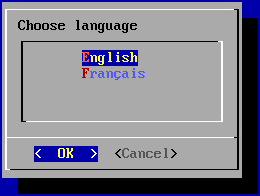
Information
The language you choose will affect both the system display language and the keyboard layout. In English, the keyboard will have a QWERTY layout, while in French it will be AZERTY.
The wizard then asks you to add a new password for the root system account (make sure it meets the required complexity): 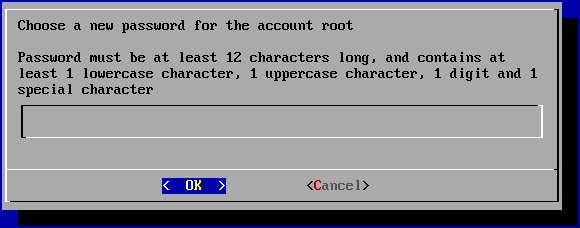
Next, you need to change the systancia system user account password (make sure it meets the required complexity): 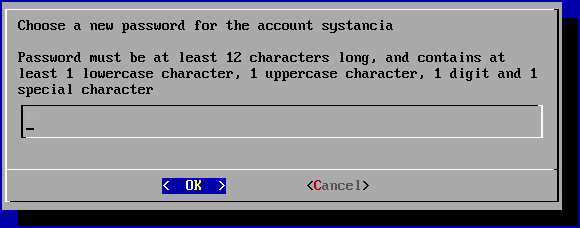
Finally, you need to enter the machine name: 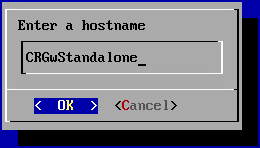
Network settings
Once the system settings have been applied, the wizard switches to the machine's network settings.
The first panel asks you to choose between a static configuration and a dynamic configuration via DHCP: 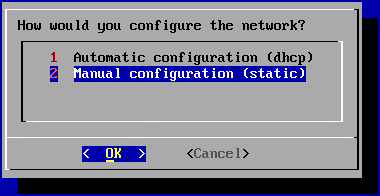
Recommendation
It is recommended that you use a static configuration for the machine's network settings, particularly for the direct access feature.
DHCP can also be used if the IP address is set at the DHCP server level.
If the static configuration is chosen, the wizard will ask for the following network settings: 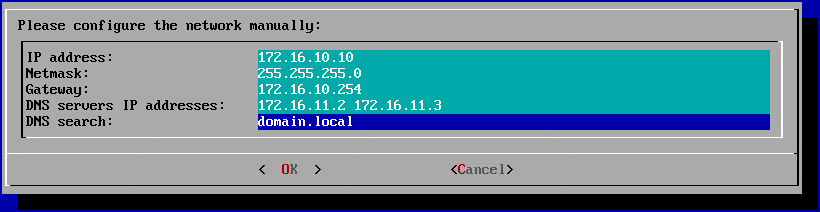
Tip
Several DNS servers can be entered (3 maximum) by separating them with spaces. Similarly, several DNS suffixes can be added by separating them with a space.
Settings specific to cyberelements Cleanroom operation
Once the network settings have been applied, the Edge Gateway and HTML5 Gateway instances still need to be connected to the Mediation Controller.
Connecting the main Edge Gateway instance
At this point, the initial configuration wizard should have reached the stage where it requests information about access to the Mediation Controller server: 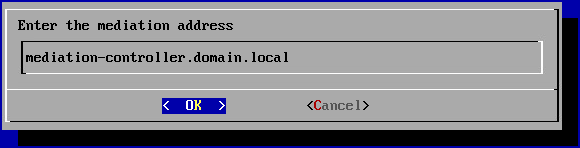
You must enter the DNS name for accessing the Mediation Controller server's web interface.
The IP address can also be used, but this will generate a certificate validity alert.
Web certificate validity
The Edge Gateway checks the web certificate that the Mediation Controller server will present to it. By default, only certificates issued by public certification authorities considered trustworthy will not generate errors during the check (unless the certificate does not cover the specified DNS name).
Consequently, if access to the Mediation Controller server is via an IP address or if the web certificate is issued by a private/internal certification authority, the pairing mechanism will not work.
To remove the control, and only if it is certain that no intermediary is capturing the network flow (MITM attack), the web certificate control can be disabled.
To do this, exit the initial installation wizard (the configurations already entered are already applied), and execute the following commands (the first disables the check and the second takes us back to the configuration wizard):
1 2 | |
After entering the Mediation Controller address, the wizard will ask you to enter the Edge Gateway pairing token (obtained by generating a pairing token): 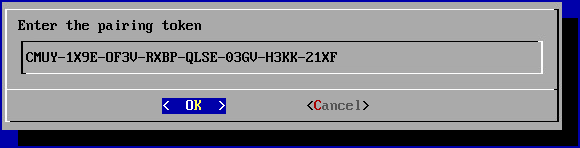
If all the information provided is correct, the Edge Gateway will configure itself and the initial configuration wizard will close automatically.
Connecting the HTML5 Gateway instance
If the HTML5 Gateway instance needs to be configured, run the following command on the Edge Gateway server as root to enable automatic startup of the instance:
1 | |
To configure the HTML5 Gateway instance on the server, follow the information provided in the following documentation: Connecting by pairing the HTML5 Gateway instance
Configuring an NTP time server
It is recommended to set up a time server to keep the system clock up to date. The necessary steps are described on the NTP configuration page.