Configuration of alerts
A number of alerts and reports can be configured in the product.
SMTP configuration
From the “SMTP Server” menu in the “Configuration” workspace of the administration console: 
This menu allows you to configure an SMTP server used for sending email notifications:
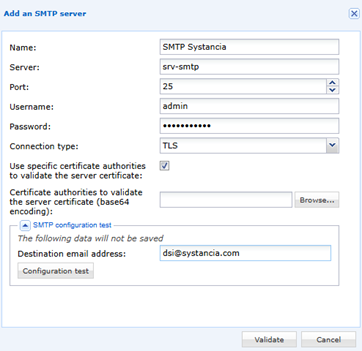
Complete the following fields:
Server: @IP / dns name of the SMTP server (must be accessible from the Mediation Controller server)Port: Enter the port of the SMTP serverUsername (facultatif): Enter a login authorized to connect to the SMTP serverPassword (facultatif): Enter the password for the previously indicated account.Connection type: Choose the protocol used.Use specific certificate authorities to validate the server certificate: Check the box if the SMTP server uses a different authority.Certificate authorities to validate the server certificate (base64 encoding): Import the SMTP server's certificate authorities.Destination email address: Enter the destination email address to receive the email.
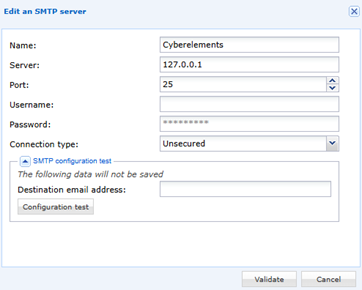
Complete the following fields:
Server: @IP / dns name of the SMTP server (must be accessible from the Mediation Controller server)Port: Enter the port of the SMTP serverUsername (facultatif): Enter a login authorized to connect to the SMTP serverPassword (facultatif): Enter the password for the previously indicated account.Connection type: Choose the protocol used.Destination email address: Enter the destination email address to receive the email.
Automatic reports
From the “Automatic Logs” menu in the “Configuration” workspace of the administration console: 
This menu allows you to generate automatic reports that are sent by email: 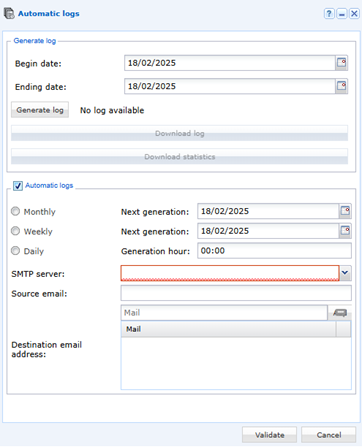
Email Alert
From the "Notification Profile" menu in the administration console:
Define the name of the notification profile and enter a description. It is also possible to specify a message that will be added in the notification email (optional). In the first tab, Email, you can define:
• SMTP Server: select a server from the list,
• Sender: You can add a display name before the sender's email address (see screenshot below)
• Recipient: enter the email addresses and select the “To” or “Cc” option for all recipients. 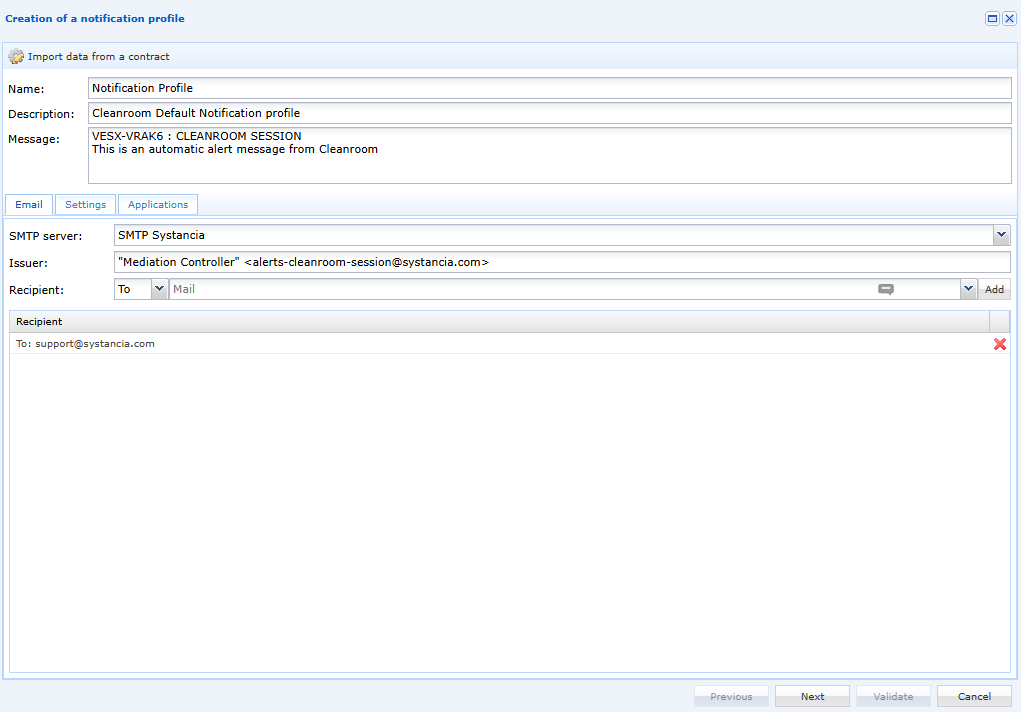
In the "Settings" tab, select the relevant notification types. The options are grouped in the following categories:
• Resources,
• Direct recordings,
• SSH direct recordings,
• Access,
• Logs,
• Systancia Workplace (only visible with Desk option).
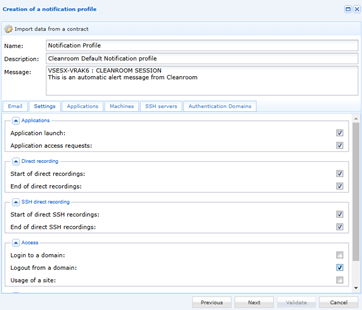
Depending on the options selected, the corresponding tabs become active.
In the Resources tab, select the resources that will be accessible via this notification profile. Resources are organized in categories. It is possible to select a whole category or only certain resources by clicking on +. 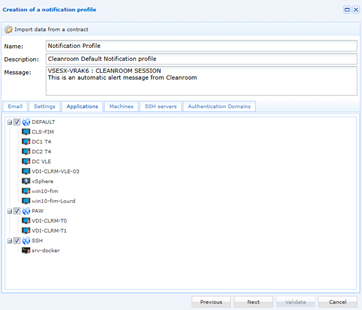
The Logs tab allows to select the types of logs to be traced. This tab is only visible if the option New entry in logs is selected in the Settings tab.
The logs are divided by theme and by type of action. You can select an entire theme or only specific actions by clicking on “+”. 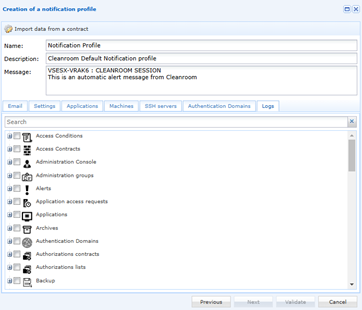
Syslog alerts (specific to Cyberelements Cleanroom)
In the “system” console accessible from the URL: https://mycleanroom.systancia.com/system
From the Log Options menu in the “system” console: 
Enter the Syslog address and then check the box for “Allow organizations to send their events via syslog”: 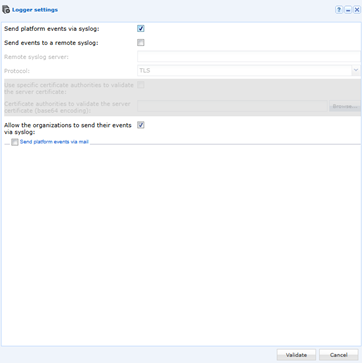
Note: It is the Mediation Controller server(s) that contact(s) the syslog server (DMZ to LAN flow to be opened).