Installation of the cyberelements.io / cyberelements Cleanroom client
The cyberelements.io / cyberelements Cleanroom client is installed on the user's workstation and is required for the following actions:
- Compliance checks requiring access to the OS:
- Anti-spyware
- Anti-virus
- MD5
- Browser
- OS
- Firewall
- System
- Launching applications that cannot be accessed directly from the browser (SSH, RDP, VNC, VPN, or generic tunnel, among others)
Where can I download the client?
The client is available for download either in the administrator console or on the user portal.
Administrator console
- Access the “Configurations” workspace using the button located at the top left:

- Open the “Toolbox” tile

- Retrieve the appropriate setup for the desired OS in the first tab “Integration tools”
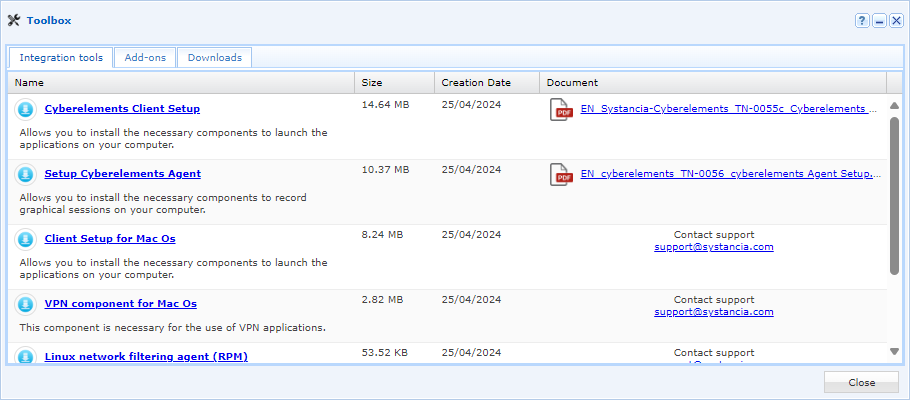
- Access the “Configurations” workspace using the button located at the top left:

- Open the “Toolbox” tile

- Retrieve the appropriate setup for the desired OS in the first tab, “Integration Tools”
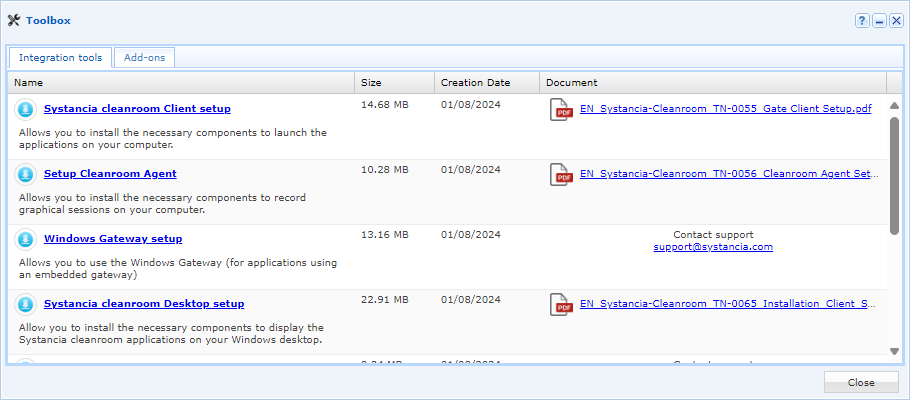
User portal
- Log into the user portal
- Click on the downloads icon located at the top right:

- Download the cyberelements.io client appropriate for your OS:
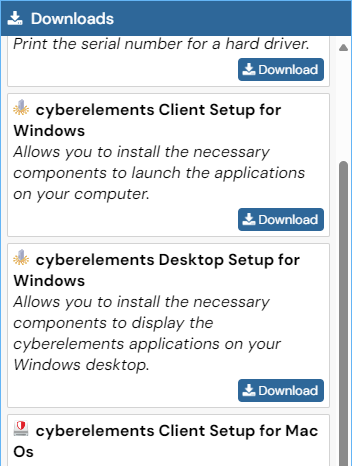
- Log into the user portal
- Click on the downloads icon located at the top right:

- Download the cyberelements Cleanroom client appropriate for your OS:
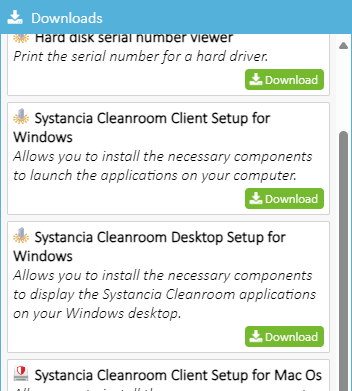
Installation of the Microsoft Windows client
Administrator rights required
Administrator rights are required to install the client.
Client compatibility
To find out whether the client is compatible with different versions of Microsoft Windows, refer to the compatibility matrix.
Graphical installation
- Run the
setup_cyberelements_Client.exesetup as an administrator (a request to run as an administrator will appear if necessary). - Click Next on the first window:
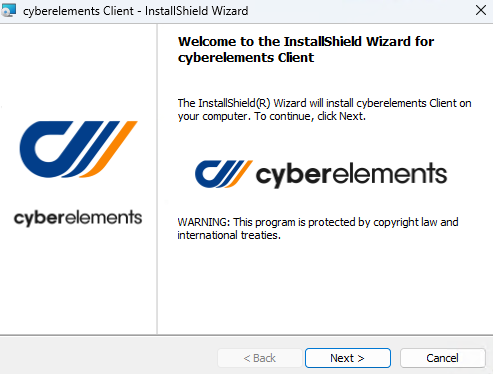
- Accept the terms of use:
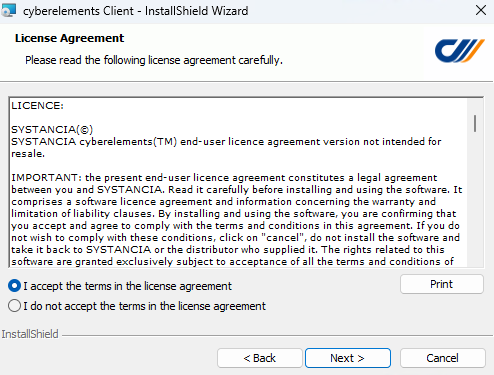
- On the third screen, specify the installation directory and install the OpenVPN components if standard VPN applications are available to the user:
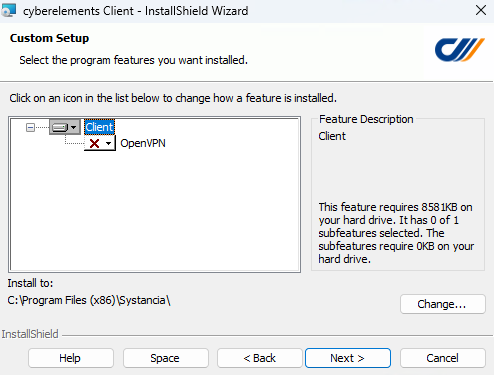
- Finally, start the client installation:
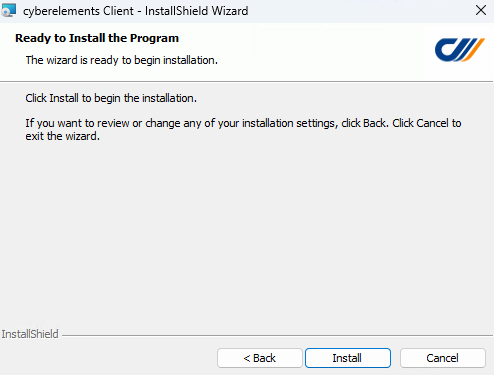
- Run the
setup_Cleanroom_Client.exesetup as an administrator (a request to run as an administrator will appear if necessary). - Click Next on the first window:
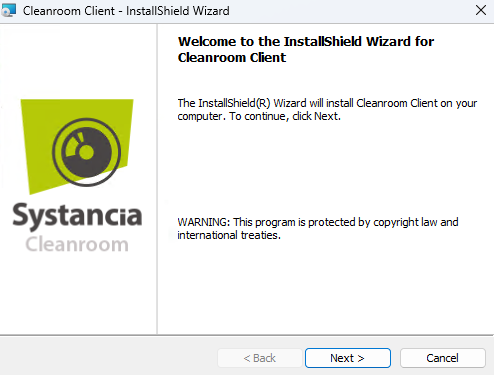
- Accept the terms of use:
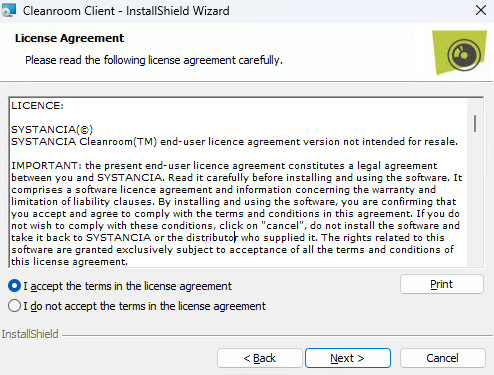
- On the third screen, specify the installation directory, install Cleanroom Desktop if you want the applications to be displayed on the desktop, and install the OpenVPN components if standard VPN applications are available to the user:
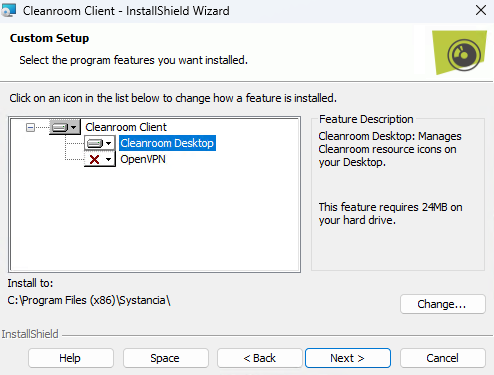
- (If Cleanroom Desktop must be installed) The next window will ask you to complete various settings:
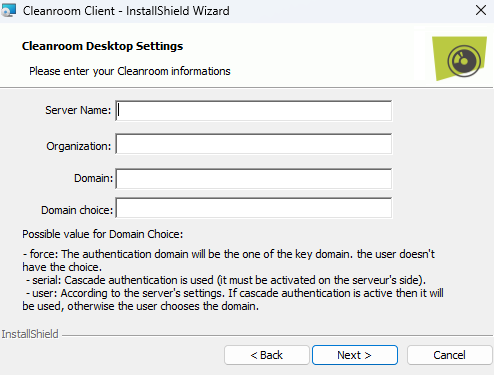
Server Name: IP address or DNS name of the Mediation serverOrganization: name of the organization to which the client will connectDomain: name of the cyberelements Cleanroom connection domainDomain choice: definition of the control that the user has over the choice of domain; there are three levels:force: the domain selection is forced on the userserial: the client will use cascading authentication for domain selection, so cascading authentication must be configured on the organizationuser: the user is free to select the connection domain of their choice
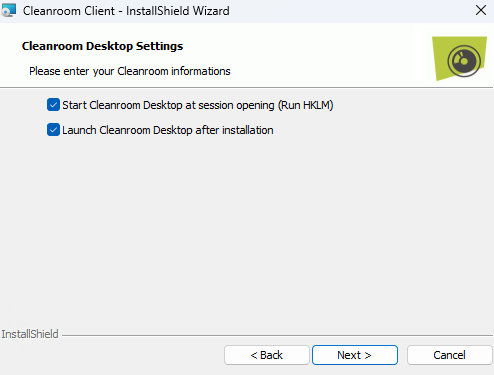
- (If Cleanroom Desktop must be installed) Select whether Cleanroom Desktop should launch automatically when the session opens and whether it should run after installation:
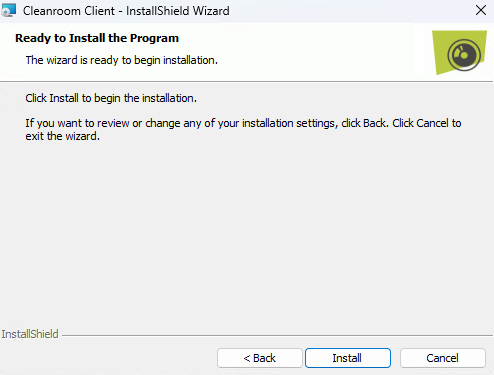
- Finally, start the client installation:
Silent command line installation
To install the client silently via the command line, there are two options available:
- Installation of the client only:
1setup_cyberelements_Client.exe /S /v/qn - Installation of the client + OpenVPN drivers:
1setup_cyberelements_Client.exe /S /v/qn"/L ADDLOCAL=OpenVPN"
To install the client silently via the command line, four options are available:
- Installation of the client only:
1setup_Cleanroom_Client.exe /S /v/qn - Installation of the client + OpenVPN drivers:
1setup_Cleanroom_Client.exe /S /v/qn"/L ADDLOCAL=OpenVPN" - Installation of the client + Cleanroom Desktop components:
1setup_Cleanroom_Client.exe /S /v/qn"/L ADDLOCAL=Cleanroom_Desktop CL_DOMAIN=mydomain.com CL_ORGA=org_cleanroom CL_SRV_NAME=myserver CL_DOM_CHOICE=user" - Installation of the client + OpenVPN drivers + Cleanroom Desktop components:
1setup_Cleanroom_Client.exe /S /v/qn"/L ADDLOCAL=ALL CL_DOMAIN=mydomain.com CL_ORGA=org_cleanroom CL_SRV_NAME=myserver CL_DOM_CHOICE=user"
When Cleanroom Desktop components are installed, various variables need to be defined:
CL_DOMAIN: name of the cyberelements Cleanroom connection domainCL_ORGA: name of the organization to which the client will connectCL_SRV_NAME: IP address or DNS name of the Mediation serverCL_DOM_CHOICE: definition of the control that the user has over the choice of domain; there are three levels:force: the domain selection is forced on the userserial: the client will use cascading authentication for domain selection, so cascading authentication must be configured on the organizationuser: the user is free to select the connection domain of their choice
Extracting the MSI
- Open a command prompt or PowerShell console
- Navigate to the folder where the cyberelements.io Windows client is located
- Run a command similar to the following, customizing the
C:\tempdestination directory if necessary:1.\setup_cyberelements_Client.exe /s /x /b"C:\temp" /v"/qn" - The
cyberelements Client.msiclient will be available in the directory defined in the previous step
- Open a command prompt or PowerShell console
- Navigate to the folder where the cyberelements Cleanroom Windows client is located.
- Run a command similar to the following, customizing the
C:\tempdestination directory if necessary:1.\setup_Cleanroom_Client.exe /s /x /b"C:\temp" /v"/qn" - The
Cleanroom Client.msiclient will be available in the directory defined in the previous step
Installation of the macOS client
Administrator rights required
Administrator rights are required to install the client.
Client compatibility
To check the client's compatibility with different versions of MacOS, refer to the compatibility matrix.
Client Installation
- After downloading the
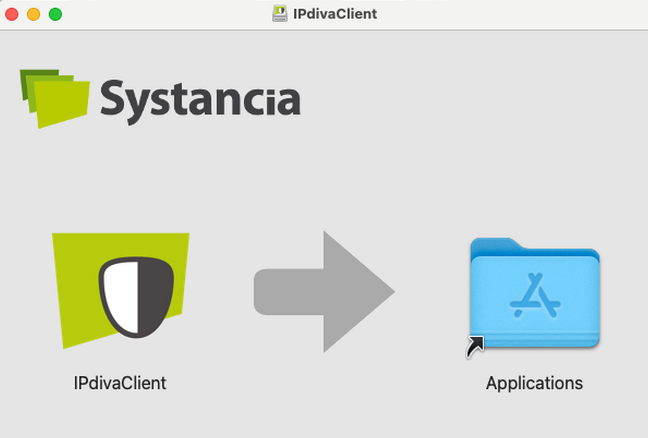
IPdivaClient.dmgclient, run it. - The following window will appear. Drag and drop the client icon into Applications:
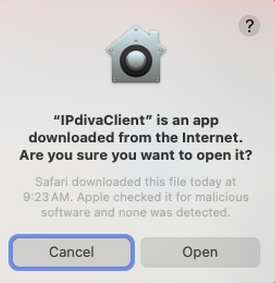
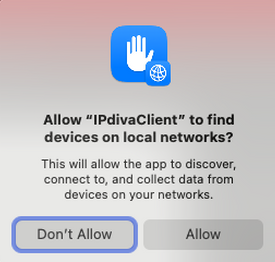
- The installation is now complete, but the first time you use it, you will need to confirm the opening and authorize access to the local network for the client:
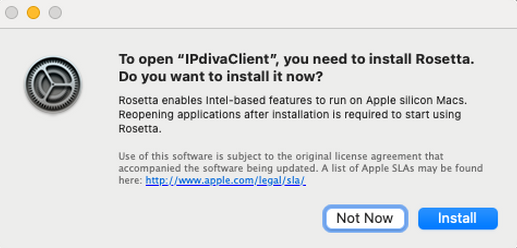
For Macs running on an ARM processor
When using the client for the first time, the following message may appear, prompting you to install Rosetta. Rosetta must be installed for the client to function.
Installation of VPN components
If you are using VPN applications, another component is required for installation: IPdivaVPN.pkg.
- After downloading the
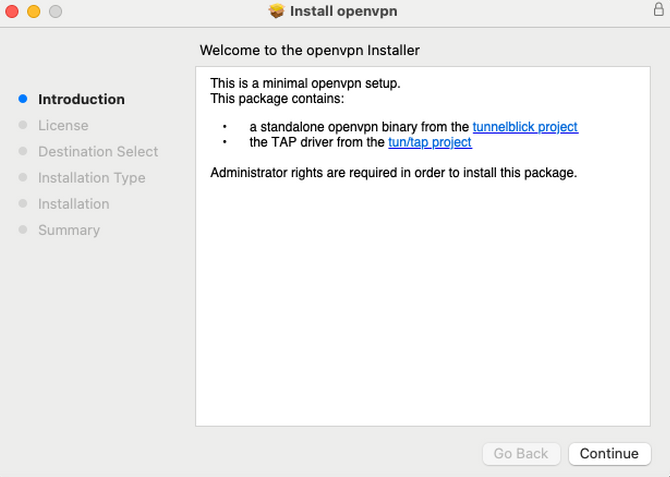
IPdivaVPN.pkgclient, run it. - The setup begins with an introduction that can be skipped without further action:
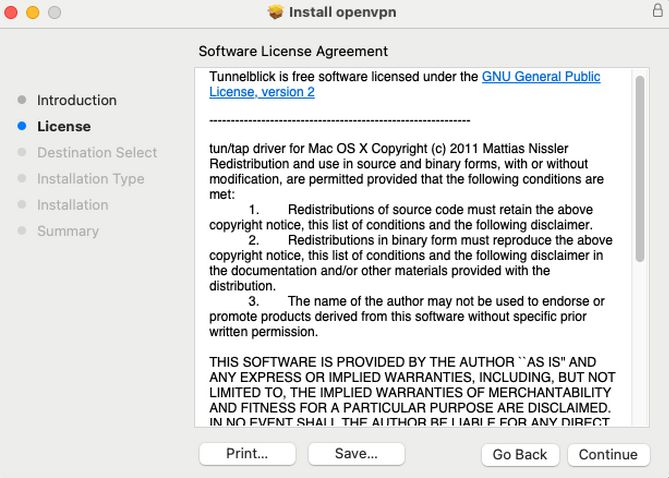
- Then you must accept the terms and conditions:
- Configure the installation for all users:
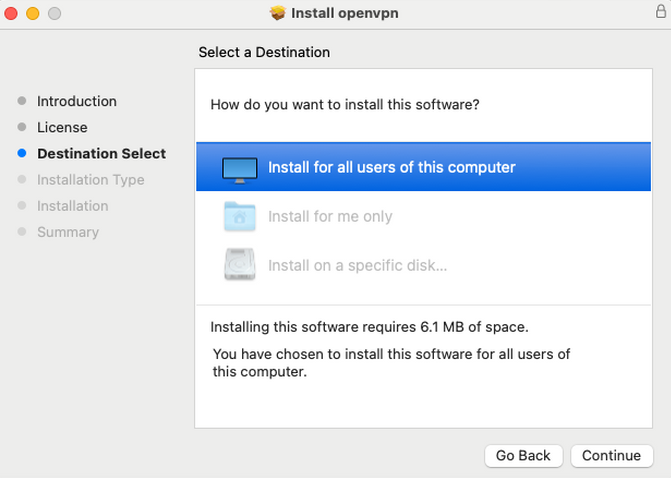
- If necessary, specify the installation disk for the application:
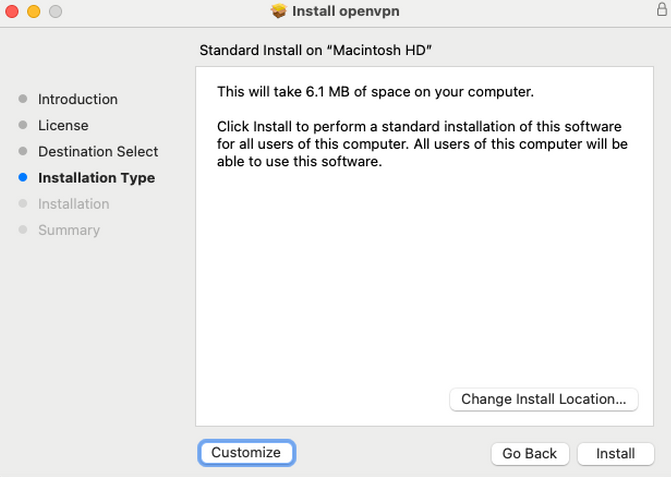
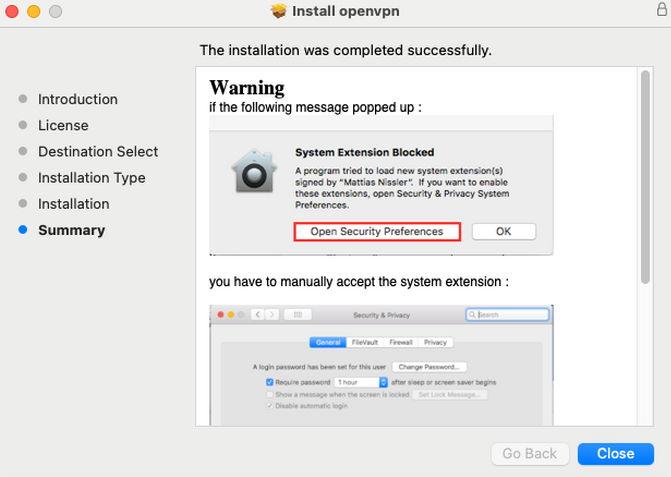
- Confirm the end of the installation:
Installation of the Ubuntu client
Superuser rights required
Superuser rights are required to install the prerequisites.
Client compatibility
To find out about the client's compatibility with different versions of Ubuntu, refer to the compatibility matrix.
- Download the client suitable for Ubuntu
gateclient_linux_x64*.tar.xz. - Open a terminal and navigate to the directory where the client is located.
- Install the prerequisites and the client with the following commands:
1 2 3 4 | |