Protected Users group, Kerberos authentication, AD siloing, and PAW workstation
Securing Active Directory directories is a major challenge in infrastructure security.
ANSSI (the French National Cybersecurity Agency) places particular emphasis on the importance of compartmentalization in this security and on the implementation of server siloing with Kerberos authentication. This is mentioned in their recommendations for the secure administration of IS based on AD.
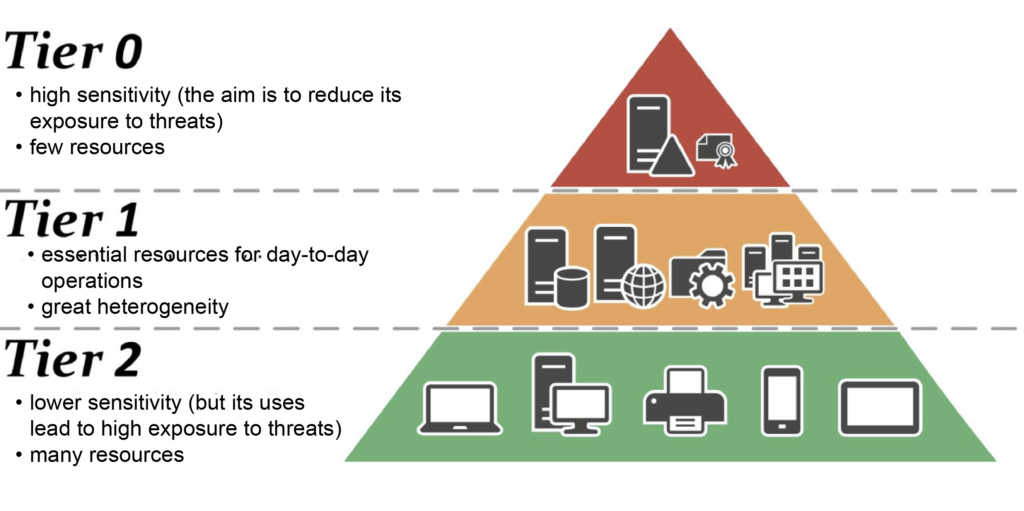
Our cyberelements.io and cyberelements Cleanroom solutions offer great flexibility in implementing this security, which can be broken down into four different levels of integration that can be applied progressively:
-
Protected Users
1st level of implementation
Administrators placed in the
Protected Usersgroup (authentication protocol changing from NTLM to Kerberos) -
Kerberos shielding
2nd level of implementation
Implementation of Kerberos shielding
View Edge Gateway settings
View the RDP application settings -
AD siloing
3rd level of implementation
Distribution of servers and accounts (users and administrators) into silos
-
Operation of PAW workstations
4th level of implementation
Using PAW workstations that do not allow remote access
Configuring RDP applications for Kerberos support
Warning!
To configure a privileged RDP or privileged HTML5 RDP application to support Kerberos, you must first perform configuration 1 of the Edge Gateway(s) that will be used to connect to RDP with Kerberos.
In order for a privileged RDP or HTML5 RDP application to connect to an RDP server with Kerberos, four configuration conditions are required:
- The SSO setting cannot be set to
Disabled, so it must beEnabled,FixedorRequest - Agentless mode must be enabled
- The server name entered must be an FQDN (entering the server's IP address will cause authentication to fail).
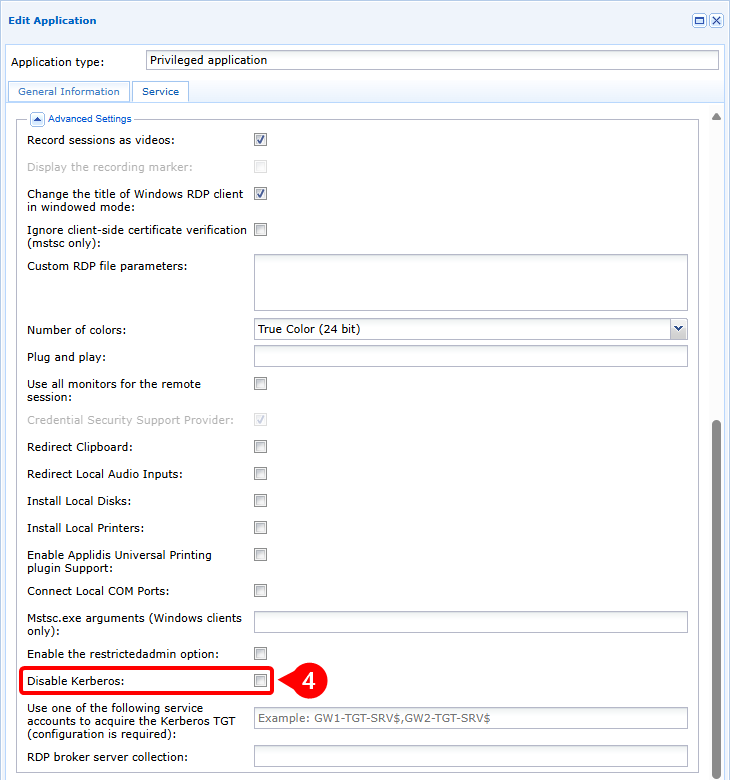
- Kerberos must not be disabled in the advanced settings of the RDP or HTML5 RDP application.
Example
To configure a privileged RDP application to connect to the my-rds-server RDP server using Kerberos, you will need to:
- Set the SSO level to a setting other than
Disabled, in this case set toEnabled(1), then enable the mode without agent (2) and finally enter the FQDN of the RDP server (3).
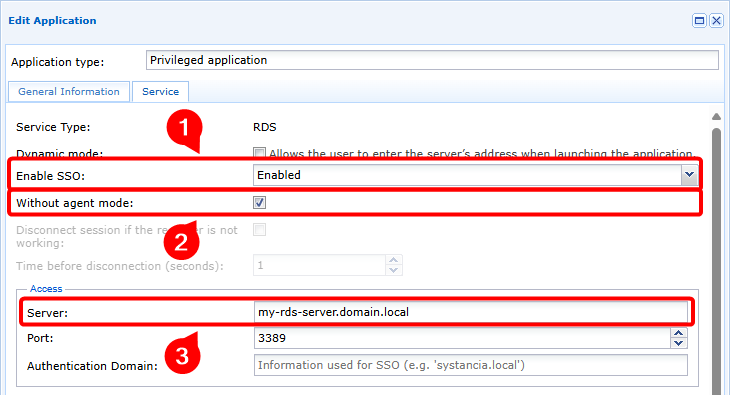
- Ensure that Kerberos is not disabled (4)
Flowchart
flowchart LR
    subgraph WAN
        USER(User workstation)
    end
    subgraph Cloud or DMZ
        MEDIA(Mediation Controller)
    end
    subgraph LAN
        GW(Edge Gateway)
        KDC(Kerberos Domain Controller)
        RDP(RDP Server)
    end

    USER --- |1| MEDIA --> |1| GW
    GW -.- |2| MEDIA -.-> |2| USER
    GW --> |3| KDC
    KDC -.-> |4| GW
    GW --> |5| KDC
    KDC -.-> |6| GW
    GW --> |7| RDP
RDP -.-> |8| GW- The user opens a privileged RDP or HTML5 RDP application with Kerberos authentication support.
- The user is connected to the Edge Gateway in agentless mode
- The Edge Gateway requests a TGT token from the Kerberos Domain Controller (KDC).
- The KDC returns an encrypted and signed TGT
- The Edge Gateway requests a service ticket including the previous TGT
- The KDC returns the service ticket encrypted with the service key
- The Edge Gateway makes an access request to the RDP server, including the service ticket.
- The RDP server approves access to the service and the RDP connection is initialized.
Configuring RDP applications to support Kerberos shielding
Warning!
To successfully configure a privileged RDP or HTML5 RDP application to support Kerberos shielding, you must first complete configurations 1 and 2 for the Edge Gateways that will be used to connect to RDP with Kerberos shielding.
In order for a privileged RDP or HTML5 RDP application to connect to an RDP server with Kerberos shielding, five configuration conditions are required:
- The SSO setting cannot be set to
Disabled, so it must beEnabled,FixedorRequest - Agentless mode must be enabled
- The server name entered must be an FQDN (entering the server's IP address will cause authentication to fail).
- Kerberos must not be disabled in the advanced settings of the RDP or HTML5 RDP application.
- Specify the name of the service computer account to be used for Kerberos shielding by adding a
$at the end
Example
To configure a privileged RDP application to connect in Kerberos shielded mode to the my-rds-server RDP server using the svc_cyberelements computer account, you will need to:
- Set the SSO level to a setting other than
Disabled, in this case set toEnabled(1), then enable the mode without agent (2) and finally enter the FQDN of the RDP server (3).
- Ensure that Kerberos is not disabled (4) and that the service computer account name is specified, remembering to add the
$character (5).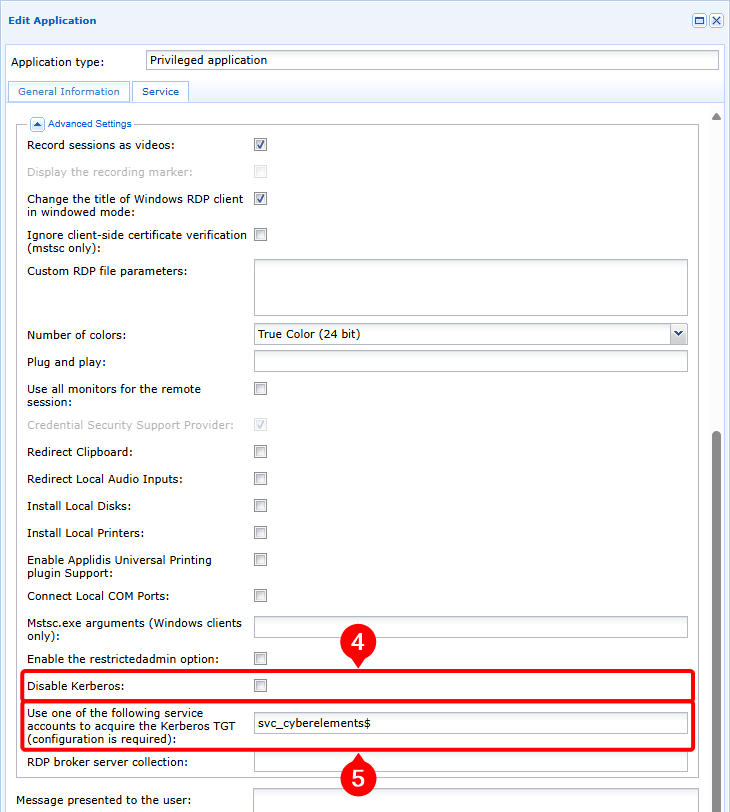
Flowchart
flowchart LR
    subgraph WAN
        USER(User workstation)
    end
    subgraph Cloud or DMZ
        MEDIA(Mediation Controller)
    end
    subgraph LAN
        GW(Edge Gateway)
        KDC(Kerberos Domain Controller)
        RDP(RDP Server)
    end

    USER --- |1| MEDIA --> |1| GW
    GW -.- |2| MEDIA -.-> |2| USER
    GW --> |3| KDC
    KDC -.-> |4| GW
    GW --> |5| KDC
    KDC -.-> |6| GW
    GW --> |7| RDP
RDP -.-> |8| GW- The user opens a privileged RDP or HTML5 RDP application with Kerberos authentication support.
- The user is connected to the Edge Gateway in agentless mode
- The Edge Gateway requests a TGT token from the Kerberos Domain Controller (KDC) using the service computer account information
- The KDC returns an encrypted and signed TGT
- The Edge Gateway requests a service ticket including the previous TGT
- The KDC returns the service ticket encrypted with the service key
- The Edge Gateway makes an access request to the RDP server, including the service ticket.
- The RDP server approves access to the service and the RDP connection is initialized.
Specific features of architecture in a siloed AD environment
Warning!
In a siloed Active Directory environment, armored Kerberos is normally configured for administrator accounts. Therefore, configurations 1 and 2 must be performed for the Edge Gateways that will be used to connect to RDP servers.
When cyberelements.io or cyberelements Cleanroom is used in an AD siloed environment, the service computer account used for Kerberos shielding must be assigned to a silo.
This means that if it is necessary to access RDP machines belonging to different third parties, it will be necessary to create as many service computer accounts placed in the different third-party targets.
The product architecture may also be impacted.
This change mainly affects the number of Edge Gateways deployed, where it is recommended to have at least one dedicated to access by a specific third party. However, if the context does not allow for the deployment of so many Edge Gateways, a single Edge Gateway architecture can also be used:
flowchart LR
    subgraph WAN
        USER(User workstation)
    end
    subgraph Cloud or DMZ
        MED(Mediation Controller)
    end
    subgraph LAN
        subgraph T2
            GW-T2(Edge Gateway T2)
            RDP-T2(RDP Server T2)
        end
        subgraph T1
            GW-T1(Edge Gateway T1)
            RDP-T1(RDP Server T1)
        end
        subgraph T0
            GW-T0(Edge Gateway T0)
            KDC(Kerberos Domain Controller)
            RDP-T0(RDP Server T0)
        end
    end

    USER ==TLS/HTTPS==> MED

    MED ~~~ GW-T0
    MED ~~~ GW-T1
    MED ~~~ GW-T2

    GW-T0 ==TLS==> MED
    GW-T0 ~~~ MED
    GW-T0 ~~~ MED
    GW-T0 ~~~ MED
    GW-T0 --Kerberos/LDAPS--> KDC
    GW-T0 -..-> |RDP| RDP-T0

    GW-T1 ==TLS==> MED
    GW-T1 ~~~ MED
    GW-T1 ~~~ MED
    GW-T1 --Kerberos/LDAPS--> KDC
    GW-T1 -..-> |RDP| RDP-T1

    GW-T2 ==TLS==> MED
    GW-T2 ~~~ MED
    GW-T2 --Kerberos/LDAPS--> KDC
GW-T2 -..-> |RDP| RDP-T2With this architecture, the configuration of RDP applications is identical to that for Kerberos shielding support.
flowchart LR
    subgraph WAN
        USER(User workstation)
    end
    subgraph Cloud or DMZ
        MED(Mediation Controller)
    end
    subgraph LAN
        GW(Edge Gateway)
        subgraph T2
            RDP-T2(RDP Server T2)
        end
        subgraph T1
            RDP-T1(RDP Server T1)
        end
        subgraph T0
            KDC(Kerberos Domain Controller)
            RDP-T0(RDP Server T0)
        end
    end

    USER ==TLS/HTTPS==> MED

    MED ~~~ GW

    GW ==TLS==> MED
    GW ~~~ MED
    GW --Kerberos/LDAPS--> KDC
    GW-.-> |RDP| RDP-T0
    GW -.-> |RDP| RDP-T1
GW -.-> |RDP| RDP-T2With this architecture, the configuration of RDP applications is identical to that for Kerberos shielding support.
However, you must also plan to apply a keytab file to the connection Edge Gateway containing several service accounts.
Specific features of connecting to a PAW workstation
A PAW (Privileged Access Workstation) is a workstation dedicated to administrative tasks on a defined third party.
Due to the critical nature of this workstation, enhanced security settings are very often applied. Among the enhancements applied, the principle of not exposing services on the network ensures that no backdoors or services with security vulnerabilities can be exploited.
This principle therefore makes remote access to the PAW workstation theoretically impossible. However, cyberelements.io or cyberelements Cleanroom allow you to establish a connection to the PAW workstation without having any services listening on the local network thanks to:
- The activation of Remote Desktop services
- Configuration of the local firewall to prohibit access to the Remote Desktop service by any IP addresses other than those of the PAW workstation, or
localhost - The installation of a built-in Edge Gateway that will allow local access to the Remote Desktop service of the PAW workstation
flowchart LR
    subgraph WAN
        USER(User workstation)
    end
    subgraph Cloud or DMZ
        MED(Mediation Controller)
    end
    subgraph LAN
        subgraph T1
            GW(Edge Gateway T1)
            subgraph PAW_T1 [PAW T1]
                RDP{{RDP Server}}
                GW-WIN{{Embeded Edge Gateway}}
            end
        end
        subgraph T0
            KDC(Kerberos Domain Controller)
        end
    end

    USER ==TLS/HTTPS==> MED

    MED ~~~ GW & GW-WIN
    GW & GW-WIN ==TLS==> MED
    GW & GW-WIN ~~~ MED

    GW & PAW_T1 --> |Kerberos/LDAPS| KDC

    GW-WIN -.-> |RDP| RDP

GW --x |No connection available| PAW_T1flowchart LR
subgraph WAN
USER(User workstation)
end
subgraph Cloud or DMZ
MED(Mediation Controller)
end
subgraph LAN
subgraph T1
GW(Edge Gateway T1)
subgraph PAW_T1 [PAW T1]
RDP{{RDP Server}}
GW-WIN{{Embeded Edge Gateway}}
end
end
subgraph T0
KDC(Kerberos Domain Controller)
end
end
USER --- |1| MED --> |1| GW
GW -.- |2| MED -.-> |2| USER
GW --> |3| KDC
KDC -.-> |4| GW
GW --> |5| KDC
KDC -.-> |6| GW
MED --> |7| GW & GW-WIN
GW --- |8| MED --- |8| GW-WIN --> |8| RDP
RDP -.- |9| GW-WIN -.- |9| MED -.-> |9| GW- The user opens a privileged RDP or HTML5 RDP application with Kerberos authentication support to a PAW workstation
- The user is connected to the Edge Gateway in agentless mode
- The Edge Gateway requests a TGT token from the Kerberos Domain Controller (KDC) using the service computer account information
- The KDC returns an encrypted and signed TGT
- The Edge Gateway requests a service ticket including the previous TGT
- The KDC returns the service ticket encrypted with the service key
- The Mediation Controller notifies the Edge Gateway and the embedded Edge Gateway that a tunnel has been opened between them, with the tunnel passing through the Mediation Controller
- The Edge Gateway sends an access request to the RDP server, including the service ticket, via the Mediation Controller and the embedded Edge Gateway
- The RDP server approves access to the service and the RDP connection is initialized
Prerequisites on the PAW workstation
The specific prerequisites to be applied on the PAW (Privileged Access Workstation) workstation for connecting to cyberelements.io or cyberelements Cleanroom are summarized as follows:
- Enable the Remote Desktop service
- Modify the local firewall to deny access to the Remote Desktop service for all machines except the PAW workstation itself
- Modify the behavior of armored Kerberos to always provide claims
- Install a Windows Edge Gateway in embedded mode
Enable the Remote Desktop service
The Remote Desktop service can be enabled manually as described in the Microsoft documentation Enable Remote Desktop on your PC.
However, it is also possible to use a GPO to enable the service:
- Path to the GPO setting:
Computer Configuration > Policies > Administrative Templates > Windows Components > Remote Desktop Services > Remote Desktop Session Host > Connections - Setting:
Allow users to connect remotely by using Remote Desktop Services - Value:
Enabled
Modifying firewall rules
For security reasons, it is important to restrict access at the firewall level, so as to prevent access from the outside on the RDP port.
By default, when RDP is enabled, Windows will set 2 firewall rules authorizing access to port 3389 in UDP and TCP.
These two rules must be modified to only allow RDP connections from the remote IP address 127.0.0.1.
If these rules do not exist, they must be created manually on the server or via a GPO.
Modifying the behavior of armored Kerberos
We also need to modify Kerberos behavior.
To do this, you can set up the following GPO:
- Path to the GPO setting:
Computer Configuration > Policies > Administrative Templates > System > KDC - Setting:
KDC support for claims, compound authentication and Kerberos armoring - Value:
Enabled, Always provide claims
This change has no impact on the security of the AD tiering and enhanced Kerberos implementation.
Install a Windows Edge Gateway in embedded mode
Prerequisites
Before continuing, please install a Windows Edge Gateway on the PAW workstation and connect it to the Mediation Controller: Install a Windows Edge Gateway
After installing the Windows Edge Gateway, it is necessary to switch it to embedded mode.
Access the web interface of the Mediation Controller server or your cyberelements.io tenant with the /console URI.
Examples
If access to the Mediation Controller on its web IP address is 10.0.10.10, then access to the system interface will use the URL: https://10.0.10.10/console.
Si l'accès au Mediation Controller est possible avec un nom DNS, par exemple cyberelements-cleanroom.domain.local, alors l'accès à l'interface system utilisera l'URL : https://cyberelements-cleanroom.domain.local/console.
Si la plateforme utilisée est cyberelements.io alors l'accès peut se faire simplement via l'accès à son tenant, par exemple pour un nom de tenant my-tenant l'accès serait le suivant : https://my-tenant.cyberelements.io.
Il est aussi possible d'accèder directement au fomulaire de connexion de la console d'administration via https://my-tenant.cyberelements.io/console.
Once connected, be sure to remove the Windows Edge Gateway declaration from the Gateways Management module.
The Windows Edge Gateway is now ready to be used as an embedded Edge Gateway.
When a session is opened, the Windows Edge Gateway monitor starts automatically (visible with the  icon in the taskbar). As this automatic start is not required for PAW workstations, it must be disabled:
- Open the
regedit.exeregistry key editor as an administrator - Go to the
HKLM\Software\Wow6432Node\Microsoft\Windows\CurrentVersion\Runregistry hive - Delete the
IPdivaGateway Monitorkey - Restart the PAW workstation
Configuring RDP applications to connect to a PAW workstation
Warning!
To configure a privileged RDP or HTML5 RDP application to connect to a PAW workstation, you must first complete configurations 1 to 3 for the Edge Gateways that will be used to connect to the PAW workstations.
In order for a privileged RDP or HTML5 RDP application to connect to a PAW workstation, six configuration conditions must be met:
- The SSO setting cannot be set to Disabled, so it must be Enabled, Fixed or Request
- Agentless mode must be enabled
- The server name entered must be an FQDN (entering the server's IP address will cause authentication to fail).
- Configure routing through an embedded Edge Gateway
- Kerberos must not be disabled in the advanced settings of the RDP or HTML5 RDP application.
- Specify the name of the service computer account to be used for Kerberos shielding by adding a
$at the end
Condition 4 is induced by the configuration of PAW workstations, which must not have any services listening on the local network. By installing an Edge Gateway in the form of a Windows program, the latter can only access services listening on localhost.
Example
To configure a privileged RDP application to connect in Kerberos shielded mode to the my-rds-server RDP server using the svc_cyberelements computer account, you will need to:
- Set the SSO level to a setting other than
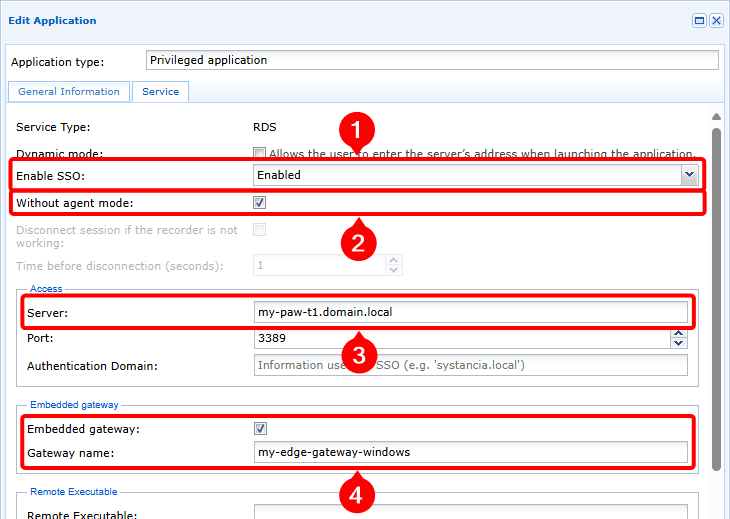
Disabled, in this case set toEnabled(1), then enable the mode wwithour agent (2), enter the FQDN of the RDP server (3), and finally enable the built-in Edge Gateway mode and specify the name of the Windows Edge Gateway that has been installed on the PAW workstation (4).
- Ensure that Kerberos is not disabled (5) and that the service computer account name is specified, remembering to add the
$character (6).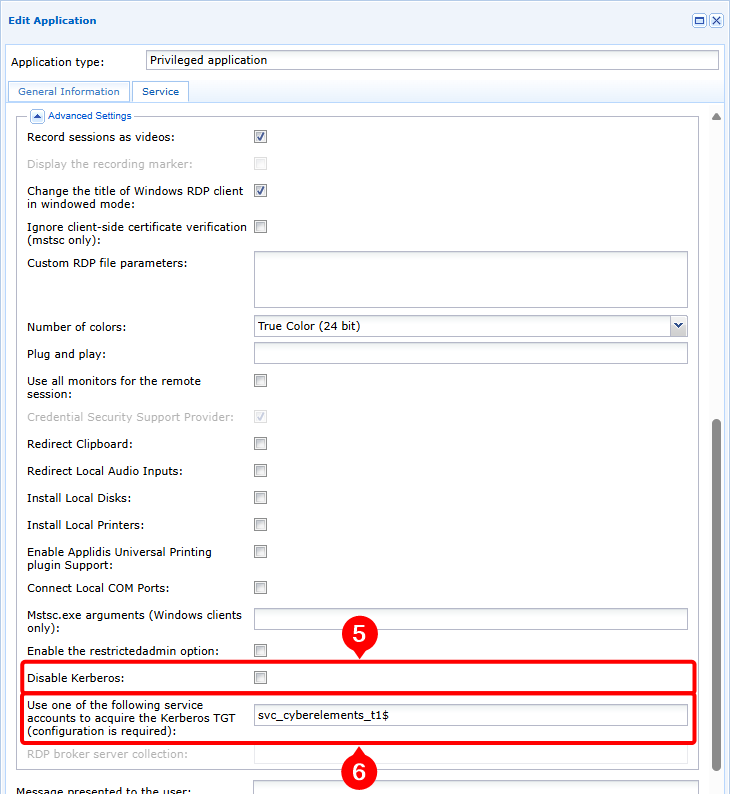
Debugging RDP application openings with Kerberos authentication
In order to perform an initial analysis or retrieve the information Systancia needs for an advanced analysis of Kerberos authentication failures, please perform the following actions:
-
Enable debug logs: to do this, switch the
debugparameter under the[Kerberos]tag totruein the/etc/ipdiva/cleanroom/xrdprecord.iniEdge Gateway server file used for the connection. This action can be performed with the following command:1sed -i "3s/false/true/" /etc/ipdiva/cleanroom/xrdprecord.ini -
Log in to the user portal and launch a privileged application, RDP or RDP HTML5, in agentless mode and configured to use Kerberos. Note the following information:
- Application opening time
- The user name used to connect to the RDP server
-
On the Edge Gateway used for the previous connection, retrieve the following files:
/var/log/syslog: this file contains, in particular, the logs for launching the session in agentless mode./var/lib/ipdiva/carerecord/log/freerdpout-<USER>-<DATE>.txt: replace<USER>with the user name and<DATE>the date and time the application was opened, retrieved in the previous step. This file contains logs related to establishing the RDP session, including the Kerberos authentication phase.
-
Disable debug logs: to do this, switch the
debugparameter under the[Kerberos]tag tofalsein the/etc/ipdiva/cleanroom/xrdprecord.iniEdge Gateway server file used for the connection. This action can be performed with the following command:1sed -i "3s/true/false/" /etc/ipdiva/cleanroom/xrdprecord.ini