Set up authentication with a Yubikey from Yubico
This article describes how to implement multi-factor authentication with FIDO2 security keys, biometric or otherwise, from Yubico.
Configuring a trusted party identifier
Before any key enrollment, it is necessary to configure a trusted party identifier in the product.
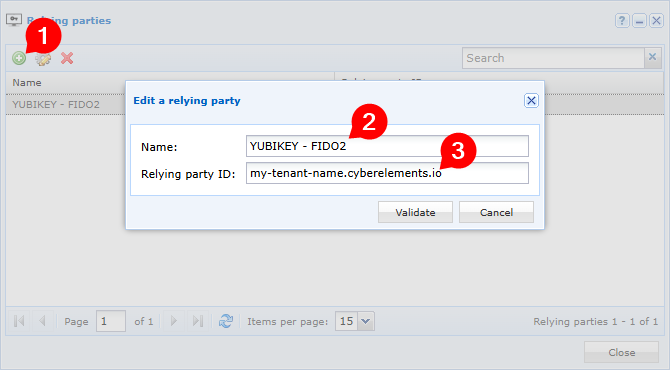
Open the administration console Configuration workspace, then the Trust parties menu.

Enter:
- An identification name of your choice
- The name of the user portal domain in the
MY_TENANT_NAME.cyberelements.ioform whereMY_TENANT_NAMEcorresponds to the name of your cyberelements.io tenant, or enter the DNS name for accessing the user portal for cyberelements Cleanroom.
Note
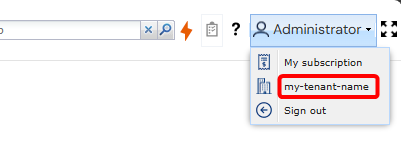
The name of your cyberelements.io tenant can also be found here:
Enrolling keys
Before a Yubikey security key can be used on cyberelements.io or cyberelements Cleanroom, it must first be enrolled in the cyberelements user portal by the key owner.
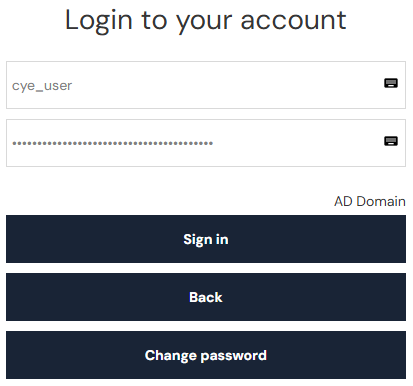
Start by logging into the user portal with the relevant user account:
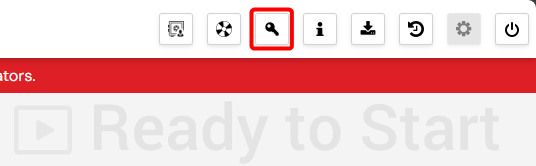
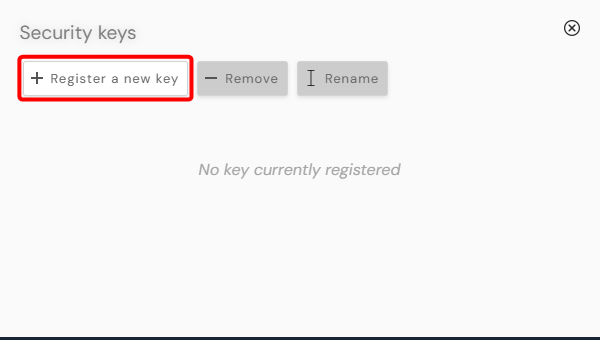
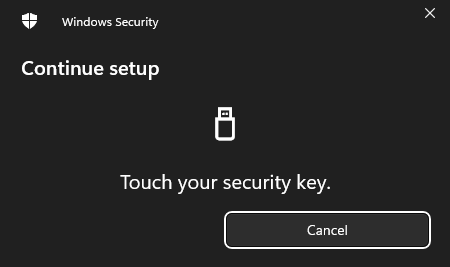
Then open the key management window using the button in the upper right corner of the page and click the “Associate a new key” button to start the enrollment process. Follow the steps displayed in the pop-ups that appear next:
Note
This step must be completed within 30 seconds. The number of windows, their appearance, and their content may vary depending on several factors (OS, browser, key, etc.).
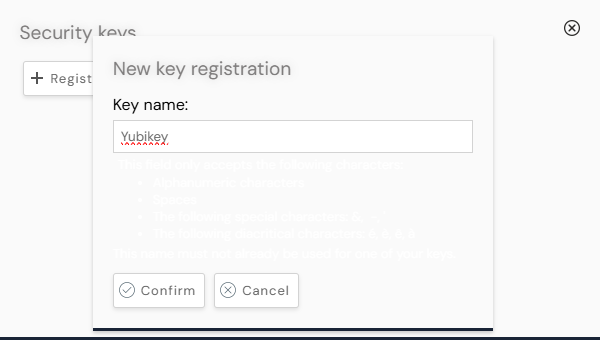
After completing the enrollment steps, enter a name to identify the new key. This name will then be used by cyberelements.io or cyberelements Cleanroom to designate this key in the user's key list.
Authentication
Once a security key has been associated with an account, that key is required for the user to authenticate to the cyberelements.io user portal or cyberelements Cleanroom.
If multiple keys are associated with the same account, any of those keys can be used to authenticate to that account.
Start by logging into the user portal with the relevant user account:
A pop-up window will ask you to insert your key into one of the USB ports on your workstation.
Once the key is inserted, you will be asked for a PIN code:
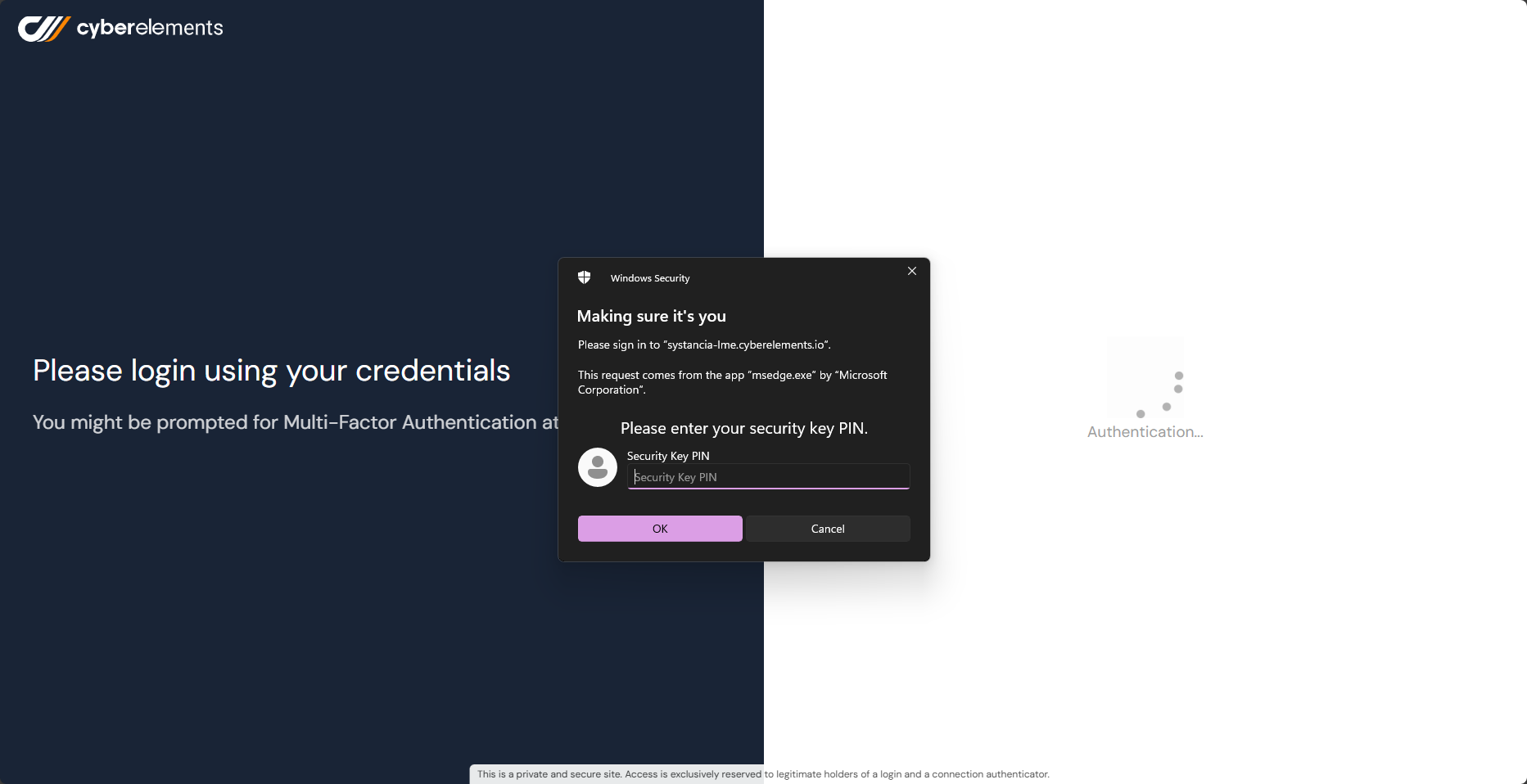
Once these steps are complete, the main page will be displayed if authentication by security key has been successful.
If not, the login form will appear and an error message will be added and logged in the access logs.
Management of authentication keys
cyberelements.io or cyberelements Cleanroom platform administrators have the ability to revoke a user's authentication key.
To do this, go to the key management menu in the administration console:
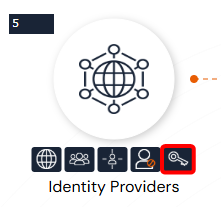
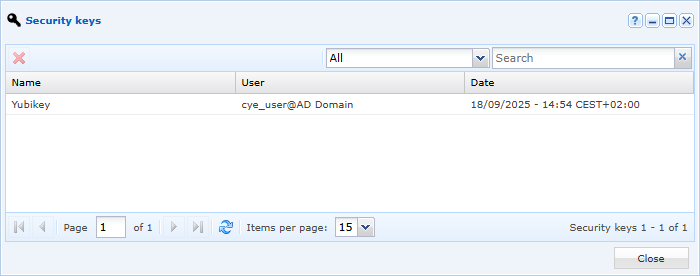
This menu lists all authentication keys enrolled by users.
Once this menu is open, you can select and then delete a key. This will prevent the user from authenticating with that key in the future.
Troubleshooting
The button used to enroll a new key for the user logged into the cyberelements web portal is only active under the following conditions:
- The user must be authenticated with a personal account on the portal and must not be authenticated through an “anonymous” domain.
- The administrator must have previously configured at least one trusted party identifier.
If at least one of these conditions is not met, the button is grayed out and an error message is displayed when hovering over the button. The interface consists of a list of keys associated with the user, as well as the date these keys were added. Users can also enroll, unenroll, or rename keys.