Management of Identity authorizations
To assign rights in the cyberelements application to an identity, you must create a role with permissions from the Identity repository linked to it and assign this role to the desired identity. It is not possible to link a permission from the Identity repository to an identity. It is therefore necessary to create as many roles as necessary and associate the desired authorizations with them. For each authorization that allows it, it will be possible to define its scope.
A role can be mixed between several repositories, including the Identity repository. It is therefore not mandatory to create specific roles to manage access to the cyberelements Identity application.
As with third-party applications, Identity permissions are managed in repositories, but for the cyberelements Identity repository, permissions are fixed and managed by the application. They cannot therefore be modified. An authorization corresponds to a menu access or access to an operation in the Identity application (examples: creating an identity, accessing the workflow module, etc.).
It is important to note that regardless of the connection mode (third-party IDP or AD-based IDP), when a person logs into cyberelements Identity, they must have an Identity account referenced in the application for proper functioning, particularly for audits and workflows.
Multi-accounts are not compatible with the Identity repository. Therefore, an identity that has several Identity roles will have a cumulative set of rights for the roles in question.
Note
The administration profiles used up to version 6.2 are replaced by roles starting with version 7.0. For each role linked to the Identity repository, it is necessary to add Identity authorizations.
Configuring an authorization for the Identity repository in a role
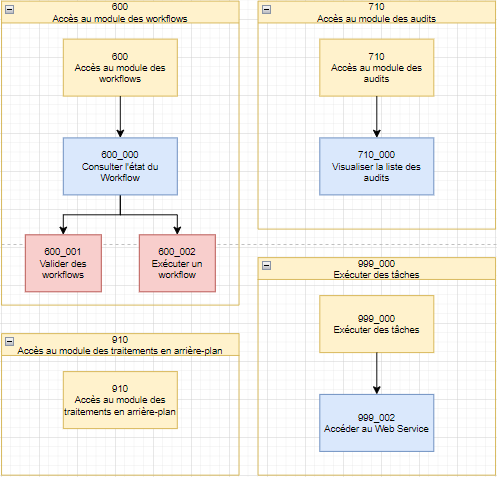
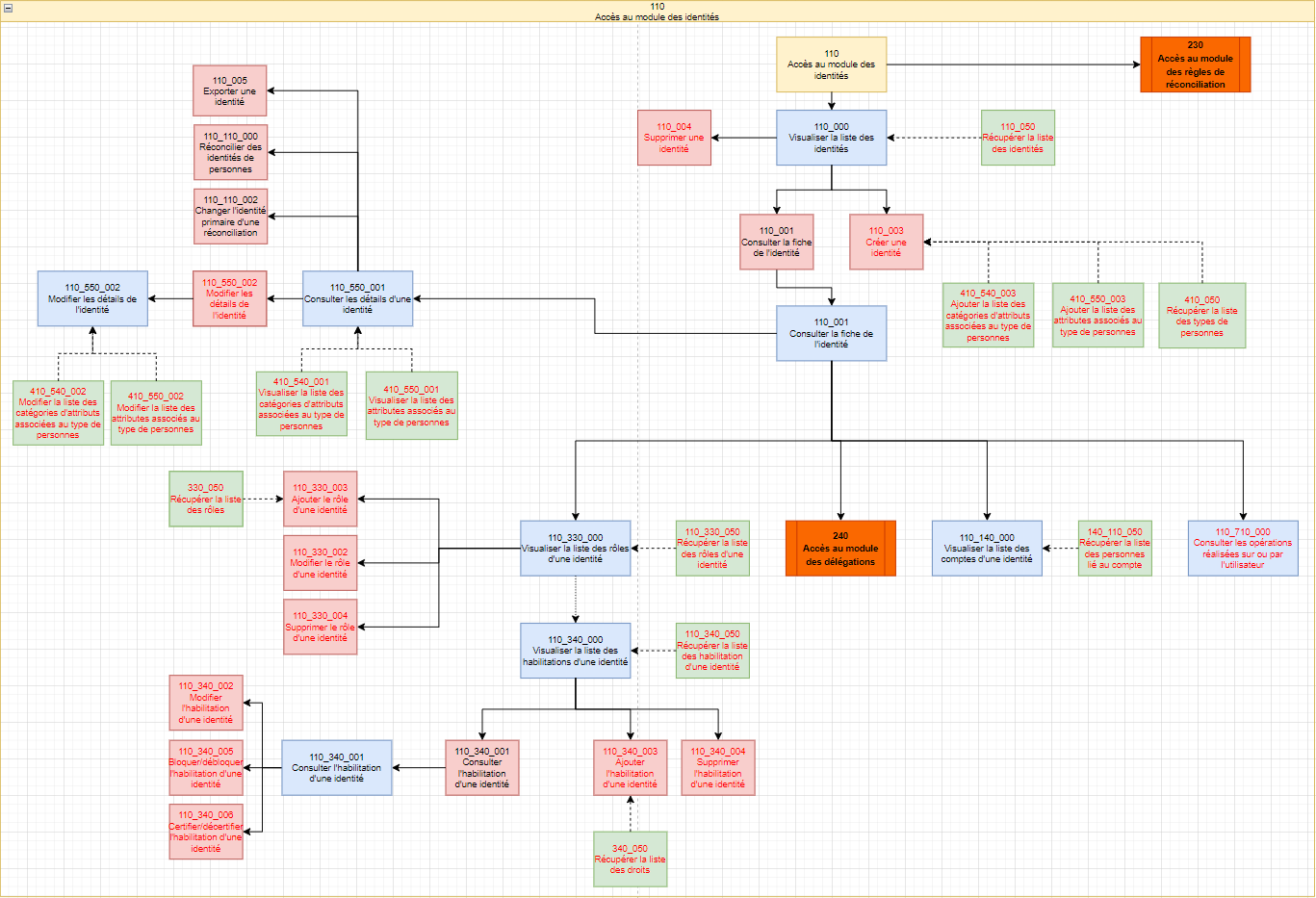
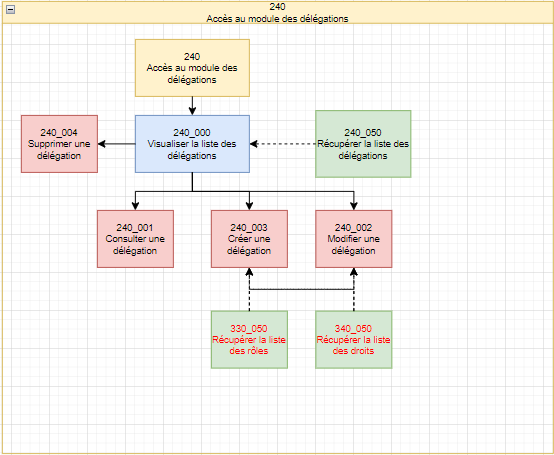
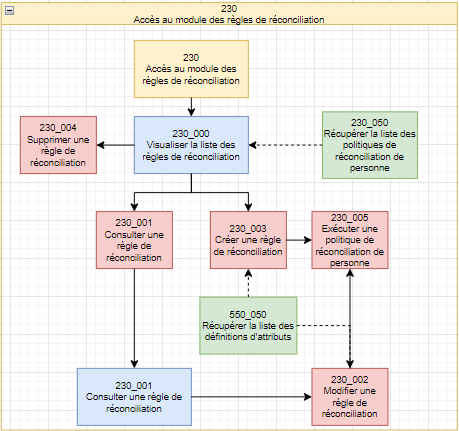
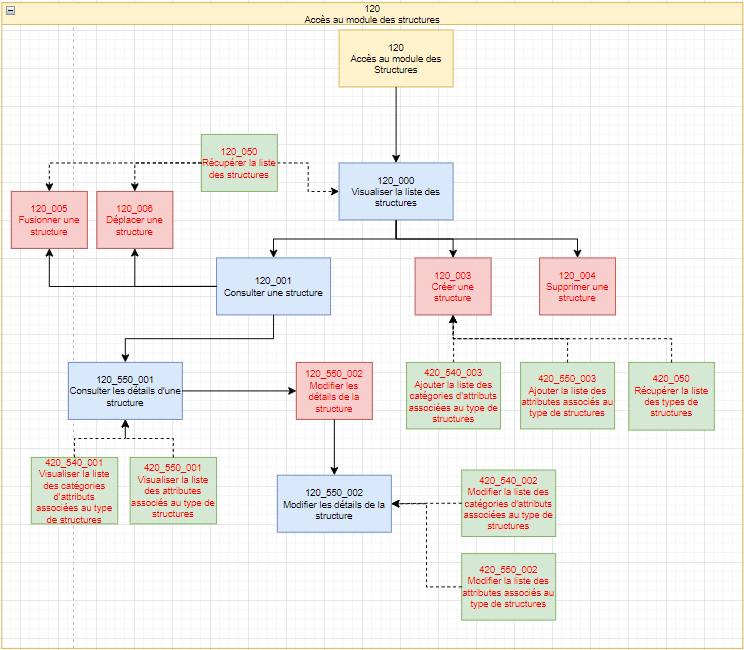
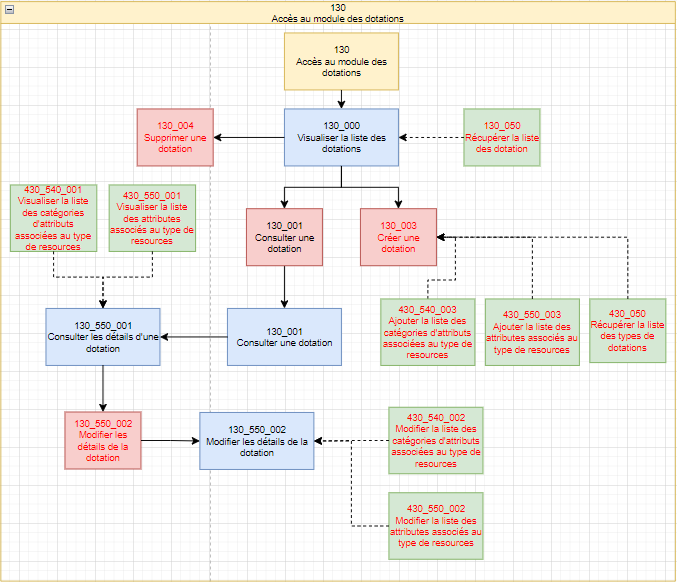
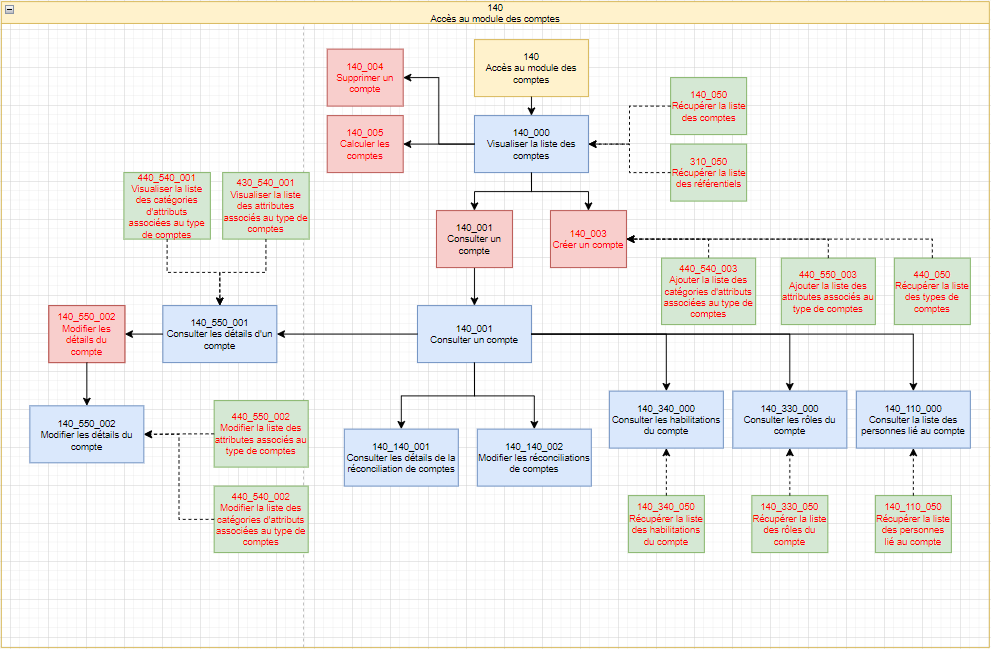
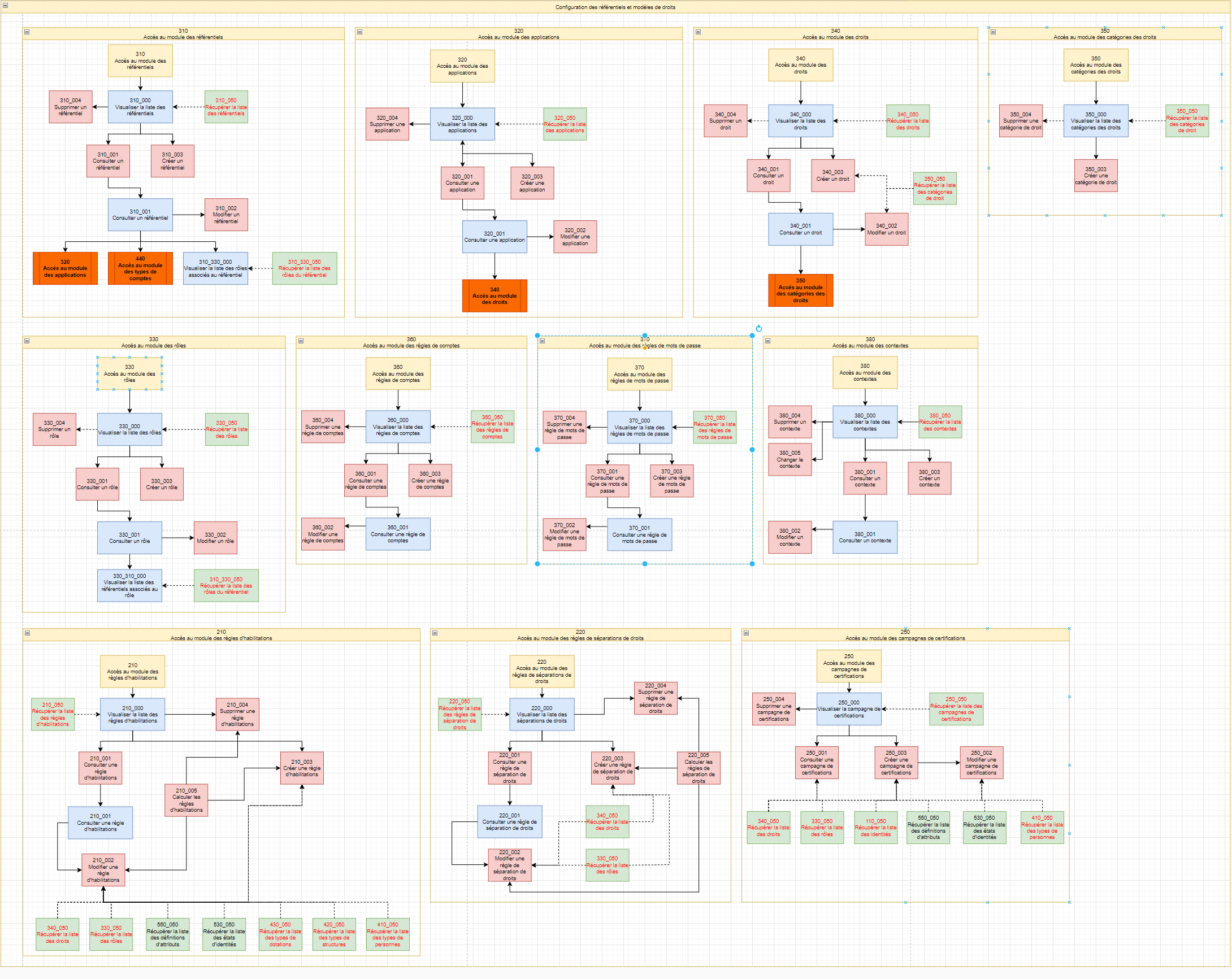
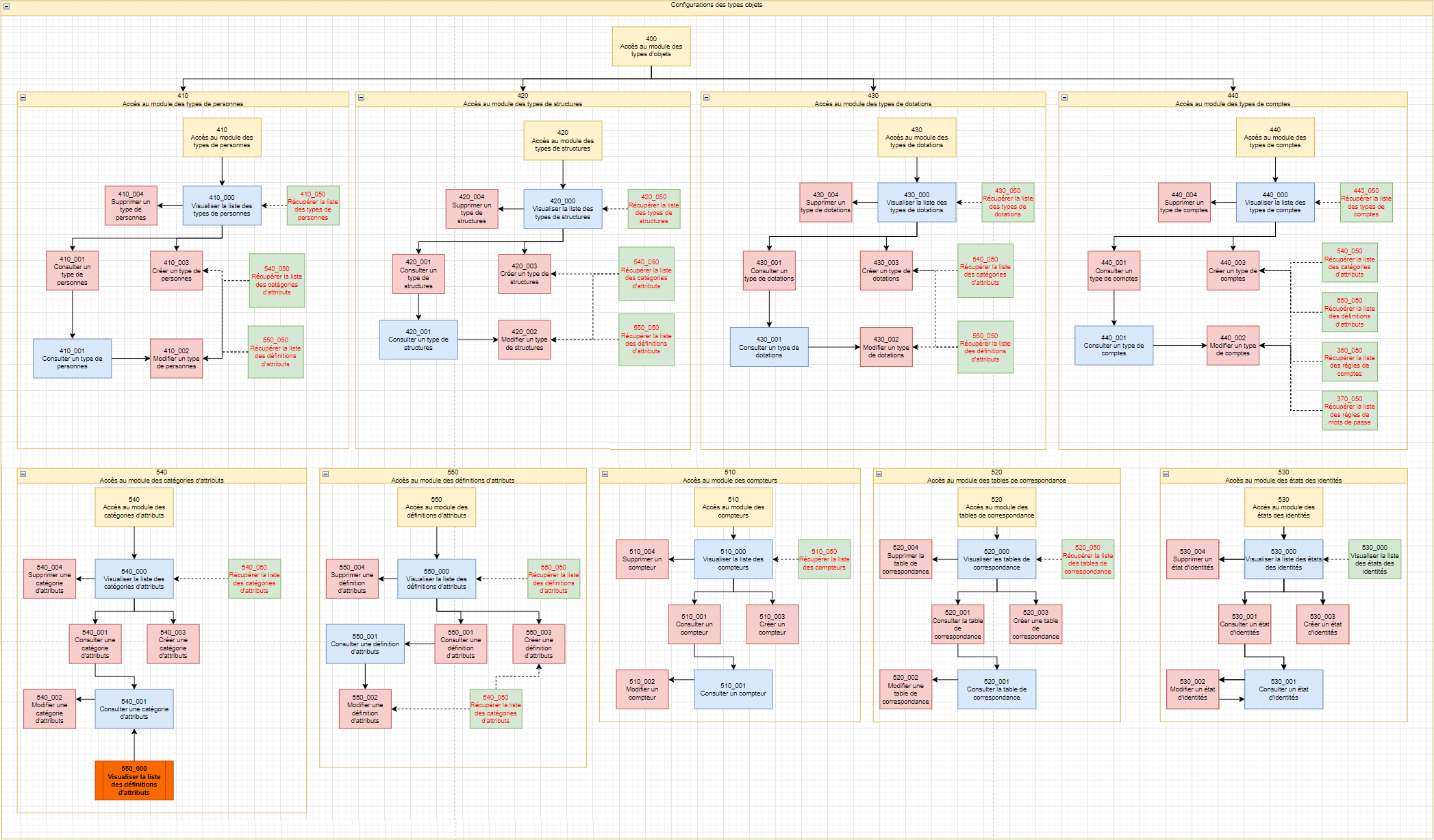
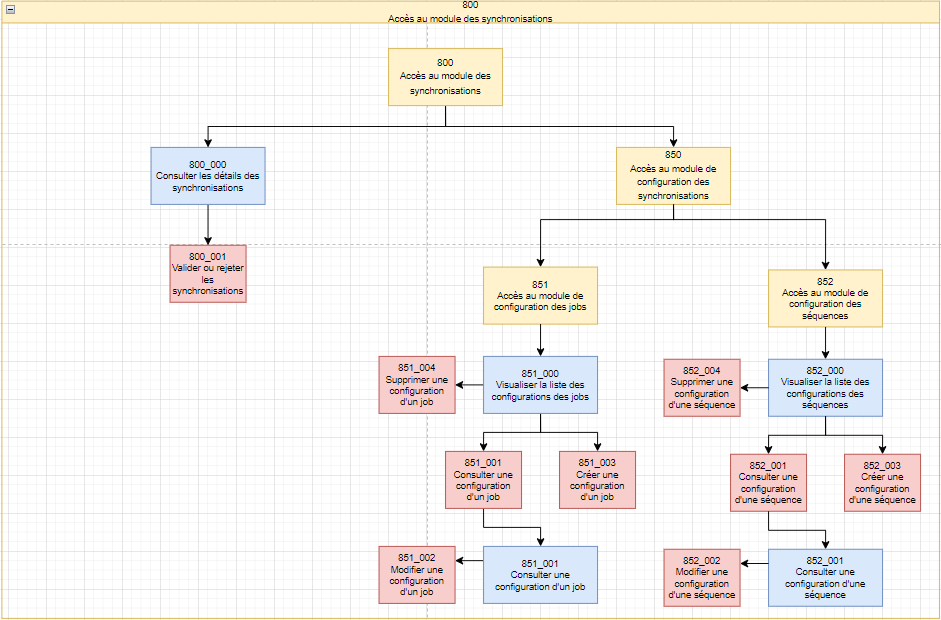
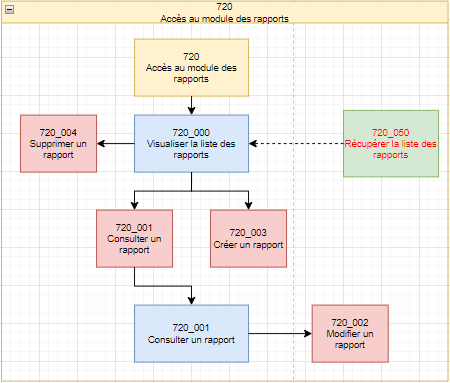
For each module, there are several authorizations to enable detailed management of rights in the cyberelements Identity application. The list of authorizations is presented for each module in the form of a diagram to show the dependencies between them.
Legends
The authorizations shown in a blue rectangle correspond to access to the web application pages.
Permissions represented in a red rectangle correspond to access to buttons on the various web pages.
Permissions represented in a green rectangle correspond to access to API routes, which are called by the web interface.
When it is possible to configure a scope for a permission, the permission contains a red font. Scopes are mostly accessible on API routes because that is where filters are applied. However, there are also scopes on buttons in certain web pages of the Identity application.
Links to modules are shown in orange.
The arrows represent automatic dependencies between authorizations.
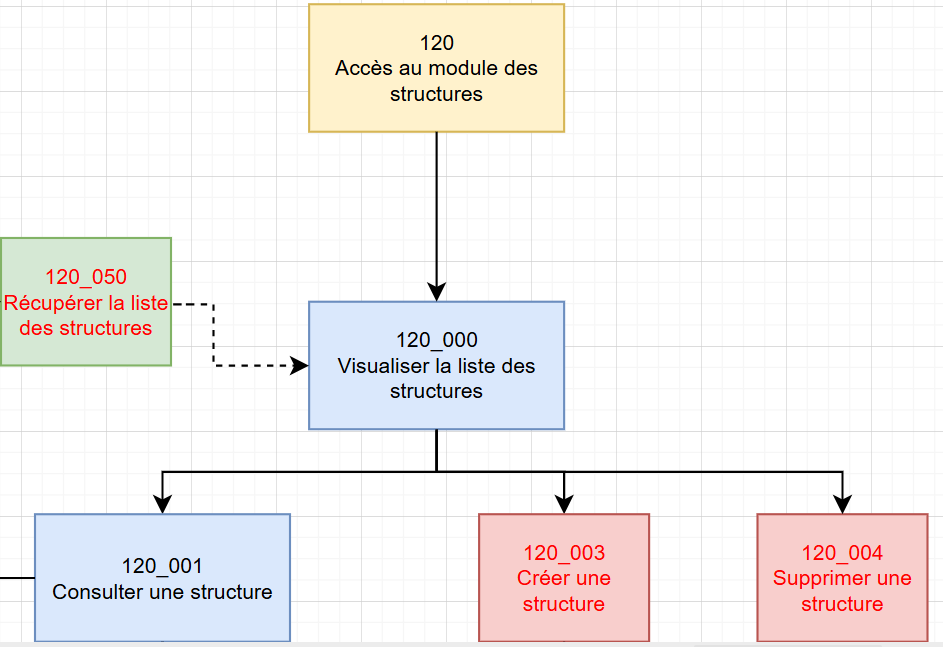
For example, with the diagram below:
-
If you want to give permission to view a structure in an Identity role, simply add the authorization “120_001 - View a structure”. The authorizations “120 – Access to the Structure module,” “120_000 View the list of structures,” and “120_050 – Retrieve the list of structures” will be automatically added to the profile, because to view a structure, you must first view the list of existing structures.
Note
If you are modifying an Identity role that has already been assigned to individuals, you will see the dependencies in the impact visualization screen for the individuals concerned.
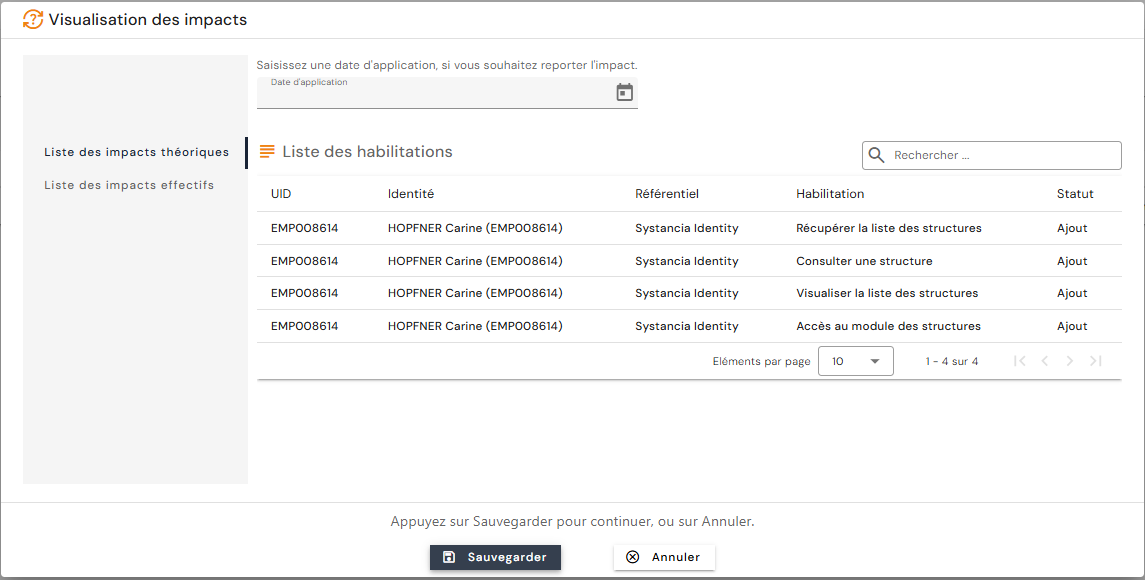
- After viewing the impacts, only the “120_001 – View a structure” authorization that you have just added is actually present in the list of authorizations linked to the role (so as not to overload the list of authorizations).

-
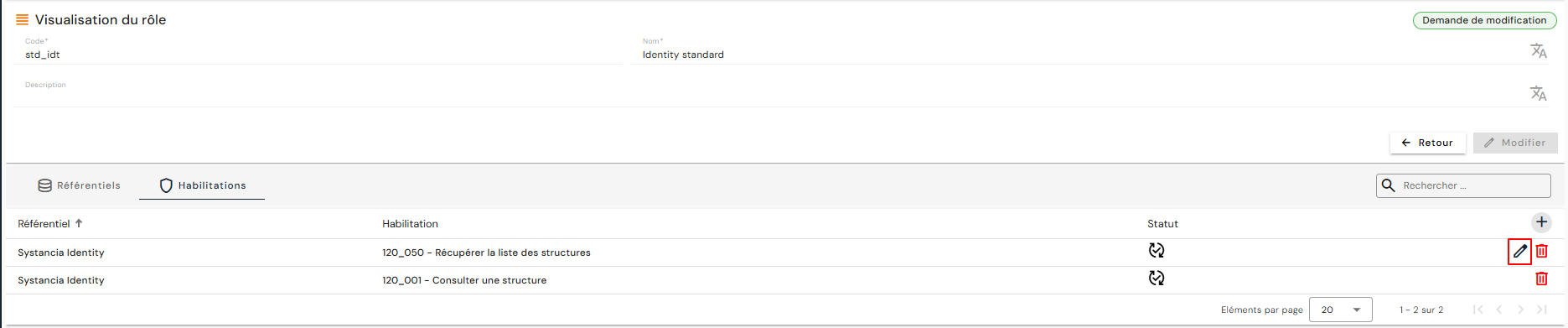
If you want to restrict access to certain structures, you need to configure a scope for the “120_050 – Retrieve the list of structures” authorization. In this case, even if the dependency is created automatically, you need to manually add this authorization to the role in order to access the button.
Note
In the impact visualization screen, this authorization does not appear in the list because it has already been linked to identities with the addition of the “120_001 – View a structure” authorization.
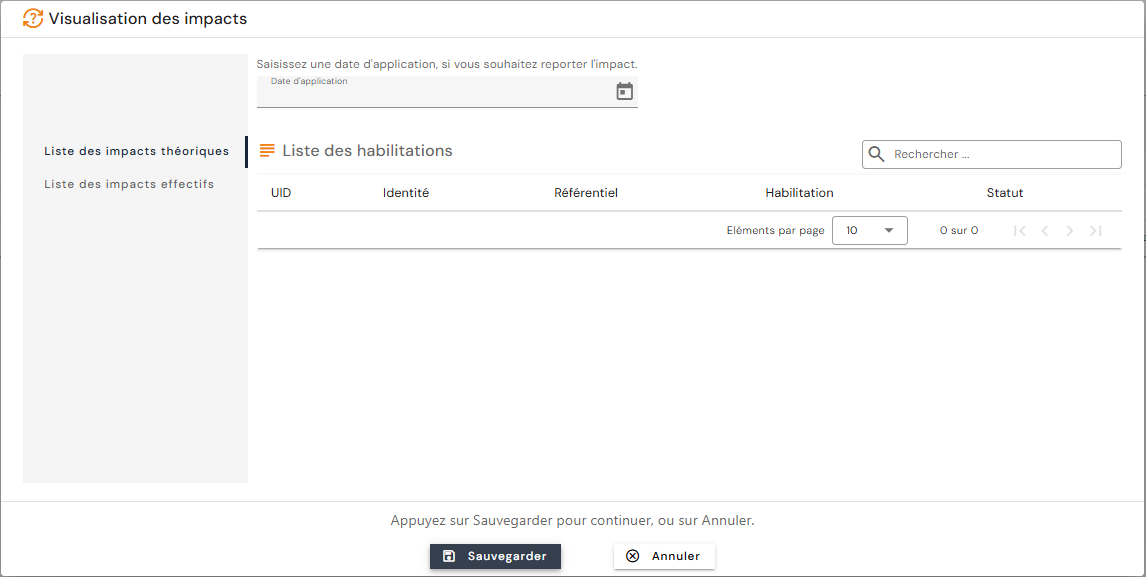
- The presence of the pencil to the right of the "120_050 – Retrieve the list of structures" indicates that it is possible to add a scope in order to filter the structures to which you wish to grant access for consultation.
Identities module
Delegations module
Reconciliation Rules module
Structures module
Allocations module
Accounts module
Access Management module
Dashboard module
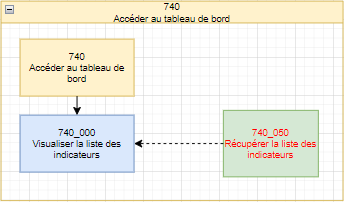
To build the dashboard for an Identity role, you must manually add the authorization “740_050 – Retrieve list of indicators” and select the desired indicator(s) from the list provided.
For some indicators, you must manually add dependent authorizations to display the graphs:
| Indicator name | Indicator type | Dependencies to be added manually |
|---|---|---|
| Active/inactive users | Counter | |
| Users without login | Counter | |
| Configured repositories | Counter | |
| Users without applications | Counter | |
| Orphan accounts | Counter | |
| Manually blocked authorizations | Counter | |
| Authorizations blocked by SOD rule | Counter | |
| Distribution of users | Graphics | 410_050 - Retrieve the list of person types |
| Distribution of roles | Graphics | 310_050 - Retrieve the list of repositories |
| Distribution of orphan accounts | Graphics | 310_050 - Retrieve the list of repositories |
| Sources of authorizations | Graphics |
Object Configuration module
Provisioning jobs module
Reports module
Other modules