Create/modify/delete a provisioning sequence
Provisioning sequences are created and managed in the Systancia Identity Provisioning tool. However, you must also create sequences in the web application to manage them in the web interface.
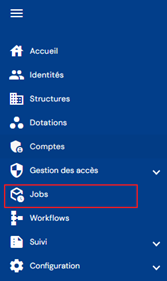
To access the sequence management, go to the “Jobs” menu:
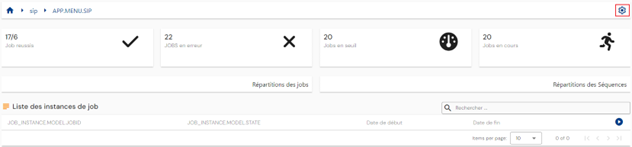
You will be taken to the job and sequence tracking page.
Click on the icon “ ” located at the top right of the screen.
Then click on the “Sequences” tab.
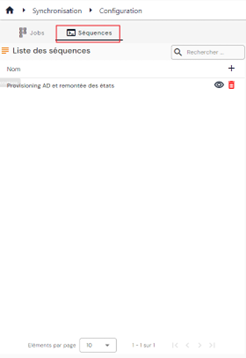
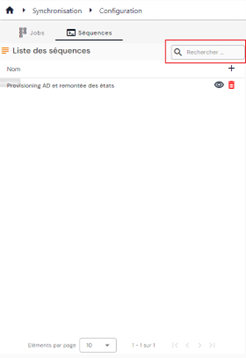
The list of existing sequences is displayed on the left side of the screen.
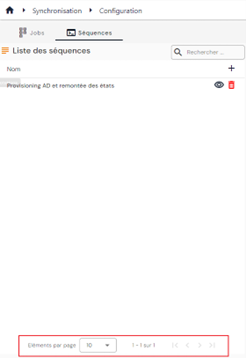
Pagination is set up to display only 10 sequences.
A search field is available at the top right of the table. The search focuses on sequence codes and names.
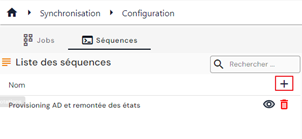
To create a new sequence, click on the “ ” button.
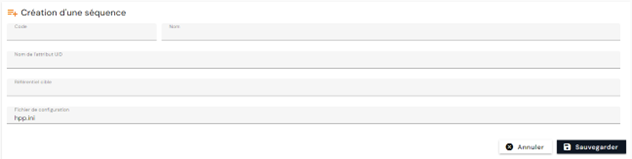
Enter the parameters for a sequence:
- Code: Name of the sequence found in Systancia Identity Provisioning. Mandatory.
- Name: name of the sequence. Mandatory.
- UID attribute name: attribute that will be used to perform unit operations. Optional.
- Target repository: code of the target repository
- Configuration file
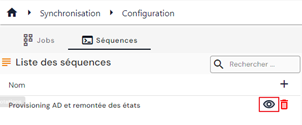
To view and edit a sequence, click on the “ ” icon located to the right of the corresponding table row.
You can switch to edit mode directly from the sequence viewing page by clicking on the “Edit” button.
In edit mode, all fields can be modified except for the code.
Actions on buttons in edit or create mode:
- Cancel: cancels the current entry and returns to the list of person types page.
- Save: Validates the form and switches the page to view mode.
To delete a sequence, click on the icon “ ” located to the right of the corresponding row in the table.
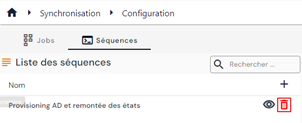
A confirmation message will appear before the sequence is deleted.
Warning: it is not possible to delete a sequence while it is being used in jobs.