Management of search modules for different types of objects
Quick search module for identities, allocations, and accounts
The quick search is performed in the search bar at the top of the identity, allocation, or account tables. The search is performed in “contains” mode and covers all attributes indexed in the quick search.

Advanced search module for identities, allocations, and accounts
The advanced search can be accessed by clicking on the “ ” button located to the right of the search bar.
It is possible to combine several operations by linking them with “AND” and “OR” operations.
In each operation, you must choose an attribute from a first list and choose a comparison operation to be performed from a second list. The list of operators varies depending on the type of attribute chosen (e.g., for text, you can have “equals,” “contains,” etc.).
The list of attributes available for advanced search must be configured in advance.
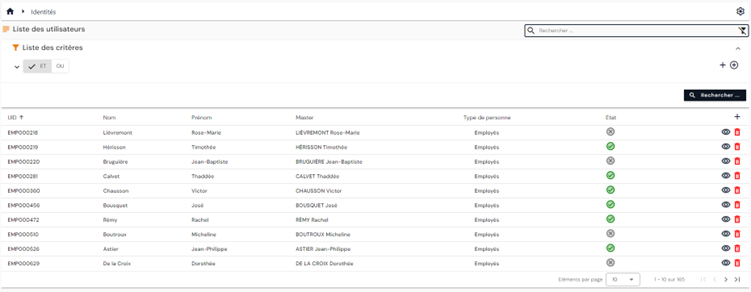
The search results, regardless of the search mode, are displayed in the table on the page. The columns displayed in the table are configurable.
The results take into account the filters and permissions associated with the profile of the person performing the search.
Quick search module for structures
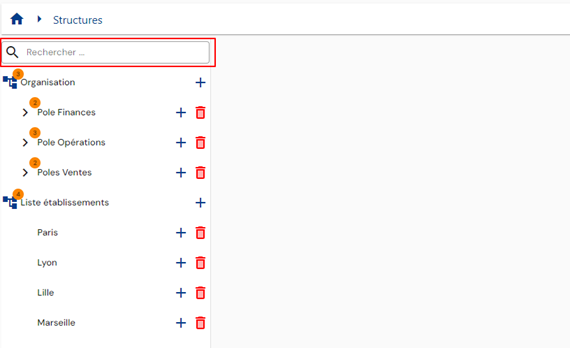
The quick search is performed in the search bar located above the organizational trees. The search is performed in “contains” mode and covers all attributes indexed in the quick search.
Configuring the quick search form for objects
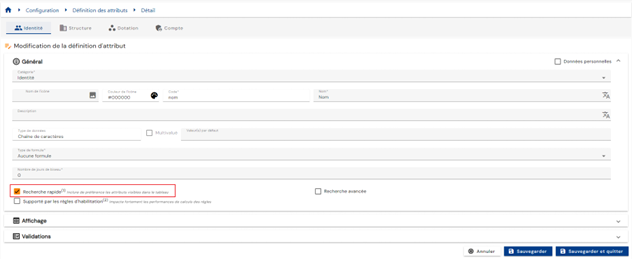
To configure the attributes to be included in the quick search for objects, go to the attribute configuration page, select the desired tab, open the desired attribute in edit mode, and check the “Quick search” option in the “General” category.
Bests Practices:
- To ensure fast search results, limit the number of attributes indexed in the quick search.
- Prioritize attributes that are returned in the search results table.
Configuring the advanced object search form
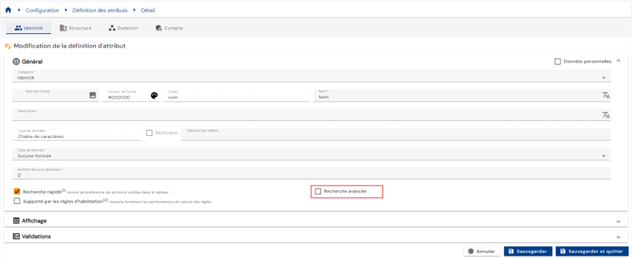
To configure the attributes to be included in the advanced object search filters, go to the attribute configuration page, select the desired tab, open the desired attribute in edit mode, and check the “Advanced Search” option in the “General” category.
Configure the search results table for identities, allocations and accounts
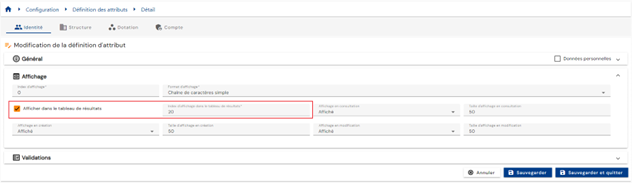
To configure the attributes to be included in the search results table for identities, allocations and accounts, go to the attribute configuration page, select the desired tab, open the desired attribute in edit mode and check the “Display in results table” option in the “Display” category. The display index must be specified to define the order in which the columns are displayed in the results table. The lowest indexes are the first columns to be displayed.