Installation of the Windows recording agent
The Windows recording agent is used by cyberelements.io / cyberelements Cleanroom to add new features for RDP sessions:
- Ability to filter TCP and UDP streams accessible by the user
- Ability to trigger session recording for any user connecting to the server without going through the user portal or Desktop client (
direct accessfeature)
In addition, additional events are captured during user sessions:
- Window opening
- Window closing
- Program launch
- Program closing
- Clipboard contents
- User activity
Prerequisites
Client compatibility
To find out whether the agent is compatible with different Microsoft Windows operating systems, refer to the compatibility matrix.
The recording agent requires a few prerequisites to function properly. Some of these are only intended for agent-based recording functionality for RDP and HTML5 RDP applications, while others concern direct agent-based access.
General prerequisites
The recording agent sends the user session recording back to cyberelements.io and cyberelements Cleanroom by connecting to the Edge Gateway on port TCP 8443. This requires the network flow between the two machines to be open.
To securely send the recording back to the Edge Gateway, the recording agent establishes a secure connection with the latter using TLS. TLS relies on the use of certificates, and the following constraints must be validated for the connection to be considered reliable and secure:
- The server certificate, in this case the Edge Gateway, must not have expired (maximum validity date).
-
The server certificate, in this case the Edge Gateway, must be issued by a certification authority recognized as trustworthy by the machine on which the recording agent is installed.
Additional information
The server on which the recording agent is installed must have, at a minimum, the root certification authority (CA) of the recording server certificate in its local store of trusted certification authorities.
It is therefore necessary to:
- Retrieve the root CA of the certificate from the recording service on the Edge Gateway.
- Upload this CA to the server where the recording agent is installed.
- Install the CA in the “Trusted Root Certification Authorities” certificate store on the local machine.
Example with PowerShell
You can easily import a certificate in
.cerformat via PowerShell.
To do this, open a PowerShell terminal as the machine administrator and run the following command:Replace1Import-Certificate -FilePath "<PAHT_TO_CERT>" -CertStoreLocation "Cert:\LocalMachine\Root"<PATH_TO_CERT>with the path to the certificate file.Example with PowerShell for the Systancia certificate without sending files
This example involves installing the Systancia root CA, which is used by default on cyberelements.io or for cyberelements Cleanroom clients using certificates provided by Systancia.
It is also possible to import the certificate without having to send/download the file to the machine where the recording agent is installed.
To do this, open a PowerShell terminal as the machine administrator and run the following commands:1 2 3 4 5 6 7 8 9 10 11 12 13 14 15 16 17 18 19 20 21 22 23 24 25 26 27 28 29 30 31 32 33 34 35 36 37 38 39 40 41 42
# Systancia Root certificate
$base64Cert = "MIIFIDCCBAigAwIBAgIBADANBgkqhkiG9w0BAQUFADCBjTELMAkGA1UEBhMCRlIx
FDASBgNVBAoTC0lQZGl2YSBSb290MR0wGwYDVQQLExRJUGRpdmEgU2VjdXJpdHkg
RGVwdDEqMCgGA1UEAxMhSVBkaXZhIFJvb3QgQ2VydGlmaWNhdGUgQXV0aG9yaXR5
MR0wGwYJKoZIhvcNAQkBFg5wa2lAaXBkaXZhLmNvbTAeFw0wNTA4MjIxNTAwMzla
Fw0zMDA4MjIxNTAwMzlaMIGNMQswCQYDVQQGEwJGUjEUMBIGA1UEChMLSVBkaXZh
IFJvb3QxHTAbBgNVBAsTFElQZGl2YSBTZWN1cml0eSBEZXB0MSowKAYDVQQDEyFJ
UGRpdmEgUm9vdCBDZXJ0aWZpY2F0ZSBBdXRob3JpdHkxHTAbBgkqhkiG9w0BCQEW
DnBraUBpcGRpdmEuY29tMIIBIjANBgkqhkiG9w0BAQEFAAOCAQ8AMIIBCgKCAQEA
ua59tx+RkIPZbGaSwkV0w5fuPBpY3sbLTk/eR2uN7j9zMu0pq38LfibCVsNGlifh
GfT5CEbrNL7KvlEVY/It1QluYxNgknlcBP1roJG/xHNcUNmbvCFYLy9N3Nd0J/gC
Vd8tdB4exqyKEoNuqX18rLpSJJOUZdQCeGdF9r+w6vmHdRMeVS44qIiBPv9Bxzgf
GXBxAlSqfuDDJ3eZEMsWF/kJrbm4Uhav2ACl5qjHgSSTKMoGoEWOJNkB7Mq/khxc
TnixIpM2s1rpEfhIetPo4BHsyKv7wqWrS6ouwu5AbzT5t3UqaN77CLqcZJGQ3vC0
IGKBuEcwigd7W6qkX1/XMwIDAQABo4IBhzCCAYMwDwYDVR0TAQH/BAUwAwEB/zAd
BgNVHQ4EFgQU+lu7XBGohR2DKD+D+abZEODRHjkwgboGA1UdIwSBsjCBr4AU+lu7
XBGohR2DKD+D+abZEODRHjmhgZOkgZAwgY0xCzAJBgNVBAYTAkZSMRQwEgYDVQQK
EwtJUGRpdmEgUm9vdDEdMBsGA1UECxMUSVBkaXZhIFNlY3VyaXR5IERlcHQxKjAo
BgNVBAMTIUlQZGl2YSBSb290IENlcnRpZmljYXRlIEF1dGhvcml0eTEdMBsGCSqG
SIb3DQEJARYOcGtpQGlwZGl2YS5jb22CAQAwCwYDVR0PBAQDAgEGMBkGA1UdEQQS
MBCBDnBraUBpcGRpdmEuY29tMBkGA1UdEgQSMBCBDnBraUBpcGRpdmEuY29tMBEG
CWCGSAGG+EIBAQQEAwIABzA+BglghkgBhvhCAQ0EMRYvSVBkaXZhIFJvb3QgQ2Vy
dGlmaWNhdGlvbiBBdXRob3JpdHkgQ2VydGlmaWNhdGUwDQYJKoZIhvcNAQEFBQAD
ggEBACaAgBQK7TATXieb9OdKm+l7/GpePo8f2bRKnkqeRS+HXBKYkvqVJdbJnhJm
YPOdmhr9ATzt+488tQREAGzqPCp5eiVExPgvomNeG77X57KqbgCA1F7zGJqjP1FL
771FIWvFXp80ReM/zhcM+MY3sa5LADgOEl5NhoMNHT8AhLKwZ81j5nuwxyG9ICCN
5GjwgsnK/agmum4+RKeybIWuC/JTsSnu5OImXsmrlUiakp2l+VsZ1rRRNRNUlSbg
Q3T8kj5ajB0lv2I0kj4fN9wDxzdHEn7nEAmv0t6Y5Te0g/VK3VWhuqeLStaahgip
hmOVxbu5Ijfug5/3Eemep34NsYk="

# Convert the certificate and store it in memory
$certBytes = [Convert]::FromBase64String($base64Cert)

# Create a certificate object
$cert = New-Object System.Security.Cryptography.X509Certificates.X509Certificate2
$cert.Import($certBytes)

# Open the trusted root certificate store on the local machine and add the Systancia root certificate
$store = New-Object System.Security.Cryptography.X509Certificates.X509Store("Root", "LocalMachine")
$store.Open([System.Security.Cryptography.X509Certificates.OpenFlags]::ReadWrite)
$store.Add($cert)
$store.Close()
To use this method with another CA, please change the value of the
base64Certvariable to the base 64-encoded certificate of your choice. -
The server certificate, in this case the Edge Gateway, must not be revoked.
- The machine on which the recording agent is installed must be able to contact the server, in this case the Edge Gateway, with a DNS name or IP address that is covered by the server certificate via its Common Name (CN).
Specific prerequisites for RDP applications with agents used on a macOS or Ubuntu user workstation
Warning
The following prerequisites are only necessary if the user launches an RDP application with an agent and their workstation is not Windows (macOS or Ubuntu).
If cyberelements.io or cyberelements Cleanroom users have workstations exclusively running Windows or, if not, exclusively use HTML5 RDP applications, then the following prerequisites can be ignored.
The following registry keys are required on the target server where the recording agent is deployed.
First, the first key will disable the list of authorized startup programs (Microsoft document). By default, a Windows machine only allows explorer.exe as a startup program.
1 2 | |
If the machine is not an RDS server, then applying the following registry key is always recommended in order to allow the recording agent to open as a startup program:
1 2 | |
Specific requirements for direct access
Direct access feature
The direct access feature allows you to trigger a recording of the user's session for RDP or console access (physical connection to the machine or via the hypervisor's console mode) that does not go directly through cyberelements.io or cyberelements Cleanroom.
If the user has permission to access the server, their session will be recorded. If this is not the case, then by default, the user will be disconnected.
For the recording agent to operate in direct access mode, an x509 certificate is required. This certificate must meet the following requirements:
- The certificate must still be valid (validity period not expired).
- The certificate must be of the type (advanced key usage field)
authentification du client(OID: 1.3.6.1.5.5.7.3.2). - The certificate must not be revoked.
- Constraints arising from OpenSSL security level 2 imply that:
- The certificate must have a private key of at least 2048 bits with RSA, DSA, and DH ciphers; for elliptic curve keys (ECC), they must be at least 224 bits.
- The certificate signature must not be MD5 or SHA-1 (SHA-512 is preferred).
- The recording server will use the
Common Name(CN) field to identify the certificate and therefore the machine where a direct recording is triggered. This field must be completed.
Single-unit, manual installation
Administrator rights required
Administrator rights are required to install the agent.
Before installing the agent, you must download it from the administration console:
- Access the “Configurations” workspace using the button located at the top left:

- Open the “Toolbox” tile

- Select the setup appropriate for the desired OS in the first tab, “Integration Tools”
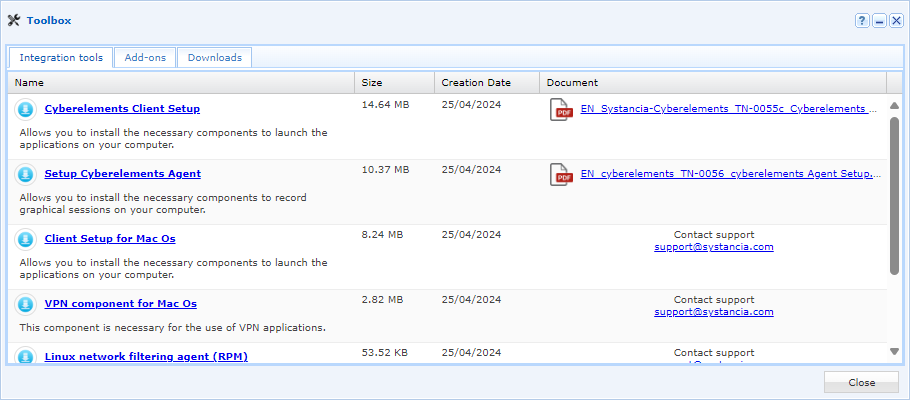
- Access the “Configurations” workspace using the button located at the top left:

- Open the “Toolbox” tile

- Select the setup appropriate for the desired OS in the first tab, “Integration Tools”
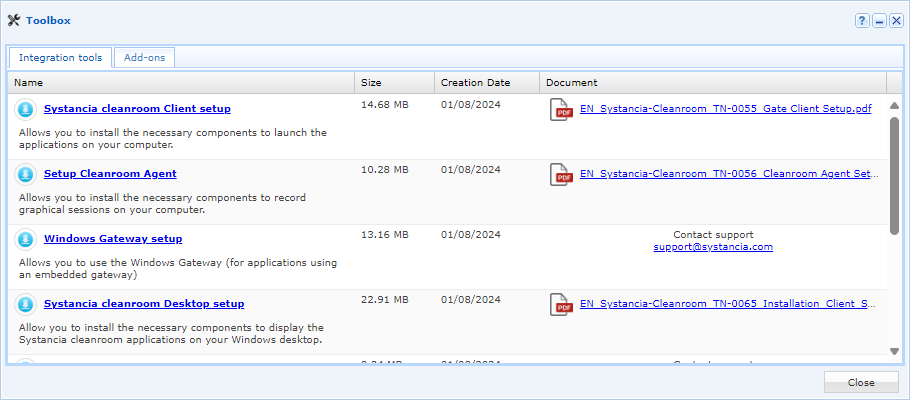
Once the agent has been downloaded, follow these steps:
- Run the
setup_cyberelementsAgent.exesetup on the machine where you want to install the recording agent. - Click
Nexton the first window: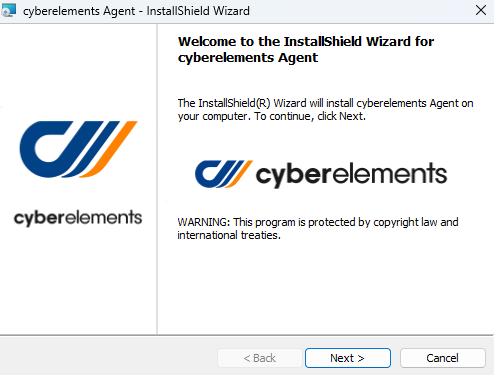
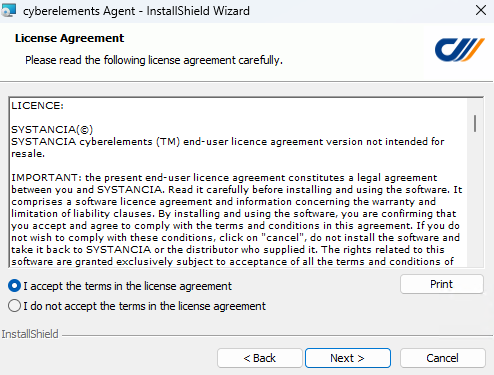
- Accept the terms of use:
- On the third screen, change the agent installation directory if necessary:
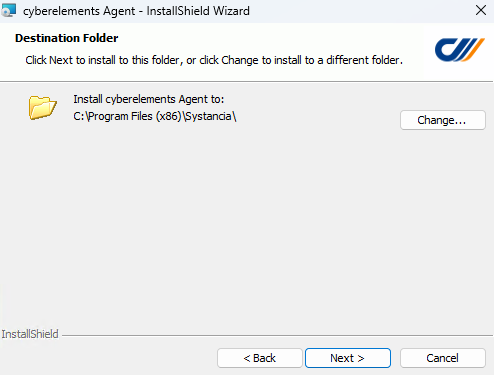
-
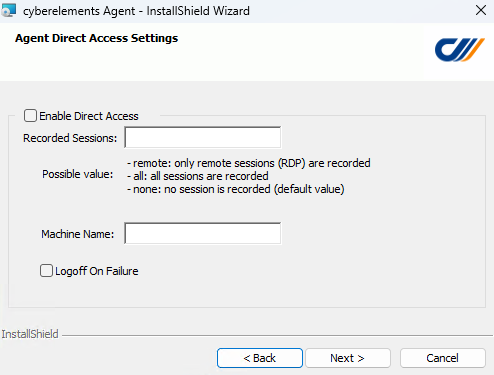
- The fourth screen shows the options for installing the agent in direct access mode:
-
Enable Direct Access -
Enabling the agent's direct access feature.
Recorded Sessions-
Free field accepting three distinct values to define when direct access recording should be triggered:
none: no direct access recording will be performed.remote: any RDP access to the machine will trigger the recording.all: RDP access as well as console access (physical access to the machine or from the hypervisor console mode) will trigger the recording.
Logoff On Failure-
Option to disconnect the user's session if recording cannot be initiated, is disconnected, or the user is not authorized to connect to the machine.
Recommendation
For initial installations or if compliance with the prerequisites is uncertain, it is best to leave this option unchecked. Otherwise, if there is a problem with the prerequisites or settings, new connections to the server will immediately disconnect the user (depending on the
Recorded Sessionssettings).Information
The direct access feature can still be enabled after installation. To do this, see the agent's registry key settings.
- The fourth screen shows the options for installing the agent in direct access mode:
-
Finally, on the fifth screen, the installation will start after clicking the
Installbutton: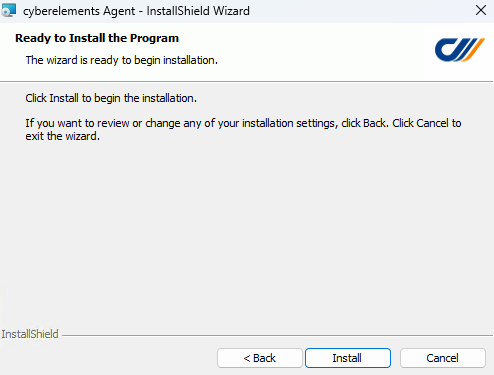
- Run the
setup_CleanroomAgent.exesetup on the machine where you want to install the recording agent. - Click
Nexton the first window: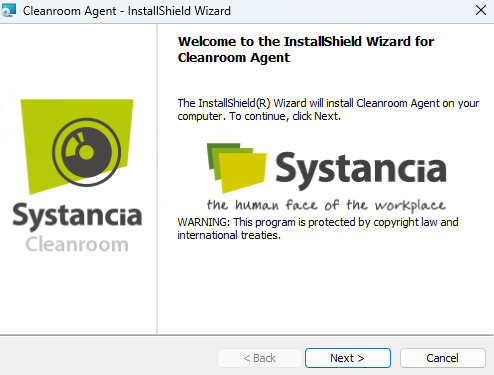
- Accept the terms of use:
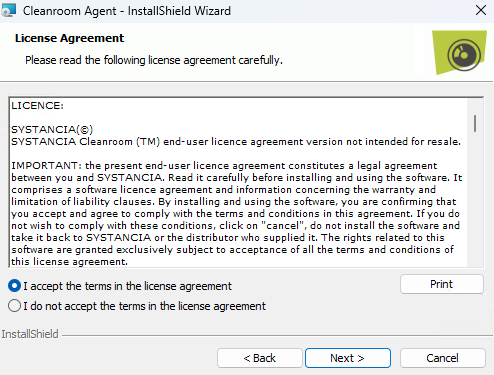
- On the third screen, change the agent installation directory if necessary:
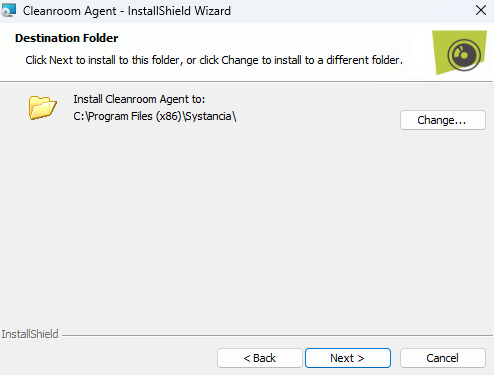
-
- The fourth screen shows the options for installing the agent in direct access mode:
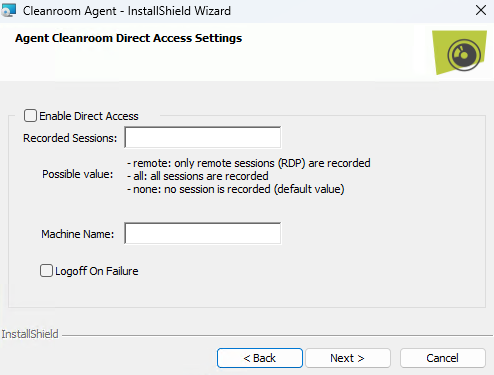
-
Enable Direct Access -
Enabling the agent's direct access feature.
Recorded Sessions-
Free field accepting three distinct values to define when direct access recording should be triggered:
none: no direct access recording will be performed.remote: any RDP access to the machine will trigger the recording.all: RDP access as well as console access (physical access to the machine or from the hypervisor console mode) will trigger the recording.
Logoff On Failure-
Option to disconnect the user's session if recording cannot be initiated, is disconnected, or the user is not authorized to connect to the machine.
Recommendation
For initial installations or if compliance with the prerequisites is uncertain, it is best to leave this option unchecked. Otherwise, if there is a problem with the prerequisites or settings, new connections to the server will immediately disconnect the user (depending on the
Recorded Sessionssettings).Information
The direct access feature can still be enabled after installation. To do this, see the agent's registry key settings.
- The fourth screen shows the options for installing the agent in direct access mode:
-
Finally, on the fifth screen, the installation will start after clicking the
Installbutton: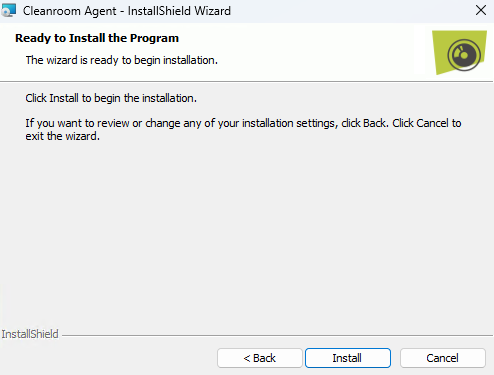
Once installed, the agent requires additional configuration: Configure the agent
Deployment from the administration console
Administrator rights required
Administrator rights on the target machine are required to install the agent.
Additional prerequisite
The agent is deployed on the target machine using the SMB protocol. Therefore, the SMB flow (TCP 445) must be open between the Edge Gateway and this target server.
Deployment on a single server
The agent can be deployed individually from two locations in the administration console. This allows it to be preconfigured for two types of operation:
- Use with RDP and HTML5 RDP applications: prepare the agent so that it can record the sessions of users running RDP and HTML5 RDP applications.
- Use in direct access mode: prepare the agent so that it can record the sessions of users connecting directly to the RDP server in addition to the previous operation.
For use with RDP and HTML5 RDP applications
When an RDP or HTML5 RDP application is configured to work with the agent, selecting the application unlocks the ability to deploy the agent: 
After clicking the agent deployment button, a new window appears and requests the following information: 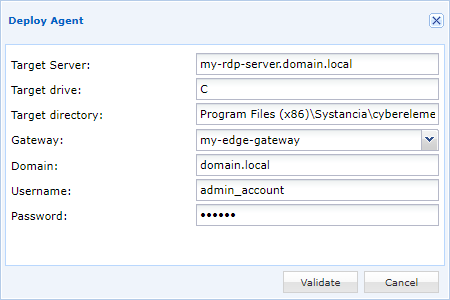
Target server-
IP address or DNS name of the target server on which the recording agent is to be deployed. By default, this field uses the information from the server specified in the RDP or HTML5 RDP application.
Target drive-
Letter of the Windows drive on which the agent will be deployed. Commonly, this will be the
Cletter used to deploy the agent on theC:\drive. Target directory-
Path to the agent installation directory; if it does not exist, it will be created. The default location for the cyberelements.io agent is
Program Files (x86)\Systancia\cyberelements. Gateway-
Specify the Edge Gateway to use for agent deployment.
Domain-
Domain name where the administration account used to install the agent is located.
Username-
Name of the administrator account to use to install the agent. This account must be able to install programs on the target server.
Password-
Administrator account password.
Once all the information has been entered, the agent deployment can be launched. A final window will indicate whether the agent deployment on the target server was successful or not.
Additional settings may still be necessary. See the following section: Configure the agent
For use in direct access mode + RDP and HTML5 RDP applications
From Machine management of the direct access screen, a button allows the agent to be deployed: 
After clicking the agent deployment button, a new window appears and requests the following information: 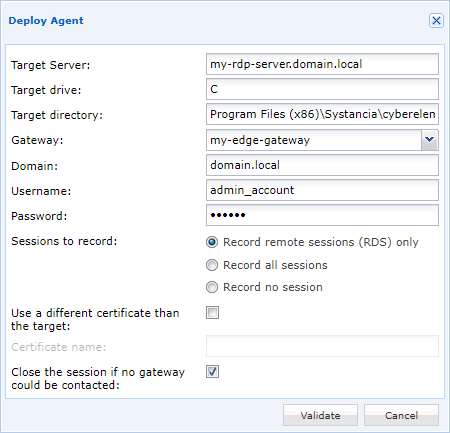
Target server-
IP address or DNS name of the target server on which the recording agent is to be deployed. By default, this field uses the information from the server specified in the RDP or HTML5 RDP application.
Target drive-
Letter of the Windows drive on which the agent will be deployed. Commonly, this will be the
Cletter used to deploy the agent on theC:\drive. Target directory-
Path to the agent installation directory; if it does not exist, it will be created. The default location for the cyberelements.io agent is
Program Files (x86)\Systancia\cyberelements. Gateway-
Specify the Edge Gateway to use for agent deployment.
Domain-
Domain name where the administration account used to install the agent is located.
Username-
Name of the administrator account to use to install the agent. This account must be able to install programs on the target server.
Password-
Administrator account password.
Sessions to record-
Definition of the context for which a session recording will take place:
Record remote sessions (RDS) only: only RDP remote accesses will be subject to recording.Record all sessions: Remote RDP sessions and console mode sessions (physical access to the machine or from the hypervisor console mode) will be subject to recording.Record no sessions: no direct connection to the server will record sessions, however the agent can still be used for access via RDP and HTML5 RDP applications.
Use a different certificate than the target-
Option to define the name of the certificate that the agent will use to authenticate with the Edge Gateway. If not defined, the agent will search for a certificate with the name of the server.
Close the session if no gateway could be contacted-
Option to disconnect and log out the user (depending on the Sessions to record settings) if the Edge Gateway is unreachable or if the user is not authorized to connect to the server.
Recommendation
For initial installations or if compliance with the prerequisites is uncertain, it is best to leave this option unchecked. Otherwise, if there is a problem with the prerequisites or settings, new connections to the server will immediately disconnect the user (depending on the
Sessions à enregistrersettings).
Once all the information has been entered, the agent deployment can be launched. A final window will indicate whether the agent deployment on the target server was successful or not.
Additional settings may still be necessary. See the following section: Configure the agent
Deployment across multiple servers
Information
This method will only allow you to deploy the recording agent to work with RDP and HTML5 RDP applications. In order for the agent to work in direct access mode, it will be necessary to deploy the configuration via other means (e.g., GPO).
Additional prerequisite
Deployment on multiple servers can only be done on machines belonging to an AD domain, which is itself configured in the Authentication Domains of cyberelements.io or cyberelements Cleanroom with the Allow RDS Server Management option enabled.
From Management of RDS servers, add one or more new RDS servers: 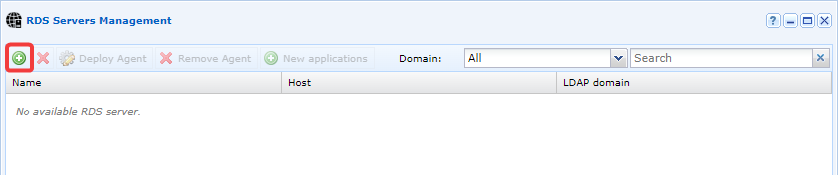
Search for and add the servers for which the recording agent needs to be deployed by dragging and dropping them to the right-hand panel. Select the option Deploy an agent: 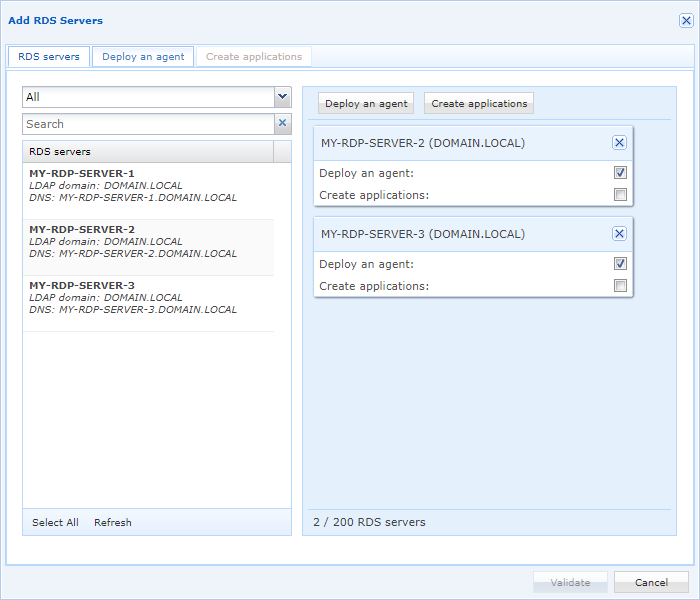
Configure the agent deployment information: 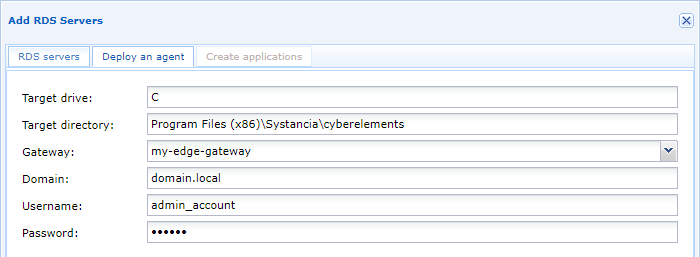
Target drive-
Letter of the Windows drive on which the agent will be deployed. Commonly, this will be the
Cletter used to deploy the agent on theC:\drive. Target directory-
Path to the agent installation directory; if it does not exist, it will be created. The default location for the cyberelements.io agent is
Program Files (x86)\Systancia\cyberelements. Gateway-
Specify the Edge Gateway to use for agent deployment.
Domain-
Domain name where the administration account used to install the agent is located.
Username-
Name of the administrator account to use to install the agent. This account must be able to install programs on the target server.
Password-
Administrator account password.
Additional settings may still be necessary. See the following section: Configure the agent