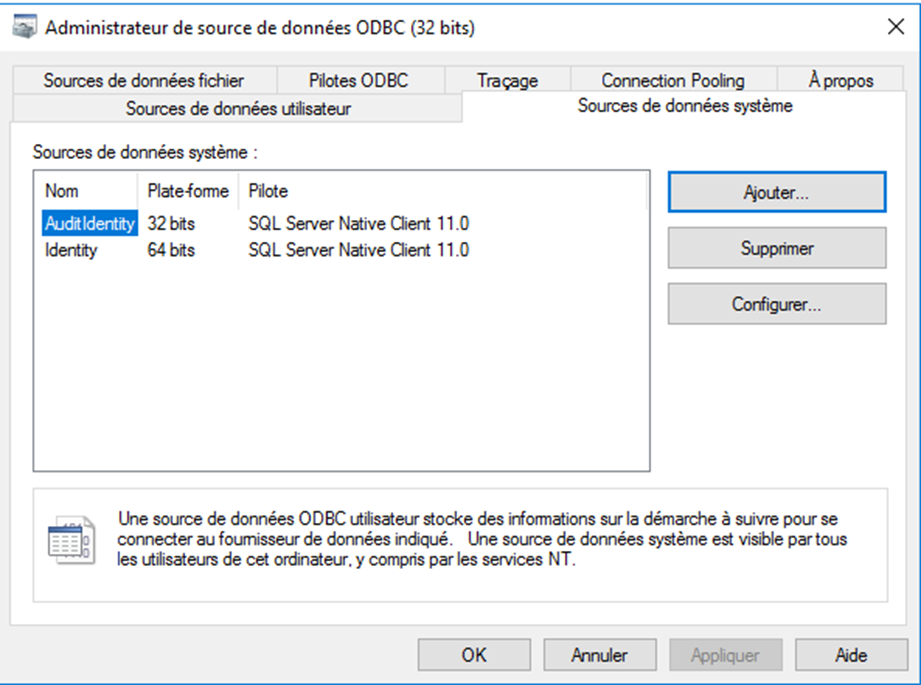
Configuration of the ODBC connector
Open the 32-bit data source manager accessible via:
- Control Panel > Administrative Tools > Data Source (ODBC)
- the odbcad32.exe component in the C:\Windows\SysWOW64 directory
Select the “System Data Sources” tab.
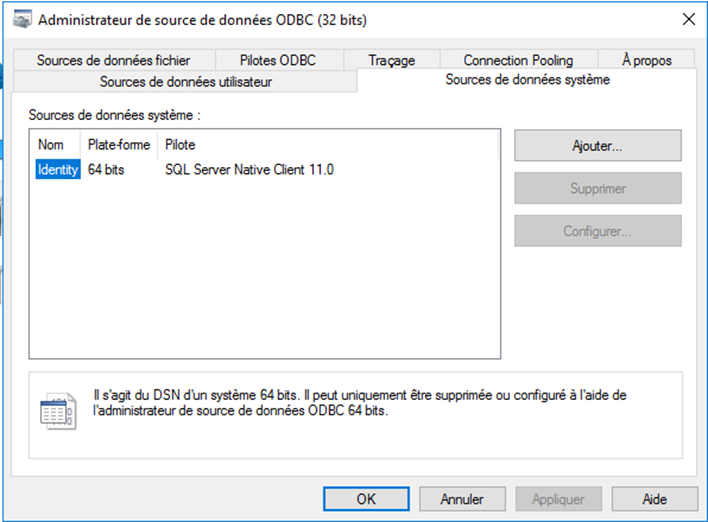
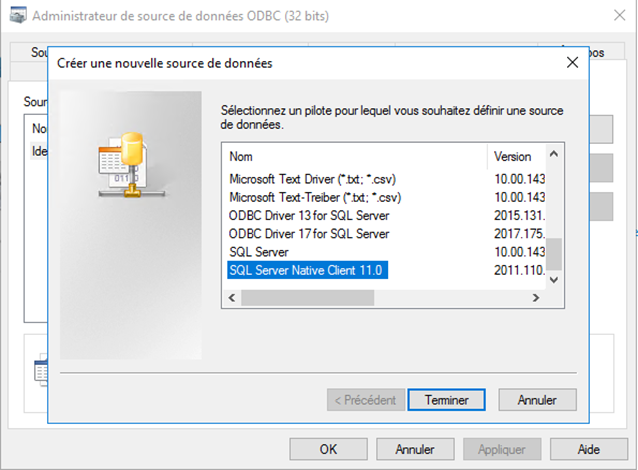
Click the Add button on the tab and choose the SQL Server Native Client ODBC driver.
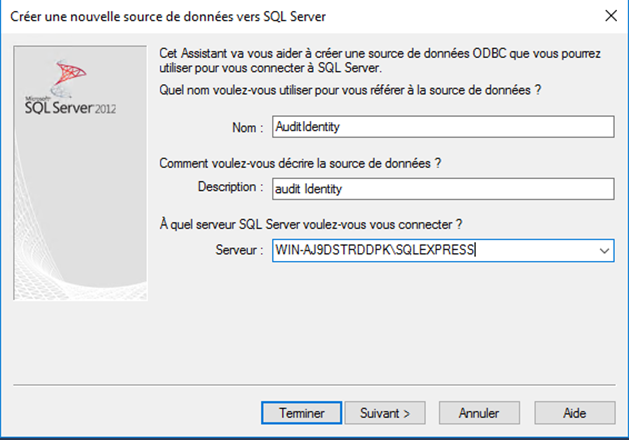
Enter the name of the data source of your choice (for example, “AuditIdentity”). Enter the name and domain of the database server, then click “Next”.
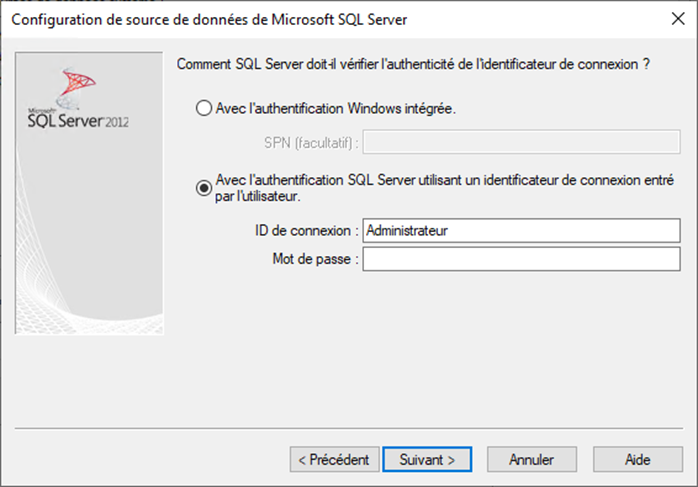
Select the Remote SQL Server authentication mode.
You can enter the login and password for the service account or the sa account to test the ODBC link, but you must delete the login and password in the ODBC link configuration.
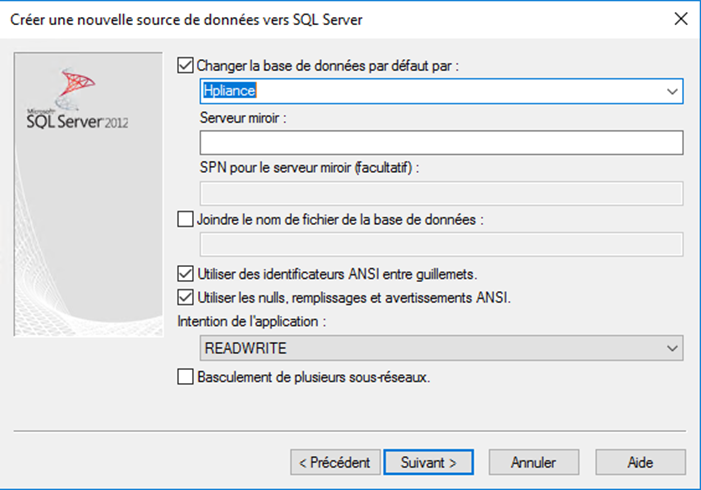
Select the “Hpliance” database and complete the ODBC connector configuration without testing the connection.
The SSOXAudit system data source is added.