Skip to content

Installation of Mediation Controller servers

Note

As a reminder, switching to root on Debian machines must be done with the following command:

1
su -

The instructions given on this page should be replicated on both Mediation Controller servers, starting with the MASTER server first.
When differences appear between the MASTER and SLAVE servers, they will be highlighted. If there is no mention of this, then the instructions apply to both MASTER and SLAVE servers.

Downloading the mirror and necessary tools

The cyberelements Cleanroom 4.6 mirror and the Systancia repository signature key can be downloaded from this link (requires the creation of a client account): Systancia Marketplace

In addition to the mirror and key, third-party tools will be required for the upgrade process:

  • An SSH client (on Windows, you can use PuTTY)
  • An SCP client (on Windows, the WinSCP or FileZilla tools can be used)

Use the SSH client to connect remotely to your server.

Use the SCP client to transfer files to your remote machine.

Preparing for installation

Configuration of the network

Install the resolvconf package so that the DNS configuration specified in the configuration file that will be modified shortly can be applied:

1
apt install -y resolvconf

It is essential to configure a static network address for the Mediation Controller. To do this, you first need to retrieve the name of your machine's network interface. Run the following command as root:

1
ip -br a | grep -ve "^lo"

This command displays the name of the network interface, its status, and the IP addresses assigned to the interface.

??? example “Example” After the command is executed, the following output is displayed:

1
2
3
4
5
```
ens192           UP             172.16.0.23/20 172.16.0.27/32 172.16.0.28/32 172.16.0.29/32 172.16.0.24/20
```

The name of the network interface is `ens192`.

Once the network interface name has been obtained, it is now possible to edit the machine's network configuration.
Edit the /etc/network/interfaces file to modify it using the following template:

 1
 2
 3
 4
 5
 6
 7
 8
 9
10
11
12
13
14
15
16
17
18
19
20
21
22
23
# This file describes the network interfaces available on your system
# and how to activate them. For more information, see interfaces(5).

source /etc/network/interfaces.d/*

# The loopback network interface
auto lo
iface lo inet loopback

# The primary network interface
auto INTERFACE_NAME
iface INTERFACE_NAME inet static
    address RIP_MED_WEB_MASTER
    netmask NETMASK
    gateway NETWORK_GATEWAY
    dns-nameservers IP_DNS_1 IP_DNS_2
    dns-search DNS_SUFFIX

# The secondary network interface
auto INTERFACE_NAME:1
iface INTERFACE_NAME:1 inet static
    address RIP_MED_SSL_MASTER
    netmask NETMASK

Where:

  • INTERFACE_NAME must be replaced by the name of the network interface previously retrieved.
  • RIP_MED_WEB_MASTER must be replaced by the server's main real IP address, which will be the IP address through which the web consoles can be accessed.
  • NETMASK must be replaced by the network mask associated with the IP address.
  • NETWORK_GATEWAY must be replaced by the default network gateway.
  • IP_DNS must be replaced by the IP address of the DNS server. If several servers need to be configured (3 maximum), separate them with a space.
  • DNS_SUFFIX must be replaced by the DNS suffix to be used. If no suffix needs to be entered, delete the line.
  • RIP_MED_SSL_MASTER must be replaced by the secondary real IP address of the server. This will be the IP address through which the SSL Router will be accessible.

??? example “Example”

 1
 2
 3
 4
 5
 6
 7
 8
 9
10
11
12
13
14
15
16
17
18
19
20
21
22
23
# This file describes the network interfaces available on your system
# and how to activate them. For more information, see interfaces(5).

source /etc/network/interfaces.d/*

# The loopback network interface
auto lo
iface lo inet loopback

# The primary network interface
auto eth0
iface eth0 inet static
    address 10.0.10.10
    netmask 255.255.255.0
    gateway 10.0.10.254
    dns-nameservers 10.0.10.100 10.0.10.101
    dns-search domain.local

# The secondary network interface
auto eth0:1
iface eth0:1 inet static
    address 10.0.10.11
    netmask 255.255.255.0

Finally, all that remains is to restart the networking service in order to load the new network configuration:

1
systemctl restart networking

It is essential to configure a static network address for the Mediation Controller. To do this, you first need to retrieve the name of your machine's network interface. Run the following command as root:

1
ip -br a | grep -ve "^lo"

This command displays the name of the network interface, its status, and the IP addresses assigned to the interface.

??? example “Example” After the command is executed, the following output is displayed:

1
2
3
4
5
```
ens192           UP             172.16.0.25/20 172.16.0.27/32 172.16.0.28/32 172.16.0.29/32 172.16.0.26/20
```

The name of the network interface is `ens192`.

Once the network interface name has been obtained, it is now possible to edit the machine's network configuration.
Edit the /etc/network/interfaces file to modify it using the following template:

 1
 2
 3
 4
 5
 6
 7
 8
 9
10
11
12
13
14
15
16
17
18
19
20
21
22
23
# This file describes the network interfaces available on your system
# and how to activate them. For more information, see interfaces(5).

source /etc/network/interfaces.d/*

# The loopback network interface
auto lo
iface lo inet loopback

# The primary network interface
auto INTERFACE_NAME
iface INTERFACE_NAME inet static
    address RIP_MED_WEB_SLAVE
    netmask NETMASK
    gateway NETWORK_GATEWAY
    dns-nameservers IP_DNS_1 IP_DNS_2
    dns-search DNS_SUFFIX

# The secondary network interface
auto INTERFACE_NAME:1
iface INTERFACE_NAME:1 inet static
    address RIP_MED_SSL_SLAVE
    netmask NETMASK

Where:

  • INTERFACE_NAME must be replaced by the name of the network interface previously retrieved.
  • RIP_MED_WEB_SLAVE must be replaced by the server's main real IP address, which will be the IP address through which the web consoles can be accessed.
  • NETMASK must be replaced by the network mask associated with the IP address.
  • NETWORK_GATEWAY must be replaced by the default network gateway.
  • IP_DNS must be replaced by the IP address of the DNS server. If several servers need to be configured (3 maximum), separate them with a space.
  • DNS_SUFFIX must be replaced by the DNS suffix to be used. If no suffix needs to be entered, delete the line.
  • RIP_MED_SSL_SLAVE must be replaced by the secondary real IP address of the server. This will be the IP address through which the SSL Router will be accessible.

??? example “Example”

 1
 2
 3
 4
 5
 6
 7
 8
 9
10
11
12
13
14
15
16
17
18
19
20
21
22
23
# This file describes the network interfaces available on your system
# and how to activate them. For more information, see interfaces(5).

source /etc/network/interfaces.d/*

# The loopback network interface
auto lo
iface lo inet loopback

# The primary network interface
auto eth0
iface eth0 inet static
    address 10.0.10.12
    netmask 255.255.255.0
    gateway 10.0.10.254
    dns-nameservers 10.0.10.100 10.0.10.101
    dns-search domain.local

# The secondary network interface
auto eth0:1
iface eth0:1 inet static
    address 10.0.10.13
    netmask 255.255.255.0

Finally, all that remains is to restart the networking service in order to load the new network configuration:

1
systemctl restart networking

One final step remains: modify the machine's internal name resolution so that it resolves its actual primary IP address (corresponding to RIP_MED_WEB_MASTER or RIP_MED_WEB_SLAVE).
To do this, edit the /etc/hosts file and replace 127.0.1.1 with RIP_MED_WEB_MASTER or RIP_MED_WEB_SLAVE depending on the Mediation Controller server.

Example

For a Mediation Controller server whose actual Web IP address is 10.0.10.10 and whose name is mediation-controller.domain.local, the /etc/hosts file will have the following value:

1
2
127.0.0.1       localhost
10.0.10.10      mediation-controller.domain.local   mediation-controller

Attention!

An incorrect configuration of the file may cause an error when installing the collectd package.

Configuring the APT package manager

Upload the files downloaded from the Systancia Marketplace to the /tmp/ directory on the server using an SCP client:

  • systancia.gpg
  • cleanroom-4.6.1-build33.1096.D12-full.tgz

Log in to the server as root, then run the following commands to unzip the Systancia repository, configure its use in APT, and authenticate it.

1
2
3
4
5
mv /tmp/systancia.gpg /etc/apt/trusted.gpg.d/
mkdir -p /opt/systancia/repository/
tar xvzf /tmp/cleanroom-4.6*.tgz -C /opt/systancia/repository/
echo "deb file:///opt/systancia/repository/ bookworm ipdiva" > /etc/apt/sources.list.d/systancia.list
apt update

We strongly recommend disabling the installation of unnecessary packages when running apt commands. To do so, run the following command:

1
echo -e 'APT::Install-Recommends false;\nAPT::Install-Suggests false;' > /etc/apt/apt.conf.d/99norecommends

Checking for the presence of the en_US.utf8 locale

Installing the Mediation Controller server requires the generation of en_US.utf8 locales.
To check whether they have already been generated on the server, run the following command as root:

1
locale -a  | grep en_US.utf8

If the command return displays en_US.utf8 then proceed to the next step of the GRUB configuration.
Otherwise, run the following commands to add this locale to the machine:

1
2
sed -i "s/# en_US.UTF-8 UTF-8/en_US.UTF-8 UTF-8/" /etc/locale.gen
locale-gen

Configuring the GRUB boot program

Once these commands have been executed, you must restart the machine after applying a setting in the GRUB boot program:

1
2
3
sed '9s/quiet/quiet vsyscall=emulate/' -i /etc/default/grub
update-grub
reboot

Installation of the cyberelements Cleanroom Mediation Controller server

Installation of basic components

Start installing the components using the following command as root:

1
apt install -y ipdiva-base

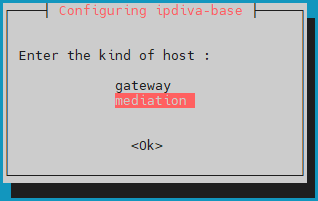
After downloading all dependencies, a window will open asking you to select the server type. Select mediation:
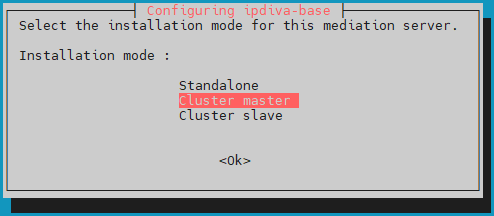
Then select the lbMaster installation mode:
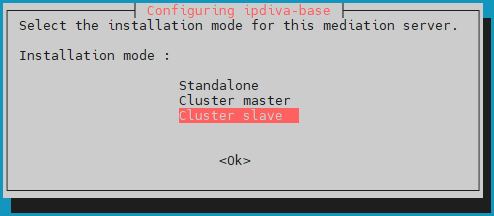
Then select the lbSlave installation mode:
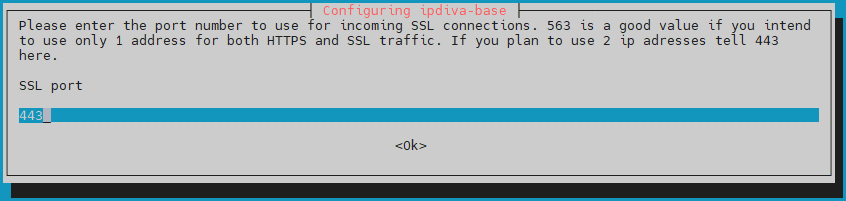
Then you will need to enter the port that the SSL Router will listen on. This listening port is usually set to 443 but the 8443 port can also be used if only one IP is used by the mediation server:
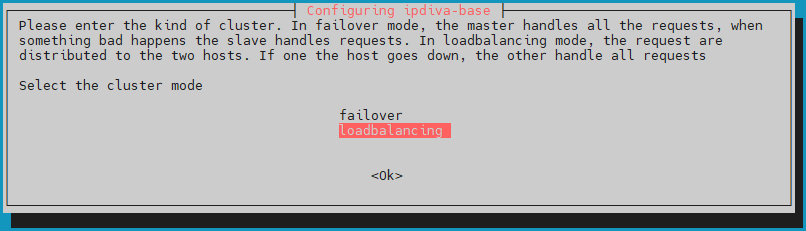
Then set the Cluster mode to loadbalancing so that the user load is distributed across both Mediation Controllers servers:
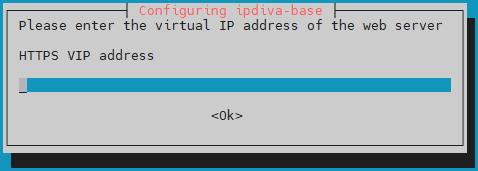
Specify the Web Virtual IP address of the Cluster, VIP_MED_WEB:
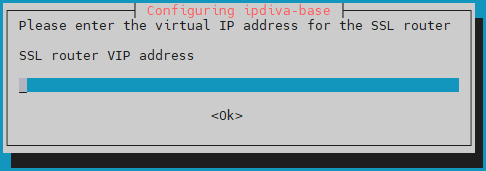
Enter the SSL Virtual IP address of the Cluster, VIP_MED_SSL:
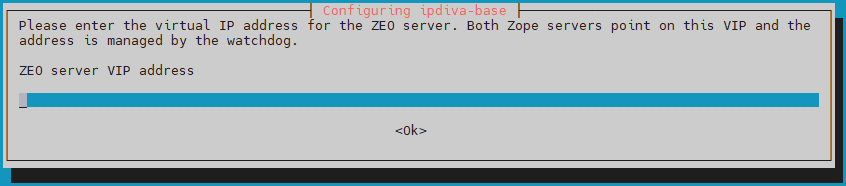
Enter the Virtual IP address of the Cluster configuration database, VIP_MED_ZEO:
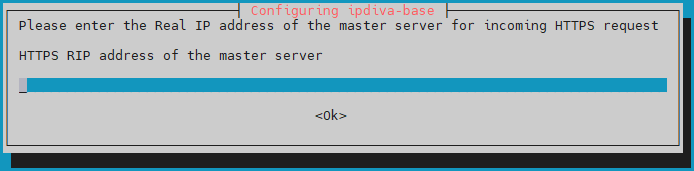
Enter the Web Real IP address of the MASTER Mediation Controller, RIP_MED_WEB_MASTER:
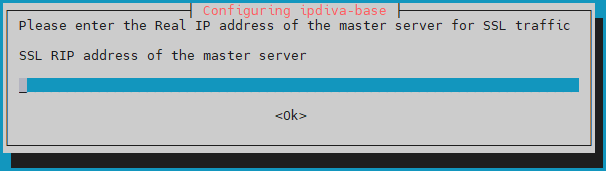
Enter the SSL Real IP address of the MASTER Mediation Controller, RIP_MED_SSL_MASTER:
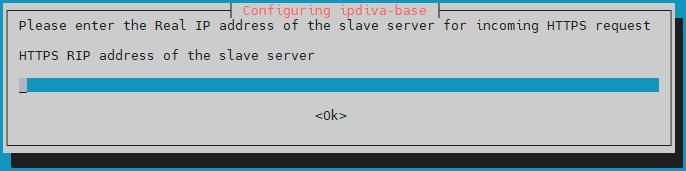
Enter the Web Real IP address of the SLAVE Mediation Controller, RIP_MED_WEB_SLAVE:
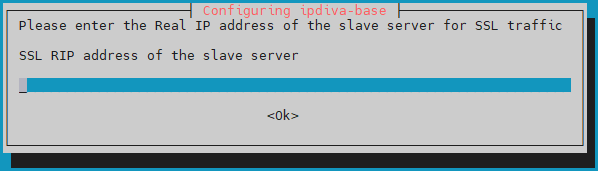
Finally, enter the SSL Real IP address of the SLAVE Mediation Controller, RIP_MED_SSL_SLAVE:
What should I do if there is an error?

If there is an error in the information you entered, continue installing the ipdiva-base package and then use the following command to reconfigure the server:

1
dpkg-reconfigure ipdiva-base

Installation of Cluster Components

After installing the basic components, the Cluster components must be installed on the Mediation Controllers servers:

1
apt install -y ipdiva-mediation-cluster

After installing the components, a restart is required:

1
reboot

Configuration of the Cluster

Changing the password of the cyberelements Gate /mediation/system console

At this stage of the installation, a new administration interface is available: Change password

Applying licenses and certificates

Still in the /mediation/system console, you will need to enter the certificates and licenses for the Mediation Controller server.

Attention!

The SSL Router license and certificate are specific to the MASTER or SLAVE Mediation Controller server.
Configuring the wrong license or certificate will cause malfunctions later on.

Apply the license and certificate for the SSL Router component:
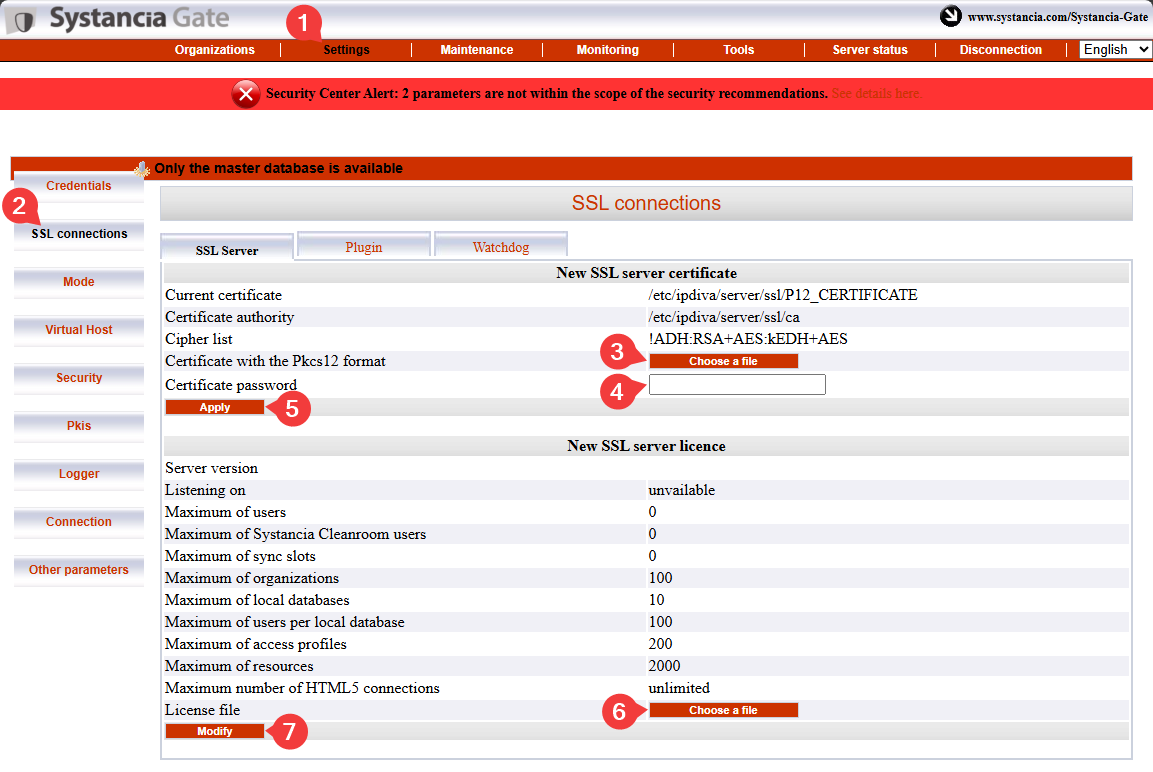
  1. Click the Settings tab.
  2. Select SSL Connections from the menu.
  3. Search for the certificate for the SSL Router.
  4. Enter the password for the SSL Router certificate.
  5. Click Apply to apply the certificate to the SSL router.
  6. Select the server license file.
  7. Click Modify to apply the server license.

Next, enter the certificate information for the cyberelements Cleanroom client:
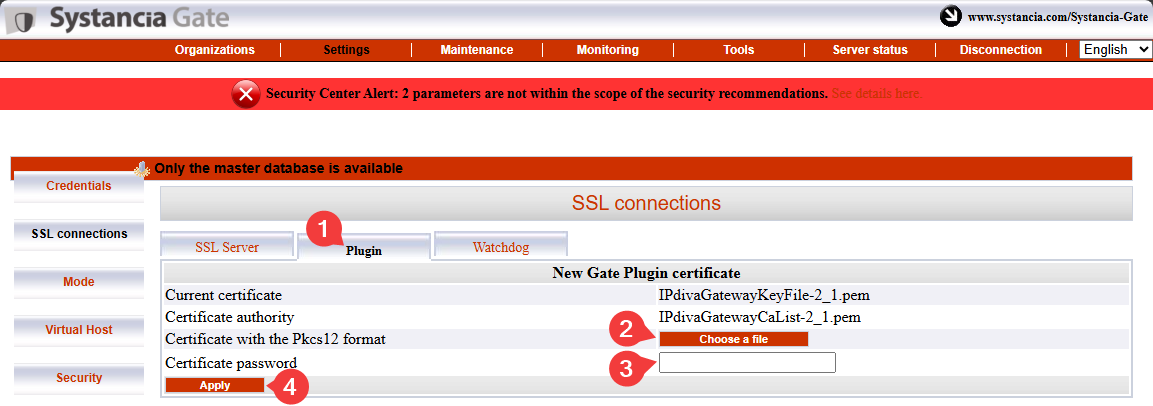
  1. Select the Plugin tab.
  2. Search for the cyberelements Cleanroom client certificate.
  3. Enter the certificate password.
  4. Click Apply to apply the certificate.

You still need to enter the information for the Watchdog certificate:
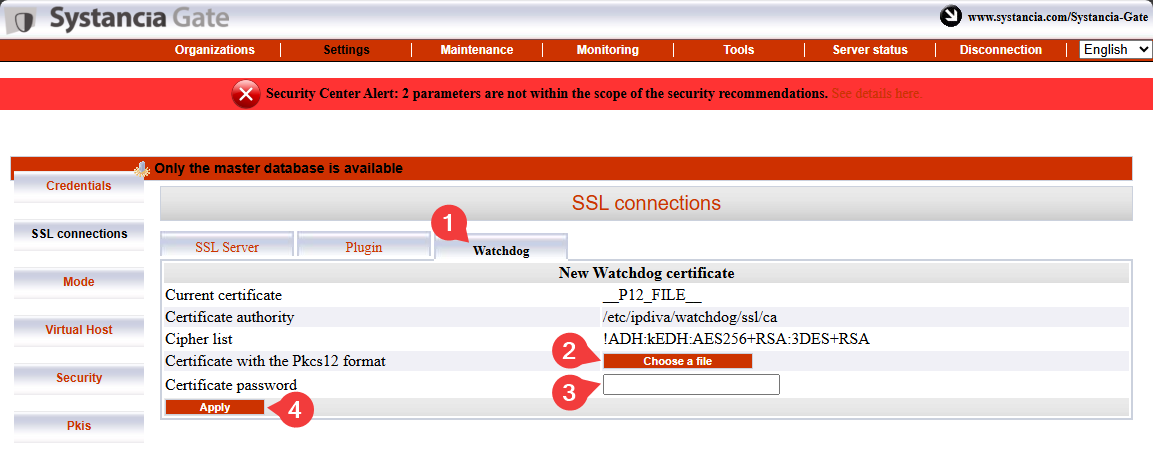
  1. Select the Watchdog tab
  2. Search for the Watchdog certificate.
  3. Enter the certificate password.
  4. Click Apply to apply the certificate.

For these changes to take effect, you need to restart the SSL Router and the Watchdog:
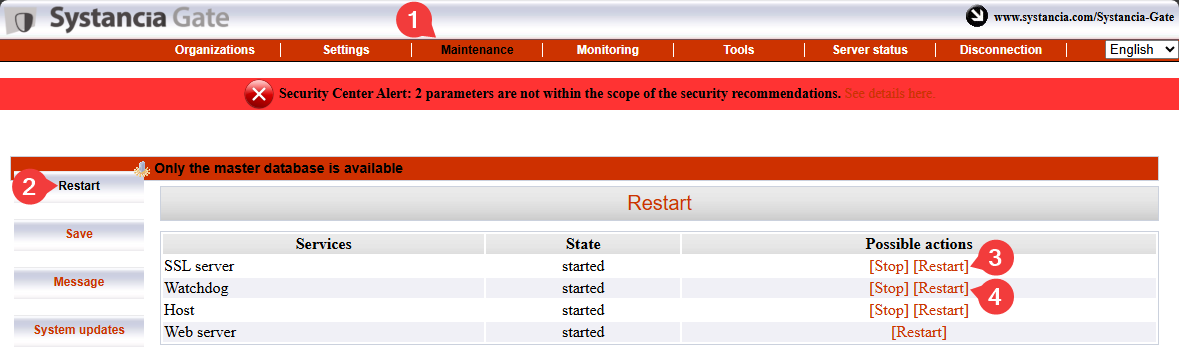
Pairing Mediation Controller servers

Attention!

By this point, both Mediation Controller servers must have been configured up to the application of licenses and certificates.
If the SLAVE Mediation Controller server has not yet been configured, please do so by starting from the beginning of this documentation (#installation-of-mediation-controller-servers).

The Mediation Controller server pairing step will establish a trusted link between the two servers and initialize the cluster operation.

On the SLAVE Mediation Controller server

Run the following command as root to initiate a pairing request with the MASTER Mediation Controller server:

1
hostManagerCtl bootstrap RIP_MED_WEB_MASTER

Replace RIP_MED_WEB_MASTER with the relevant IP address.

??? example “Example” If RIP_MED_WEB_MASTER is equal to 10.0.10.10, then the command to enter is as follows:

1
2
3
```bash
hostManagerCtl bootstrap 10.0.10.10
```

On the MASTER Mediation Controller server

Run the following command as root to check for pending pairing requests and retrieve the request ID:

1
hostManagerCtl getPendingRequests

Next, run the following command to accept the pairing request, replacing ID with the ID retrieved from the previous command:

1
hostManagerCtl acceptRequest ID

??? example “Example” If the return value of the hostManagerCtl getPendingRequests command is as follows:

 1
 2
 3
 4
 5
 6
 7
 8
 9
10
11
```
                  id          name      url
===============================================================
900elffl744ph7vpn6kepiswdh1rncd73            slave      https://10.0.10.12:9060/
```

So the command to accept the pairing request is as follows:

```bash
hostManagerCtl acceptRequest 900elffl744ph7vpn6kepiswdh1rncd73            
```

To verify the association, use the following command on the Mediation Controller server (either MASTER or SLAVE):

1
hostManagerCtl listPeers

The result will differ depending on the server on which the command is executed:

The expected result on the MASTER Mediation Controller server is as follows:

1
slave -> RIP_MED_WEB_SLAVE

??? example “Example”

1
slave -> 10.0.10.12

The expected result on the SLAVE Mediation Controller server is as follows:

1
master -> RIP_MED_WEB_MASTER

??? example “Example”

1
master -> 10.0.10.10

On the SLAVE Mediation Controller server

You can check the bootstrap status from the SLAVE server using the following command:

1
hostManagerCtl getBootstrapStatus

A cluster that is not experiencing any synchronization issues will return the value 0.

A final series of commands is required, again on the SLAVE server, to synchronize a secret shared between both Mediation Controllers:

1
2
hostManagerCtl masterSynchro /etc/ipdiva/secure/secret /etc/ipdiva/secure/secret
systemctl restart apache2
What is the purpose of the inter-server connection?

This is a special connection for cluster operation that allows a Mediation Controller server to route traffic to another Mediation Controller server in cases where the target Edge Gateway is not connected to the first server but only to the second.

For example, if the MASTER Mediation Controller server is no longer connected to the Edge Gateway, it can use the interserver link to reach the Edge Gateway via the SLAVE Mediation Controller server.

flowchart LR
    MASTER(Mediation Controller<br/>MASTER) --x |Connection lost| GW(Edge Gateway)
    MASTER --> |Interserver link| SLAVE(Mediation Controller<br/>SLAVE) --> GW
Hold "Ctrl" to enable pan & zoom

On the MASTER Mediation Controller server

Edit the /etc/ipdiva/server/remoteServers.xml file to indicate the CN of the interserver certificate:

1
2
3
4
5
6
7
8
9
<remoteConfig>
        <!-- allowed CNs can be specified as a semi-colon separed list, by default
                all CNs are allowed
         -->
        <localCluster allowed-cns='SLAVECN'>
                <!-- this example uses the listening certificate, so it MUST have the CLIENT role
                     to be usable
                        <remoteServer connect="192.168.0.123:443:ssl"/>
                -->

Replace SLAVECN with the CN of the certificate intended for the interserver connection.
If you do not know the CN of the interserver certificate, then the character * can be entered (u recommended if in doubt):

1
2
3
4
5
6
7
8
9
<remoteConfig>
        <!-- allowed CNs can be specified as a semi-colon separed list, by default
                all CNs are allowed
         -->
        <localCluster allowed-cns='*'>
                <!-- this example uses the listening certificate, so it MUST have the CLIENT role
                     to be usable
                        <remoteServer connect="192.168.0.123:443:ssl"/>
                -->

??? example “Example” Taking into account the following information:

 1
 2
 3
 4
 5
 6
 7
 8
 9
10
11
12
13
14
15
16
17
18
19
20
21
22
23
24
25
26
27
28
29
30
31
32
33
34
35
36
37
38
39
40
41
42
43
44
45
46
47
48
49
50
51
52
53
54
55
56
57
58
59
60
61
62
63
64
65
66
67
68
69
70
71
72
73
74
75
76
77
78
79
80
81
- Interserver certificate CN: `my-interserver-cert`

The `/etc/ipdiva/server/remoteServers.xml` file on the Mediation Controller `MASTER` server would be completed as follows:

```xml hl_lines="5"
<remoteConfig>
        <!-- allowed CNs can be specified as a semi-colon separed list, by default
                all CNs are allowed
         -->
        <localCluster allowed-cns='my-interserver-cert'>
                <!-- this example uses the listening certificate, so it MUST have the CLIENT role
                     to be usable
                        <remoteServer connect="192.168.0.123:443:ssl"/>
                -->
```

??? example "Complete file"
    ```xml hl_lines="5"
    <remoteConfig>
            <!-- allowed CNs can be specified as a semi-colon separed list, by default
                    all CNs are allowed
             -->
            <localCluster allowed-cns='interserver-documentation-cluster'>
                    <!-- this example uses the listening certificate, so it MUST have the CLIENT role
                         to be usable
                            <remoteServer connect="192.168.0.123:443:ssl"/>
                    -->

                    <!-- in this example we use a custom certificate, it MUST have the CLIENT role
                         to be usable
                            <remoteServer connect="192.168.0.123:443:ssl">
                                    <cert>/etc/ipdiva/server/ssl/interserver.p12</cert>
                    <password>s3cr3t</password>
                    <ca-dir>/etc/ipdiva/server/ssl/ca</ca-dir>
                    <crl-dir>/etc/ipdiva/server/ssl/crl</crl-dir>
                                    <min-version>tls1.3</min-version>
                                    <max-version></max-version>
                                    <cipherlist>!ADH:RSA+AES:kEDH+AES</cipherlist>
                                    <cipherlist-tls1.3>TLS_CHACHA20_POLY1305_SHA256:TLS_AES_256_GCM_SHA384:TLS_AES_128_GCM_SHA256</cipherlist-tls1.3>
                    <use-cn>no</use-cn>
                    <verify-cert>true</verify-cert>
                    <verify-certhostnamematch>true</verify-certhostnamematch>
                    <cert-peername>MASTERCN</cert-peername>
                            </remoteServer>
                    -->
            </localCluster>

            <!--
                    Intersites connections
            -->
            <intersites localSiteName='localSite1'>
                    <!-- An accepted remote connection
                            name : the name of the accepted remote site
                            password : the associated password
                            pattern : a list of pattern of allowed peers for this remote site (separated by ;)
                    -->
                    <!-- <accept name='david-desktop' password='passwd' pattern='S:[^@]+@ipdiva'/> -->

                    <!-- A connection to a remote site
                            name : is the name of the remoteSite
                            password : the password to use to connect
                            pattern : a list of pattern (regex) of the gateway that could be addressed via this link (separated by ;)
                            connect : a connection URL

                            the body can contain traditional TlsData parameters:
                                <cert>file.p12</cert>
                                <password>....</password>
                                <cadir>....</cadir>
                    -->
                    <!--
                            <remoteSite name='remoteSiteName'
                                            password='mypass'
                                            pattern='S:gw1@ipdiva;S:gw2@ipdiva'
                                            connect="192.168.0.168:9002" />
                    -->
            </intersites>


    </remoteConfig>
    ```

On the SLAVE Mediation Controller server

Send the interserver certificate to the SLAVE Mediation Controller in the /tmp/ directory.
Next, run the following commands as root to move it to the target directory with the appropriate permissions:

1
2
3
mv /tmp/*.p12 /etc/ipdiva/server/ssl/
chown root:ipdivasrv /etc/ipdiva/server/ssl/*.p12
chmod 640 /etc/ipdiva/server/ssl/*.p12

Next, edit the /etc/ipdiva/server/remoteServers.xml file to add the following content to the <remoteConfig> tag (the old <localCluster> tag can be deleted entirely):

 5
 6
 7
 8
 9
10
11
12
13
14
15
16
17
<localCluster allowed-cns='MASTERCN'>
    <remoteServer connect="RIP_MED_SSL_MASTER:PORT_RIP_MED_SSL_MASTER:ssl">
        <cert>/etc/ipdiva/server/ssl/INTERSERVER.P12</cert>
        <password>PASSWORD</password>
        <ca-dir>/etc/ipdiva/server/ssl/ca</ca-dir>
        <crl-dir>/etc/ipdiva/server/ssl/crl</crl-dir>
        <cipherlist>!ADH:RSA+AES:kEDH+AES</cipherlist>
        <use-cn>no</use-cn>
        <verify-cert>true</verify-cert>
        <verify-certhostnamematch>true</verify-certhostnamematch>
        <cert-peername>MASTERCN</cert-peername>
    </remoteServer>
</localCluster>

Replace:

  • MASTERCN: specify the CN of the SSL Router certificate of the MASTER Mediation Controller, which is usually RIP_MED_SSL_MASTER.
  • RIP_MED_SSL_MASTER: corresponds to the secondary IP address of the MASTER Mediation Controller.
  • PORT_RIP_MED_SSL_MASTER: this is the port listened to by the SSL router of the MASTER Mediation Controller; it is usually 443.
  • INTERSERVER.P12: name of the certificate intended for the interserver.
  • PASSWORD: interserver certificate password.

??? example “Example” Taking into account the following information:

 1
 2
 3
 4
 5
 6
 7
 8
 9
10
11
12
13
14
15
16
17
18
19
20
21
22
23
24
25
26
27
28
29
30
31
32
33
34
35
36
37
38
39
40
41
42
43
44
45
46
47
48
49
50
51
52
53
54
55
56
57
58
59
60
61
62
63
64
65
66
67
68
69
70
71
72
73
74
75
76
77
78
- Interserver certificate name: `my-interserver-cert.p12`
- Interserver certificate password: `MySecurePassword`
- RIP SSL of the Mediation Controller `MASTER`: `10.0.10.11`
- Port on the SSL RIP of the Mediation Controller `MASTER`: `443`
- CN of the Mediation Controller `MASTER` certificate: `10.0.10.11`

The `/etc/ipdiva/server/remoteServers.xml` file on the Mediation Controller `SLAVE` server would be completed as follows:

```xml linenums="5"
<localCluster allowed-cns='10.0.10.11'>
    <remoteServer connect="10.0.10.11:443:ssl">
        <cert>/etc/ipdiva/server/ssl/my-interserver-cert.p12</cert>
        <password>MySecurePassword</password>
        <ca-dir>/etc/ipdiva/server/ssl/ca</ca-dir>
        <crl-dir>/etc/ipdiva/server/ssl/crl</crl-dir>
        <cipherlist>!ADH:RSA+AES:kEDH+AES</cipherlist>
        <use-cn>no</use-cn>
        <verify-cert>true</verify-cert>
        <verify-certhostnamematch>true</verify-certhostnamematch>
        <cert-peername>10.0.10.11</cert-peername>
    </remoteServer>
</localCluster>
```

??? example "Complete file"
    ```xml
    <remoteConfig>
            <!-- allowed CNs can be specified as a semi-colon separed list, by default
                    all CNs are allowed
             -->
            <localCluster allowed-cns='10.0.10.11'>
                <remoteServer connect="10.0.10.11:443:ssl">
                    <cert>/etc/ipdiva/server/ssl/my-interserver-cert.p12</cert>
                    <password>MySecurePassword</password>
                    <ca-dir>/etc/ipdiva/server/ssl/ca</ca-dir>
                    <crl-dir>/etc/ipdiva/server/ssl/crl</crl-dir>
                    <cipherlist>!ADH:RSA+AES:kEDH+AES</cipherlist>
                    <use-cn>no</use-cn>
                    <verify-cert>true</verify-cert>
                    <verify-certhostnamematch>true</verify-certhostnamematch>
                    <cert-peername>10.0.10.11</cert-peername>
                </remoteServer>
            </localCluster>

            <!--
                    Intersites connections
            -->
            <intersites localSiteName='localSite1'>
                    <!-- An accepted remote connection
                            name : the name of the accepted remote site
                            password : the associated password
                            pattern : a list of pattern of allowed peers for this remote site (separated by ;)
                    -->
                    <!-- <accept name='david-desktop' password='passwd' pattern='S:[^@]+@ipdiva'/> -->

                    <!-- A connection to a remote site
                            name : is the name of the remoteSite
                            password : the password to use to connect
                            pattern : a list of pattern (regex) of the gateway that could be addressed via this link (separated by ;)
                            connect : a connection URL

                            the body can contain traditional TlsData parameters:
                                <cert>file.p12</cert>
                                <password>....</password>
                                <cadir>....</cadir>
                    -->
                    <!--
                            <remoteSite name='remoteSiteName'
                                            password='mypass'
                                            pattern='S:gw1@ipdiva;S:gw2@ipdiva'
                                            connect="192.168.0.168:9002" />
                    -->
            </intersites>


    </remoteConfig>
    ```

Modify the configuration of the SLAVE SSL router by running the following command:

1
sed -i '8i\\t<network-id>1</network-id>' /etc/ipdiva/server/server.xml

On the MASTER and SLAVE Mediation Controller servers

Restart the SSL Router to apply the interserver link settings:

1
/usr/local/ipdiva/server/bin/restart

To confirm that the interserver link is working properly, the following command should return a result:

1
grep floodWithLocalInfos /var/log/IPdivaServer.log

The previous command should produce a log containing the following: TRACE Router.floodWithLocalInfos sent 0 peer(s), 0 foreignPeers, and 0 multicast group(s).
If no such log is displayed, check the configuration set up in this chapter.

In the /mediation/system web console of the MASTER Mediation Controller

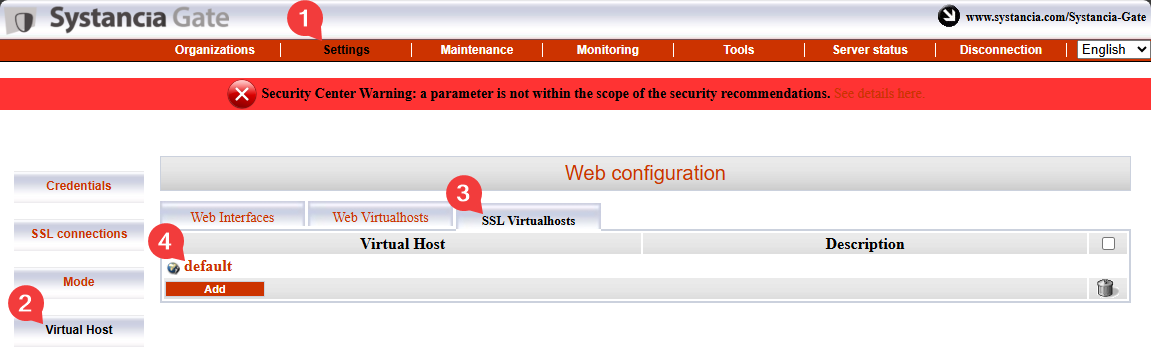
Enable the inter-server connection between the two Mediation Controllers by editing the default SSL virtual host:
Fill in the various fields using the instructions below and enable the cross-server linking feature by checking the box labeled Is cross-server linking configured?:
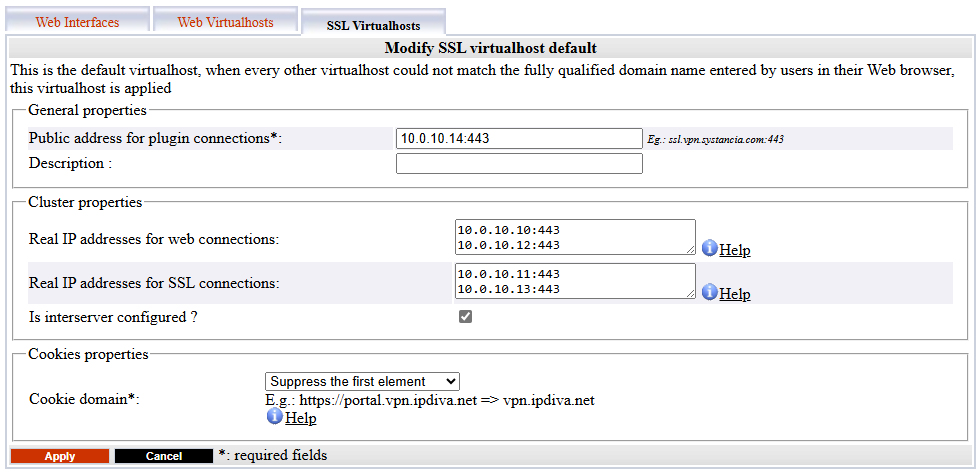
  • Public address for plugin connections: corresponds to VIP_MED_SSL followed by its listening port (usually 443).
  • Actual public IP addresses for web connections: corresponds to the pair of actual web IP addresses (RIP_MED_WEB_MASTER and RIP_MED_WEB_SLAVE) with their corresponding ports, one line per IP address and port pair.
  • Actual public IP addresses for SSL connections: corresponds to the actual SSL IP address pair (RIP_MED_SSL_MASTER and RIP_MED_SSL_SLAVE) with their corresponding ports, one line per IP address and port pair.

Installation of specific cyberelements Cleanroom components

Start installing cyberelements Cleanroom components on Mediation Controllers servers using the following command:

1
apt install -y ipdiva-safe-server

The servers must be restarted to complete the installation:

1
reboot

Connecting to the PostgreSQL database

To function, cyberelements Cleanroom requires the use of an external PostgreSQL database (DB) to store its settings and various logs in the /system console.
If the DB is directly accessible from the Mediation Controller servers, proceed directly to the DB initialization step.

Connecting to a database on the LAN

In order to enable connection to a database located on the LAN without opening a DMZ to LAN flow, the database flow will be redirected through a TLS tunnel between the Edge Gateways and the Mediation Controllers.
To achieve this, it is necessary to configure one Edge Gateway (or two Edge Gateways) using the underlying cyberelements Gate technology.

Declaration of cyberelements Gate Edge Gateways

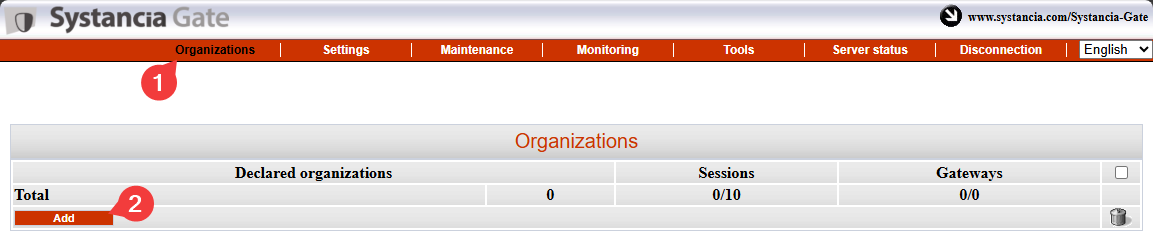
To do this, start by logging in to the /mediation/system console in cyberelements Gate.

Then go to the “Organizations” menu and click “Add”:
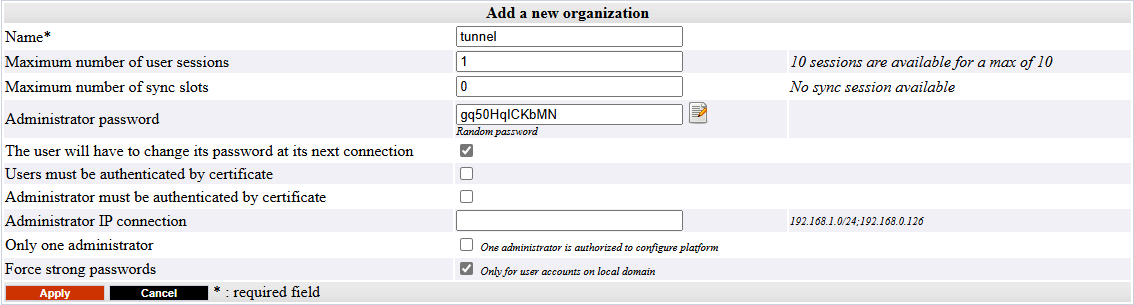
Enter the organization name, which must be different from the one assigned to cyberelements Cleanroom (for example, tunnel), and specify at least one user session license along with the password for the admin account:
Log in to the administration interface of the organization you created earlier using the admin account by going to /gate/admin:
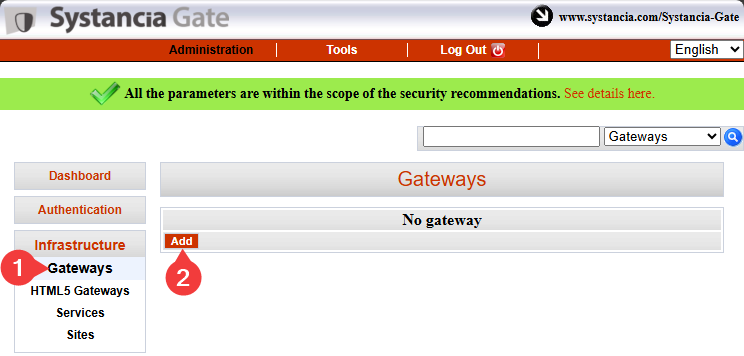
Then declare both Edge Gateways that will be used to set up the tunnel.
On the left, hover over Infrastructure, click Gateways, and then click the Add button:
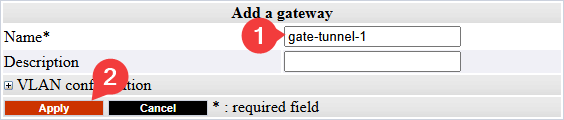
Enter the name of the first Edge Gateway and confirm the entry:
Information

As a reminder, the name of an Edge Gateway is linked to the certificate it will use to authenticate itself with the SSL Router of the Mediation Controller.
This name takes the following form <GW_NAME>@<ORGANIZATION_NAME>, where <GW_NAME> corresponds to the name of the Edge Gateway and where <ORGANIZATION_NAME> corresponds to the organization name created in the cyberelements Gate system console.

Repeat the Edge Gateway declaration step for the second Edge Gateway.

Tunnel connections and settings on Edge Gateways

Information

The following steps can be replicated on both Edge Gateways used for the tunnel to access the database.

!!! warning “Prerequisites” To complete this part, you will need to use either:

1
2
- [A virtual Edge Gateway appliance](/CYE/Install/Cluster/FromAppliances/InstallClusterFromAppliances-InstallEdgeGateway.md#parametrages-initiaux-sur-le-systeme){target="_blank"} for which only the system initialization has been performed.
- [An Edge Gateway installed from scratch](/CYE/Install/Cluster/FromScratch/InstallClusterFromScratch-InstallEdgeGateway.md){target="_blank"} with the Edge Gateway components installed.

First, use a tool such as WinSCP or FileZilla to transfer the certificate required for the connection to the /tmp/ directory on the Edge Gateway via SCP.

Then connect via SSH and switch to root.

To connect the Edge Gateway to both Mediation Controllers, you need to create two new Edge Gateway instances: one will connect to the MASTER Mediation Controller, while the other will connect to the SLAVE Mediation Controller.
To create them, run the following commands:

1
2
/usr/local/ipdiva/gateway/bin/gatewayCloner -tunnel-master
/usr/local/ipdiva/gateway/bin/gatewayCloner -tunnel-slave

Copy the certificate file to the /etc/ipdiva/gateway-tunnel-master/ssl/ and /etc/ipdiva/gateway-tunnel-slave/ssl/ directories:

1
2
cp /tmp/<CERT_NAME> /etc/ipdiva/gateway-tunnel-master/ssl/
cp /tmp/<CERT_NAME> /etc/ipdiva/gateway-tunnel-slave/ssl/

Replace <CERT_NAME> with the name of the certificate that the Edge Gateway must use to connect to the Mediation Controller.

Configure the Edge Gateway instances to allow them to connect to the Mediation Controllers.
The configurations differ depending on the Mediation Controller to be contacted. Perform both settings:

Edit the file /etc/ipdiva/gateway-tunnel-master/gateway.xml and complete it using the following information (several sections have been omitted and are indicated by […]):

 1
 2
 3
 4
 5
 6
 7
 8
 9
10
11
12
<gateway>
    <server>@SERVER@:@SERVERPORT@:ssl</server>
[…]
    <ssl>
        <cert>/etc/ipdiva/gateway-tunnel-master/ssl/keyfile.pem</cert>
        <password>PASSWORD</password>
[…]
    </ssl>
[…]
    <rpc-listen>127.0.0.1:@RPC_PORT@</rpc-listen>
[…]
</gateway>

Replace the following elements:

  • @SERVER@: must be replaced with the RIP_MED_SSL_MASTER address
  • @SERVERPORT@: must be replaced with the SSL router's listening port, normally set to 443
  • keyfile.pem: must be replaced with the name of the certificate file
  • PASSWORD: must be replaced with the certificate password
  • @RPC_PORT@: must be replaced with a port that is not currently listening on the machine; port 9082 can be used

??? example “Example” Taking into account the following information:

  1
  2
  3
  4
  5
  6
  7
  8
  9
 10
 11
 12
 13
 14
 15
 16
 17
 18
 19
 20
 21
 22
 23
 24
 25
 26
 27
 28
 29
 30
 31
 32
 33
 34
 35
 36
 37
 38
 39
 40
 41
 42
 43
 44
 45
 46
 47
 48
 49
 50
 51
 52
 53
 54
 55
 56
 57
 58
 59
 60
 61
 62
 63
 64
 65
 66
 67
 68
 69
 70
 71
 72
 73
 74
 75
 76
 77
 78
 79
 80
 81
 82
 83
 84
 85
 86
 87
 88
 89
 90
 91
 92
 93
 94
 95
 96
 97
 98
 99
100
101
102
103
104
105
106
- `RIP_MED_SSL_MASTER` equals: `10.0.10.11`
- SSL Router listening port: `443`
- Certificate file name: `gate-tunnel.p12`
- Certificate password: `Str0ngP@ssw0rd`

The `/etc/ipdiva/gateway-tunnel-master/gateway.xml` file would be configured as follows:

``` xml hl_lines="2 5 6 10"
<gateway>
    <server>10.0.10.11:443:ssl</server>
[…]
    <ssl>
        <cert>/etc/ipdiva/gateway-tunnel-master/ssl/gate-tunnel.p12</cert>
        <password>Str0ngP@ssw0rd</password>
[…]
    </ssl>
[…]
    <rpc-listen>127.0.0.1:9082</rpc-listen>
[…]
</gateway>
```

??? example "Complete file"
    ``` xml hl_lines="2 26 27 52"
    <gateway>
            <server>10.0.10.11:443:ssl</server>
            <pipe>
                    <ping-timeout>60000</ping-timeout>
                    <rout-max-lock>20000</rout-max-lock>
            </pipe>
            <timeout>
                    <reconnect>15000</reconnect>
            </timeout>
            <ticket><hmac></hmac></ticket>
            <proxy>
                    <type>no</type>
                    <address></address>
                    <login></login>
                    <password></password>
                    <domain></domain>
            </proxy>
            <periodic-licence-check>false</periodic-licence-check>
            <session>
               <sslconf name="default">
                  <ca-dir>/etc/ssl/certs</ca-dir>
                  <verify-cert>true</verify-cert>
               </sslconf>
            </session>
            <ssl>
                    <cert>/etc/ipdiva/gateway-tunnel-master/ssl/gate-tunnel.p12</cert>
                    <password>Str0ngP@ssw0rd</password>
                    <ca-dir>/etc/ipdiva/gateway-tunnel-master/ssl/ca</ca-dir>
                    <min-version>tls1.3</min-version>
                    <max-version></max-version>
                    <cipherlist>!ADH:!AECDH:!MD5:kEECDH+AES:kEDH+AES:AES256+RSA:3DES+RSA</cipherlist>
                    <cipherlist-tls1.3>TLS_CHACHA20_POLY1305_SHA256:TLS_AES_256_GCM_SHA384:TLS_AES_128_GCM_SHA256</cipherlist-tls1.3>
                    <verify-cert>true</verify-cert>
                    <verify-certhostnamematch>true</verify-certhostnamematch>
            </ssl>
            <webaccess>
                    <proxy></proxy>
                    <useragent>true</useragent>
                    <autoauth>true</autoauth>
                    <forceauth>false</forceauth>
                    <forcebasic>false</forcebasic>
                    <persistentbasicauth>true</persistentbasicauth>
                    <cache-date>Thu, 14 Dec 2006 09:28:00 GMT</cache-date>
                    <reverse-proxy>
                            <headers>
                                    <x-forwarded-for enabled='false'/>
                                    <x-forwarded-host enabled='false'/>
                            </headers>
                    </reverse-proxy>
                    <davenport compatibilityMode="false">127.0.0.1:8070</davenport>
            </webaccess>
            <rpc-listen>127.0.0.1:9082</rpc-listen>
            <network-id></network-id>
            <services>/etc/ipdiva/gateway-tunnel-master/services.xml</services>
            <compression>zlib</compression>
            <vlan>
                    <prefixe></prefixe>
            </vlan>

            <openvpn>
                    <ssl>
                            <cert>/usr/local/ipdiva/share/gw-controller-openvpnng/keys/allInOne.pem</cert>
                            <ca-file>/usr/local/ipdiva/share/gw-controller-openvpnng/keys/tmp-ca.crt</ca-file>
                            <version>tls1</version>
                    </ssl>
                    <client-ov>
                            <ip-type>V4</ip-type>
                            <dev-type>tun</dev-type>
                            <link-mtu>1507</link-mtu>
                            <tun-mtu>1500</tun-mtu>
                            <proto>TCPv4_CLIENT</proto>
                            <cipher>[null-cipher]</cipher>
                            <auth>[null-digest]</auth>
                            <keysize>0</keysize>
                            <key-method>2</key-method>
                            <tls-type>tls-client</tls-type>
                    </client-ov>
            </openvpn>
        <useoldprotocol>false</useoldprotocol>
        <rate>0</rate>
    </gateway>
    ```

Edit the file /etc/ipdiva/gateway-tunnel-slave/gateway.xml and complete it using the following information (several sections have been omitted and are indicated by […]):

 1
 2
 3
 4
 5
 6
 7
 8
 9
10
11
12
<gateway>
    <server>@SERVER@:@SERVERPORT@:ssl</server>
[…]
    <ssl>
        <cert>/etc/ipdiva/gateway-tunnel-slave/ssl/keyfile.pem</cert>
        <password>PASSWORD</password>
[…]
    </ssl>
[…]
    <rpc-listen>127.0.0.1:@RPC_PORT@</rpc-listen>
[…]
</gateway>

Replace the following elements:

  • @SERVER@: must be replaced with the address RIP_MED_SSL_SLAVE
  • @SERVERPORT@: must be replaced with the SSL router's listening port, normally set to 443
  • keyfile.pem: must be replaced with the name of the certificate file
  • PASSWORD: must be replaced with the certificate password
  • @RPC_PORT@: must be replaced with a port that is not currently in use on the machine; port 9083 can be used

??? example “Example” Taking into account the following information:

  1
  2
  3
  4
  5
  6
  7
  8
  9
 10
 11
 12
 13
 14
 15
 16
 17
 18
 19
 20
 21
 22
 23
 24
 25
 26
 27
 28
 29
 30
 31
 32
 33
 34
 35
 36
 37
 38
 39
 40
 41
 42
 43
 44
 45
 46
 47
 48
 49
 50
 51
 52
 53
 54
 55
 56
 57
 58
 59
 60
 61
 62
 63
 64
 65
 66
 67
 68
 69
 70
 71
 72
 73
 74
 75
 76
 77
 78
 79
 80
 81
 82
 83
 84
 85
 86
 87
 88
 89
 90
 91
 92
 93
 94
 95
 96
 97
 98
 99
100
101
102
103
104
105
106
- `RIP_MED_SSL_SLAVE` is equal to: `10.0.10.13`
- SSL Router listening port: `443`
- Certificate file name: `gate-tunnel.p12`
- Certificate password: `Str0ngP@ssw0rd`

The `/etc/ipdiva/gateway-tunnel-slave/gateway.xml` file would be configured as follows:

``` xml hl_lines="2 5 6 10"
<gateway>
    <server>10.0.10.13:443:ssl</server>
[…]
    <ssl>
        <cert>/etc/ipdiva/gateway-tunnel-slave/ssl/gate-tunnel.p12</cert>
        <password>Str0ngP@ssw0rd</password>
[…]
    </ssl>
[…]
    <rpc-listen>127.0.0.1:9083</rpc-listen>
[…]
</gateway>
```

??? example "Complete file"
    ``` xml hl_lines="2 26 27 52"
    <gateway>
            <server>10.0.10.13:443:ssl</server>
            <pipe>
                    <ping-timeout>60000</ping-timeout>
                    <rout-max-lock>20000</rout-max-lock>
            </pipe>
            <timeout>
                    <reconnect>15000</reconnect>
            </timeout>
            <ticket><hmac></hmac></ticket>
            <proxy>
                    <type>no</type>
                    <address></address>
                    <login></login>
                    <password></password>
                    <domain></domain>
            </proxy>
            <periodic-licence-check>false</periodic-licence-check>
            <session>
               <sslconf name="default">
                  <ca-dir>/etc/ssl/certs</ca-dir>
                  <verify-cert>true</verify-cert>
               </sslconf>
            </session>
            <ssl>
                    <cert>/etc/ipdiva/gateway-tunnel-slave/ssl/gate-tunnel.p12</cert>
                    <password>Str0ngP@ssw0rd</password>
                    <ca-dir>/etc/ipdiva/gateway-tunnel-slave/ssl/ca</ca-dir>
                    <min-version>tls1.3</min-version>
                    <max-version></max-version>
                    <cipherlist>!ADH:!AECDH:!MD5:kEECDH+AES:kEDH+AES:AES256+RSA:3DES+RSA</cipherlist>
                    <cipherlist-tls1.3>TLS_CHACHA20_POLY1305_SHA256:TLS_AES_256_GCM_SHA384:TLS_AES_128_GCM_SHA256</cipherlist-tls1.3>
                    <verify-cert>true</verify-cert>
                    <verify-certhostnamematch>true</verify-certhostnamematch>
            </ssl>
            <webaccess>
                    <proxy></proxy>
                    <useragent>true</useragent>
                    <autoauth>true</autoauth>
                    <forceauth>false</forceauth>
                    <forcebasic>false</forcebasic>
                    <persistentbasicauth>true</persistentbasicauth>
                    <cache-date>Thu, 14 Dec 2006 09:28:00 GMT</cache-date>
                    <reverse-proxy>
                            <headers>
                                    <x-forwarded-for enabled='false'/>
                                    <x-forwarded-host enabled='false'/>
                            </headers>
                    </reverse-proxy>
                    <davenport compatibilityMode="false">127.0.0.1:8070</davenport>
            </webaccess>
            <rpc-listen>127.0.0.1:9083</rpc-listen>
            <network-id></network-id>
            <services>/etc/ipdiva/gateway-tunnel-slave/services.xml</services>
            <compression>zlib</compression>
            <vlan>
                    <prefixe></prefixe>
            </vlan>

            <openvpn>
                    <ssl>
                            <cert>/usr/local/ipdiva/share/gw-controller-openvpnng/keys/allInOne.pem</cert>
                            <ca-file>/usr/local/ipdiva/share/gw-controller-openvpnng/keys/tmp-ca.crt</ca-file>
                            <version>tls1</version>
                    </ssl>
                    <client-ov>
                            <ip-type>V4</ip-type>
                            <dev-type>tun</dev-type>
                            <link-mtu>1507</link-mtu>
                            <tun-mtu>1500</tun-mtu>
                            <proto>TCPv4_CLIENT</proto>
                            <cipher>[null-cipher]</cipher>
                            <auth>[null-digest]</auth>
                            <keysize>0</keysize>
                            <key-method>2</key-method>
                            <tls-type>tls-client</tls-type>
                    </client-ov>
            </openvpn>
        <useoldprotocol>false</useoldprotocol>
        <rate>0</rate>
    </gateway>
    ```

Now that the instances are configured to connect to the Mediation Controllers, they still need to be configured to redirect the Mediation Controller connection to the database.
To do this, edit the /etc/ipdiva/gateway-tunnel-master/services.xml file and modify it as follows:

1
2
3
4
5
6
7
8
9
<services>
    <out>
        <service>
            <name>DB</name>
            <protocol>tcp</protocol>
            <connect>DB_SERVER:DB_PORT</connect>
        </service>
    </out>
</services>

Replace DB_SERVER with the DNS name or IP address used to connect to the database, and DB_PORT with the listening port of the database instance.
Replicate these settings for the instance connecting to the SLAVE Mediation Controller server by copying the file:

1
cp /etc/ipdiva/gateway-tunnel-master/services.xml /etc/ipdiva/gateway-tunnel-slave/

Finally, start the Edge Gateway instances so that they establish a connection to the Mediation Controllers:

1
2
/usr/local/ipdiva/gateway-tunnel-master/bin/start
/usr/local/ipdiva/gateway-tunnel-slave/bin/start
Configuring the Mediation Controllers tunnel

In order for the tunnel to be usable by the Mediation Controllers, you still need to declare their existence.
To do this, log in as root to the Mediation Controllers and edit the /etc/ipdiva/server/services.xml file to add the following section (several sections have been omitted and are marked with […]):

 1
 2
 3
 4
 5
 6
 7
 8
 9
10
11
12
13
14
<services>
[…]
    <in>
[…]
        <service>
            <name>DB</name>
            <gateway>GW1_NAME@ORGANIZATION_NAME</gateway>
            <gateway>GW2_NAME@ORGANIZATION_NAME</gateway>
            <protocol>tcp</protocol>
            <listen>127.0.0.1:1432</listen>
            <must-exist>true</must-exist>
        </service>
    </in>
</services>

Replace the following elements:

  • GW1_NAME by the name of the first Edge Gateway
  • GW2_NAME by the name of the second Edge Gateway
  • ORGANIZATION_NAME by the name of the cyberelements Gate organization that was created previously

??? example “Example” Taking into account the following information:

 1
 2
 3
 4
 5
 6
 7
 8
 9
10
11
12
13
14
15
16
17
18
19
20
21
22
23
24
25
26
27
28
29
30
31
32
33
34
35
36
37
38
39
40
41
42
43
44
45
46
47
48
49
50
51
52
53
54
55
56
57
58
59
60
61
62
- Name of Edge Gateway 1: `gate-tunnel-1`
- Name of Edge Gateway 2: `gate-tunnel-2`
- Name of the organization **cyber**elements Gate: `tunnel`

The `/etc/ipdiva/server/services.xml` file would be completed as follows:

``` xml hl_lines="5-12"
<services>
[…]
    <in>
[…]
        <service>
            <name>DB</name>
            <gateway>gate-tunnel-1@tunnel</gateway>
            <gateway>gate-tunnel-2@tunnel</gateway>
            <protocol>tcp</protocol>
            <listen>127.0.0.1:1432</listen>
            <must-exist>true</must-exist>
        </service>
    </in>
</services>
```

??? example "Complete file"
    ``` xml hl_lines="27-34"
    <services>
        <out>
            <service>
                <name>ntp</name>
                <protocol>udp</protocol>
                <connect>127.0.0.1:123</connect>
            </service>
            <service>
                <name>logging</name>
                <protocol>tcp</protocol>
                <connect>127.0.0.1:1514</connect>
            </service>
            <service>
                <name>clreanroom_acm</name>
                <protocol>tcp</protocol>
                <connect>127.0.0.1:8001</connect>
            </service>
        </out>
        <in>
            <service>
                <gateway>edge-gateway-1@my-organization-name</gateway>
                <protocol>tcp</protocol>
                <name>HTML5</name>
                <listen>127.0.0.1:1234</listen>
                <must-exist>true</must-exist>
            </service>
            <service>
                <name>DB</name>
                <gateway>gate-tunnel-1@tunnel</gateway>
                <gateway>gate-tunnel-2@tunnel</gateway>
                <protocol>tcp</protocol>
                <listen>127.0.0.1:1432</listen>
                <must-exist>true</must-exist>
            </service>
        </in>
    </services>
    ```

To apply the new configuration, restart the SSL Router with the following command:

1
/usr/local/ipdiva/server/bin/restart

Initializing the database

Attention!

You must create the default database before cyberelements Cleanroom initializes it (it is not created automatically).

To initialize the PostgreSQL system configuration database, you must first configure the connection settings on the Mediation Controllers.
To do this, edit the /etc/ipdiva/care/databasesettings.ini file on both servers and add the following entries:

2
3
4
5
6
7
8
9
[database]

ENGINE:django.db.backends.postgresql
NAME:default
USER:DB_USERNAME
PASSWORD:DB_PWD
HOST:DB_HOST
PORT:DB_PORT

Replace the following elements:

  • DB_USERNAME by the username used to connect to the database.
  • DB_PWD by the password of the user logging in.
  • DB_HOST by the IP address or DNS name used to connect to the database; if a connection via Edge Gateways is used, then you will need to enter 127.0.0.1.
  • DB_PORT by the port used to connect to the database instance; if a connection via Edge Gateways is used, then you will need to enter 1432.

The database initialization can be launched with the following commands, to be executed only on a Mediation Controller:

1
2
cd /var/lib/ipdiva/care/
python3 manage.py migrate

After that, all that remains is to restart the apache2 service on both Mediation Controllers to apply the initialization of the system database:

1
systemctl restart apache2

Installation of drivers for connecting to Microsoft SQL databases

If you want to connect to an external database and it is a Microsoft SQL Server, then additional ODBC drivers must be installed.

Two versions are available: version 17 and version 18.

TLS connection required for drivers in version 18

Using ODBC 18 drivers requires that the connection be encrypted using TLS. To do this, you need to configure MS SQL Server for connection encryption.

Before starting the installation of ODBC drivers, you must install the necessary packages for preparation, then prepare the Microsoft repository for the package installation:

1
2
3
4
apt install -y curl apt-transport-https gpg
curl -fsSL https://packages.microsoft.com/keys/microsoft.asc | gpg --dearmor -o /usr/share/keyrings/microsoft-prod.gpg
curl https://packages.microsoft.com/config/debian/12/prod.list > /etc/apt/sources.list.d/mssql-release.list
apt update

Next, install the drivers according to the selected version and configure the system to use the sqlcmd command:

1
2
3
ACCEPT_EULA=Y apt install -y msodbcsql17 mssql-tools python3-pip
pip install mssql-scripter --break-system-packages
ln -sfn /opt/mssql-tools/bin/sqlcmd /usr/bin/sqlcmd
1
2
3
ACCEPT_EULA=Y apt install -y msodbcsql18 mssql-tools18 python3-pip
pip install mssql-scripter --break-system-packages
ln -sfn /opt/mssql-tools18/bin/sqlcmd /usr/bin/sqlcmd

The ODBC drivers are now correctly installed.
If the Mediation Controller server has access to an MS SQL server, the following command should allow the connection to the remote server:

1
sqlcmd -S SERVER\INSTANCE_NAME,PORT -U USER

Where:

  • SERVER should be replaced with the DNS name or IP address of the MS SQL server.
  • INSTANCE_NAME should be replaced with the name of the instance to connect to; if not necessary, also remove the \ character.
  • PORT should be replaced with the connection port to the MS SQL database instance.
  • USER should be replaced with the username for establishing the connection.
Examples

If the Mediation Controller server has access to an MS SQL database server via the IP address 10.0.10.100, the instance to be accessed is listening on the port 1433, and the access account is sql-user. Then the connection command is as follows:

1
sqlcmd -S 10.0.10.100,1433 -U sql-user

If the connection instance named MSSQLINSTANCE had to be specified, the command would be modified as follows:

1
sqlcmd -S 10.0.10.100\MSSQLINSTANCE,1433 -U sql-user

Configuring an NTP time server

It is recommended to set up a time server to keep the system clock up to date. The necessary steps are described on the NTP configuration page.

Initial configurations on cyberelements Cleanroom

Authorization of access to web interfaces with the virtual IP

By default, it is not allowed to connect to the product's cyberelements Cleanroom web interfaces with the virtual IP VIP_MED_WEB.
To add the authorization, run as root the following commands on the Mediation Controllers:

1
2
sed -i '2s/$/, IP/' /etc/ipdiva/care/djangosettings.ini
systemctl restart apache2

Replace IP with the IP address corresponding to VIP_MED_WEB.

Initial configurations

At this stage, the Mediation Controllers servers are installed, but several actions still need to be performed:

  • Change the default passwords


    Change the default passwords for the system consoles.

    Change

  • Install certificates and licenses


    The Mediation Controller requires various certificates and a license to be operational.
    Only the certificate for the cyberelements Cleanroom client needs to be re-declared on both Mediations Controllers (use the RIP RIP_MED_WEB_MASTER and RIP_MED_WEB_SLAVE).

    Install certificates and license

  • Configure the web certificate


    Configure the web certificate used to connect to web interfaces

    Configure

  • Declare a DNS name


    Add a DNS name authorized to connect to web interfaces.

    Add

  • Configure the organization


    Configure the cyberelements Cleanroom organization.

    Configure with direct access to the database

    Configure with access to the database via the Edges Gateways tunnel

  • Declare the Edge Gateways


    Declare the Edge Gateway(s) or HTML5 Gateway(s) to be installed.

    Create Edge Gateways

  • Create a logical site


    Create and configure a logical site that groups together Edge Gateways and HTML5 Gateways that can access local resources.

    Create a site

  • Install an Edge Gateway


    Install and configure a new Edge Gateway with the newly installed Mediation Controller servers.
    An HTML5 Gateway instance will also be configured.

    Install