Introduction
Systancia Identity, our IGA (Identity and Access Governance) solution, aims to manage identities and their access rights to ensure that the right people or entities have access to the right resources, at the right time, and within the appropriate authorizations.
This document describes all the features and use cases available in the Systancia Identity solution.
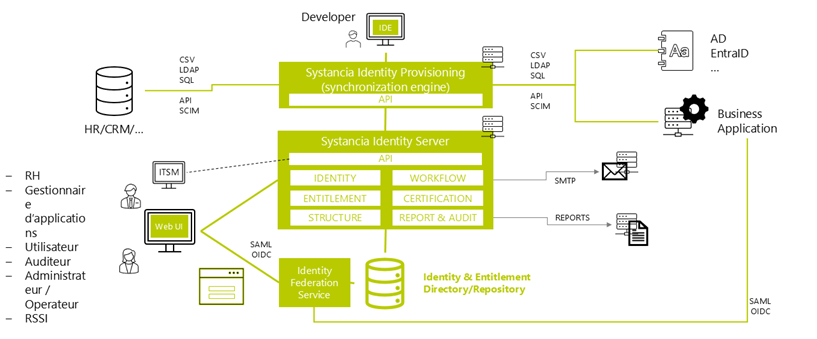
Systancia Identity is being modernized, and starting with version 7.0, a new application will eventually replace the three existing applications.
In version 7.0, not all features could be included in the new application, which is why four consoles are available to access the product's various features:
-
Systancia Identity operating console (former web application)
- Identity reconciliation management
- Certification campaign management
- Workflow operation
- Consultation of audit reports
-
Systancia Identity configuration console (former web application)
- General settings for former consoles
- Configuring authentication mode for older consoles
- Configuring workflows
- Configuring audit reports
- Configuring identity reconciliation rules
- Managing application account reconciliations
-
Systancia Identity application (new application)
- Identity management: configuration and operation
- Organizational tree management: configuration and operation
- Allocation management (resources): configuration and operation
- Account management: configuration and operation
- Rights model management
- Permissions management for different Identity consoles
- General configuration of the new application
-
SIP (Systancia Identity Provisioning) console
- Configuration of provisioning connectors
All of the features presented in this document may or may not be accessible to users depending on user permission settings.
Accessing the different interfaces
Connecting to the Systancia Identity operating interface (old web application)
You can log into the Systancia Identity solution operating interface via a web browser and the following authentication page:
http://<Hpliance_server_name>:<installation_port>
The login address can be customized. Contact your administrator for more information.
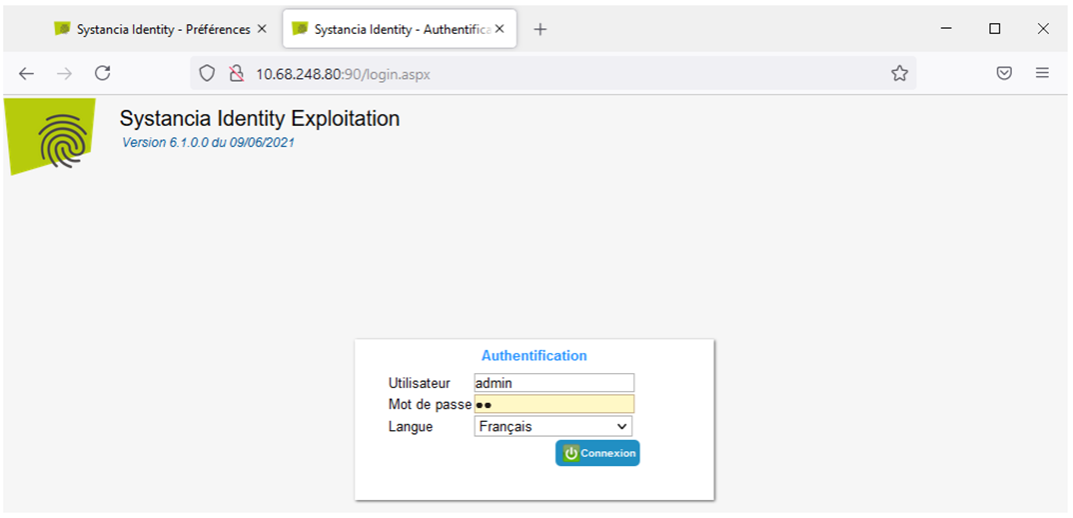
Depending on the authentication configuration, the username and password come from different sources. Please contact your administrator to obtain your login details.
Enter your username and password and select the connection language, then click on the “Connection” button.
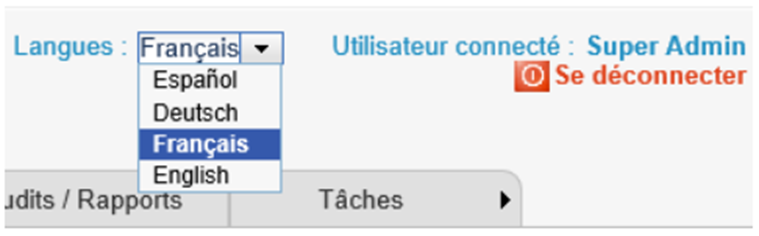
Once logged in, users can change the language at any time using the drop-down list at the top right of the site.
Connecting to the Systancia Identity configuration interface (old Web application)
Connection to the Systancia Identity solution configuration console is made via a web browser and through the following authentication page:
http://<Hpliance_server_name>:<installation_port>/config
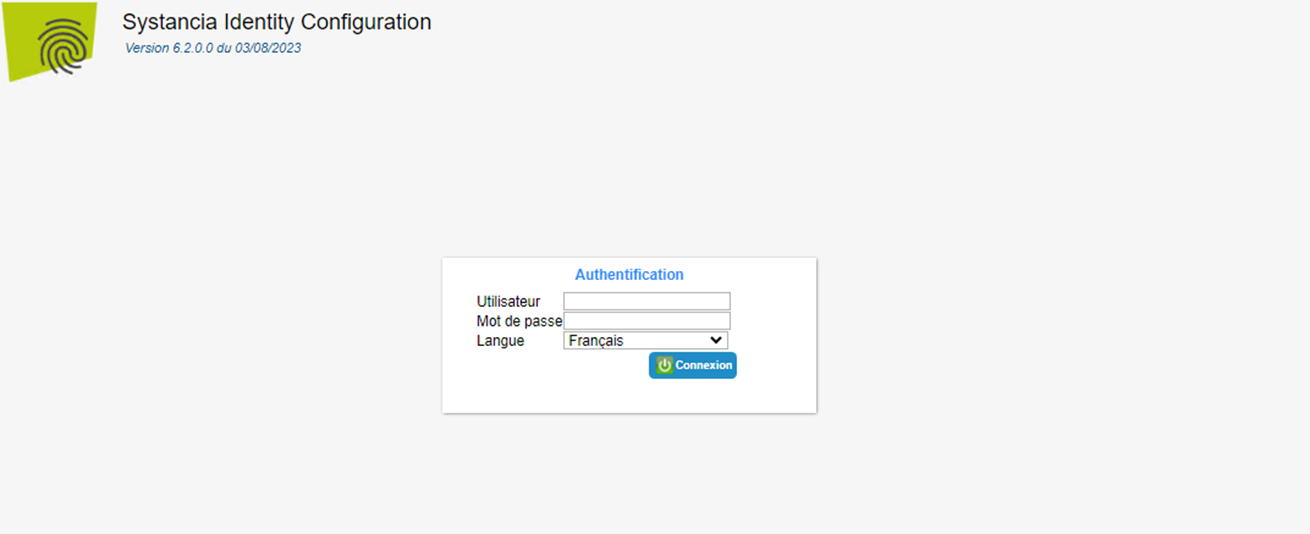
Depending on the authentication configuration, the username and password come from different sources. Please contact your administrator to obtain your login details.
Enter your username and password and select the connection language, then click on the “Connection” button.
Once logged in, users can change the language at any time using the drop-down list at the top right of the site.
Log into the Systancia Identity application (new application)
The new Systancia Identity application is a federated web application that requires an authentication token to obtain access permissions.
If the solution is installed with the Systancia Federation module, follow these steps to log in. If not, contact your administrator for login information via the federation module that has been set up.
Connection to the new console of the Systancia Identity solution is established via a web browser and through the following authentication page:
http://<Hpliance_server_name>:<installation_port>/
The connection address can be customized. Contact your administrator to obtain this information.

Depending on the authentication configuration, the username and password come from different sources. Please contact your administrator to obtain your login details.
Enter your login credentials, then click on the “Log in” button.
If you have forgotten your password, click on the “Forgot your password?” link. A link will be sent to you by email.
Connecting to the SIP console (Systancia Identity Provisioning)
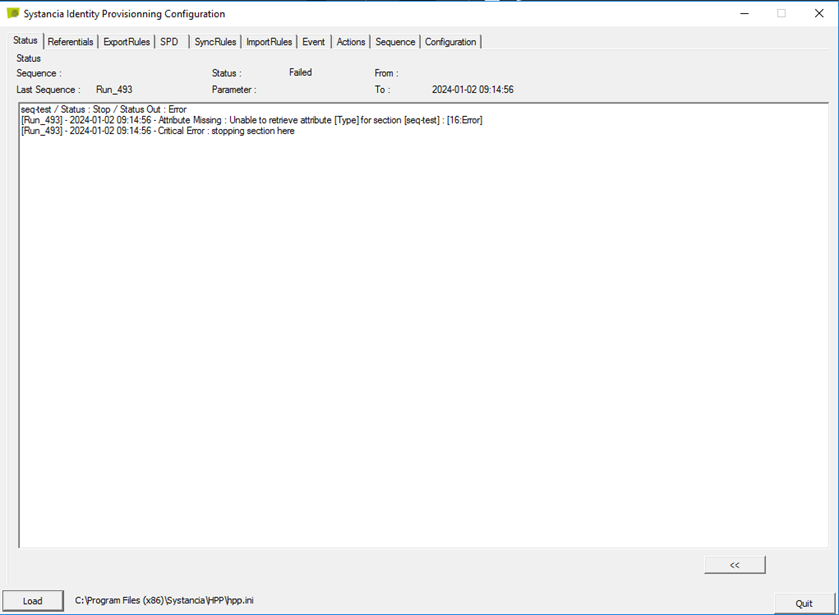
SIP is an IDE (integrated development environment), ETL (extract, transform, and load) type, which is only accessible on the server where the SIP (Systancia Identity Provisioning) solution is deployed.
Launch the following executable: [Rep Installation]\Systancia\HPP\HppCfg.exe