View workflows in progress
This feature allows the connected user to view the workflow progress reports on the requests he has made.
This page is automatically opened at the end of a new request procedure to verify its initialization.
To access the page for viewing current workflows, go to the “Workflows” menu and select the “Current Requests” tab.
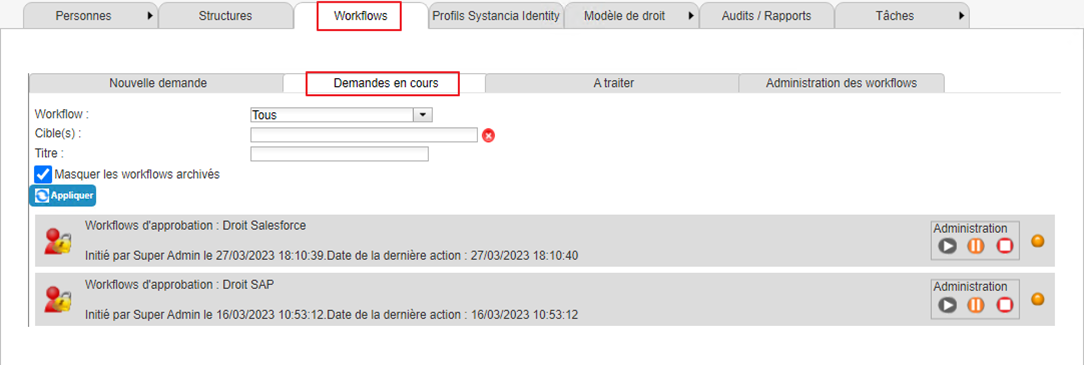
Apply search filters if necessary to reduce the number of workflows to be displayed.
The workflows listed in this tab are only “User-requested” workflows that have been initialized by the connected user.
Go to the “Search and view workflows” page to understand the details of the workflows you have viewed.
Viewing the progress of a workflow
To view the progress of a workflow in progress, click on the colored dot to the right of the workflow.

A pop-up window opens showing the different steps:
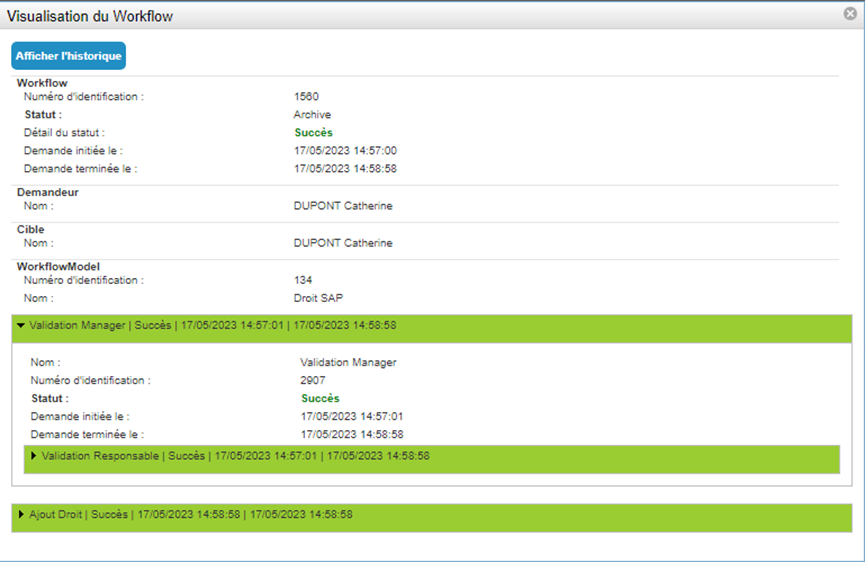
Each step and sub-step is marked with a background color:
| Color | Workflow status |
|---|---|
| Grey | The step has not started. |
| Yellow | The step is in progress. |
| Green | The step has been successfully completed or validated |
| Red | The step has been completed with a failure or rejection |
In the workflow progress visualization window, there is a “View history” button. This button allows you to view the characteristics of the workflow (issue date, issuer, subject) and track its progress since the initial request.
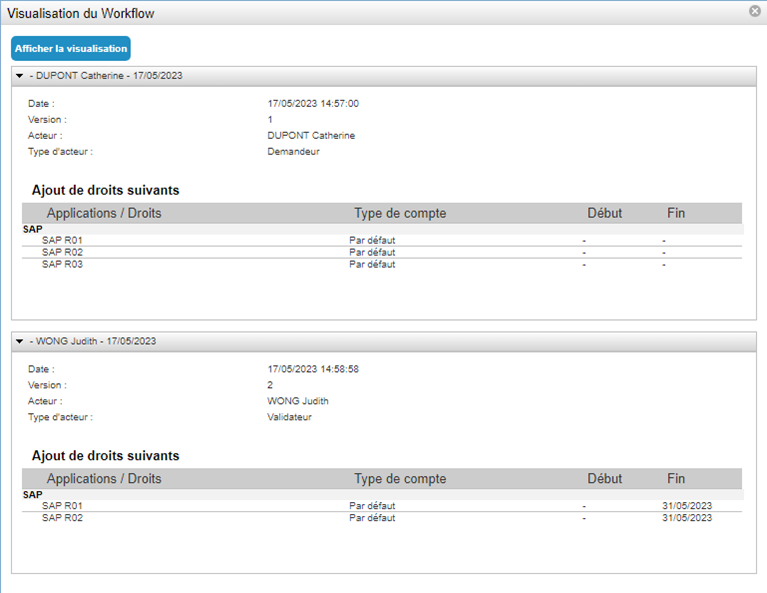
Click the “Show visualization” button to return to the workflow progress visualization window.