Setting up two-factor authentication with Google Authenticator
Create a new TOTP token in the administration console
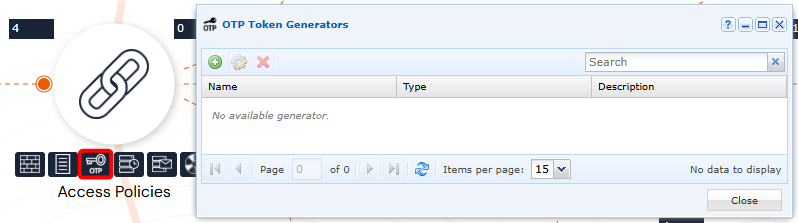
Open the OTP Token Generator from an administrator account:
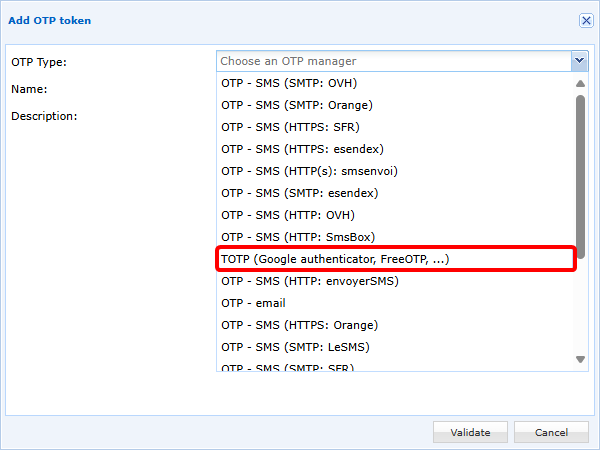
Add a new TOTP token and select TOTP (Google authenticator, FreeOTP, ...):
Then configure your TOTP token:
- Define a name. Please note that this name will be displayed to the user in Google Authenticator if the QR Code enrollment method is selected.
- The
Expiration TimeandNumber of Digitsfields depend on the TOTP generator. For Google Authenticator, these values must be set to30seconds and6digits, respectively. - The
Key size (bits)is set to32by default, which is the recommended value, although settings of16or64bits are also possible.
There are two methods for storing TOTP keys:
-
(Recommended method) Key storage in cyberelements.io or cyberelements Cleanroom, 3 operating modes can be used:
- By checking the option
Display a QR Code on the user portal, when the user first authenticates, they will be given a QR Code to scan with Google Authenticator to register their TOTP. They will then have to validate the registered TOTP. - In combination with or without the previous option, the TOTP key can be sent by email to the user, who will then have to perform a manual registration:
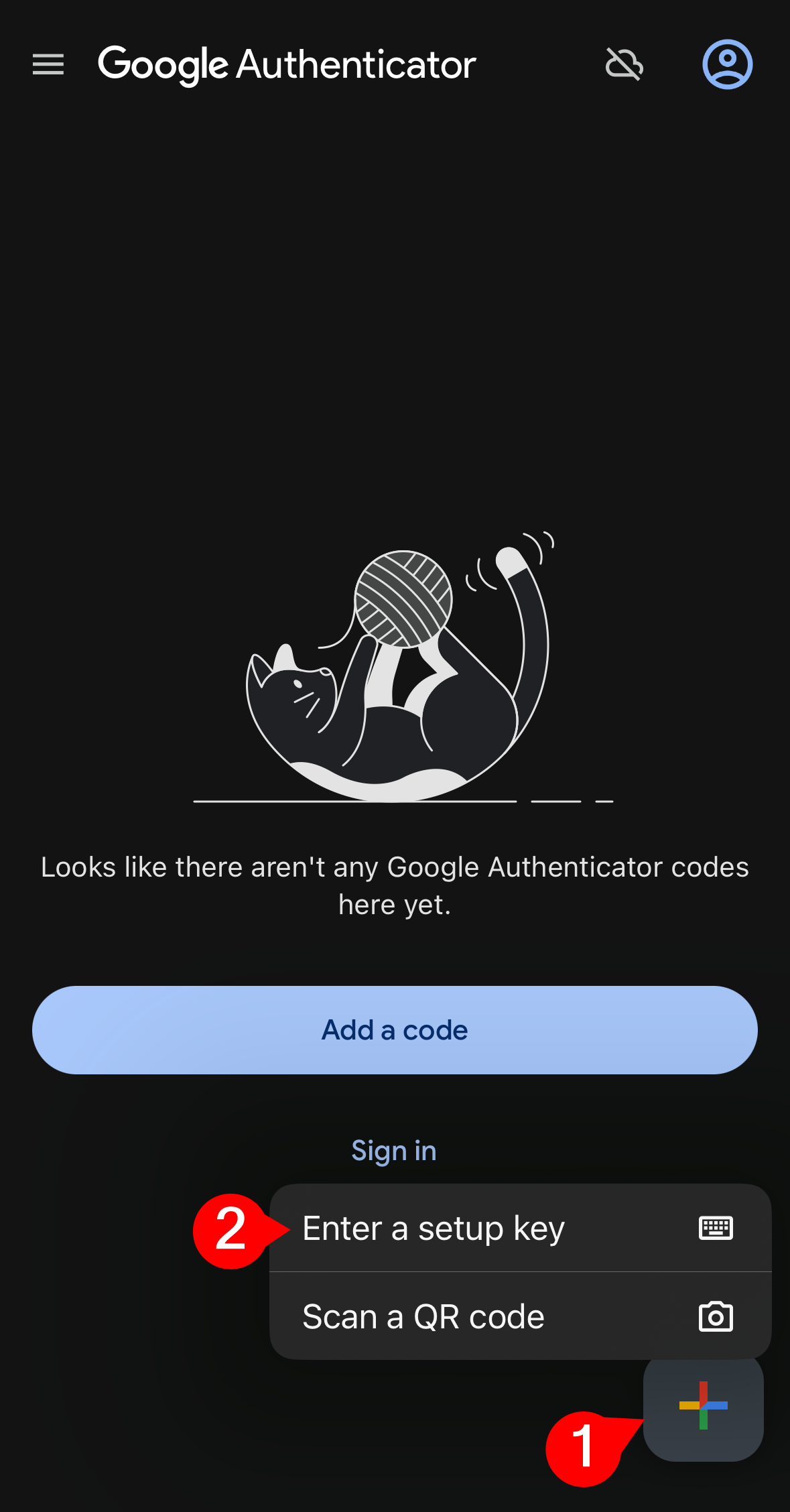
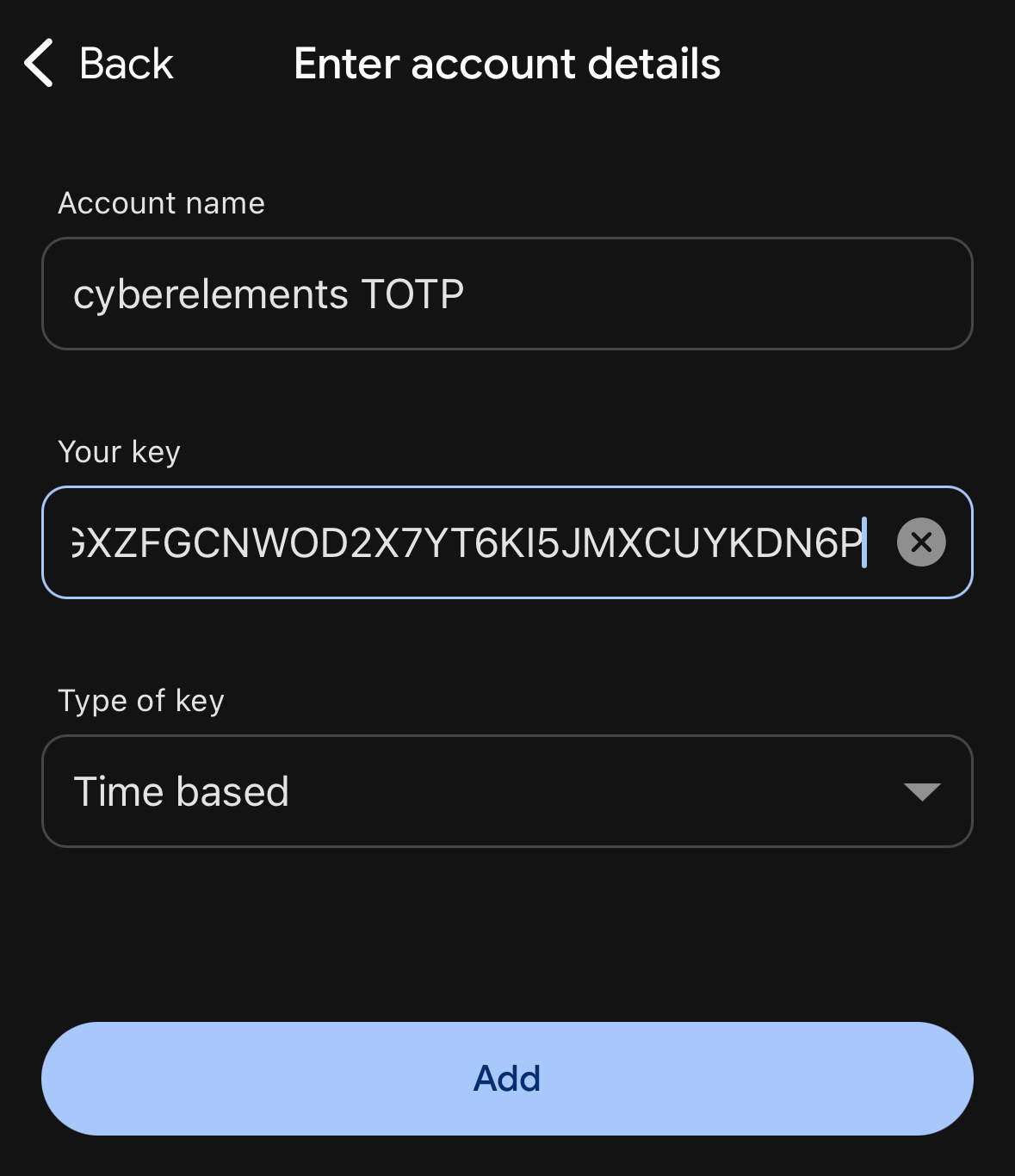
- If no option is activated, administrators will be responsible for manually importing TOTP keys and communicating them to users.
Example
Here is an example of a TOTP token configuration:
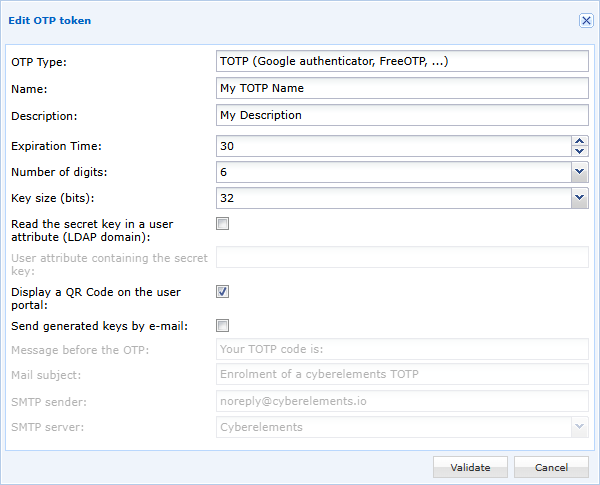
In this example, the secret key will be stored in cyberelements.io or cyberelements Cleanroom and will be displayed to the user when they first log in with a QR code to scan in Google Authenticator.
- By checking the option
-
Storing the key in a user attribute: you will need to specify the name of the attribute (case sensitive) that will contain the TOTP key.
Warning!
This method is only compatible for users belonging to an LDAP domain.
Furthermore, as access by cyberelements.io or cyberelements Cleanroom to the LDAP server is read-only, it is up to the administrator to fill in the content of the configured attribute with the user's TOTP key.
This method cannot therefore be configured with the options to display the TOTP key via QR code or to send the key by email.
Enabling TOTP on an authentication domain
In the authentication domains, edit the domain for which you want to enable TOTP MFA: 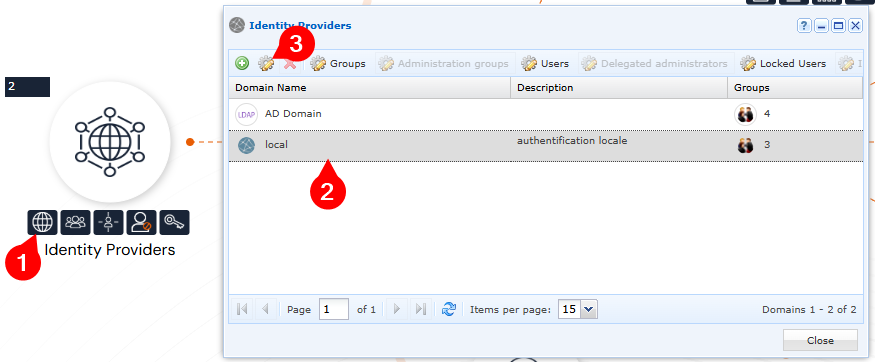
Then enable TOTP MFA for this domain. The expiration time allows you to define whether the user will have to enter their TOTP (value at 0) after a certain number of hours or days for each authentication: 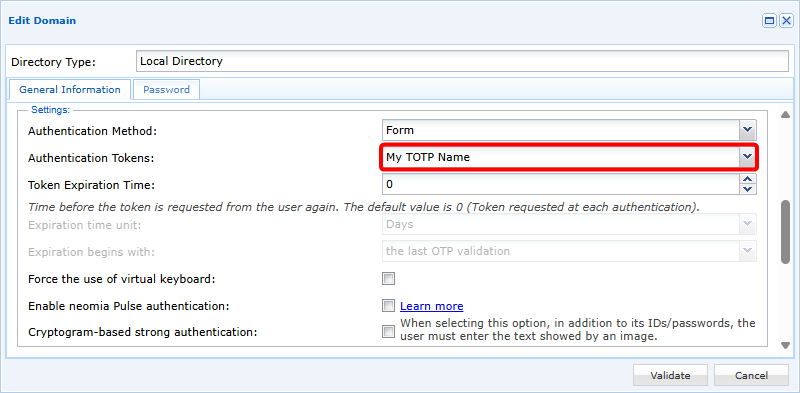
Manually import TOTP keys
The TOTP key is based on the RFC3548 base 32 standard.
Therefore:
- The characters supported are those in RFC3548: letters from A to Z and numbers from 2 to 7
- The key must only contain uppercase letters
- The key must contain 32 characters (if configured this way in the TOTP token)
Example
AHGXZFGCNWOD2X7YT6KI5JMXCUYKDN6P
The import is based on a CSV file with two columns:
1 | |
The first column must contain the user's name and the second column must contain the associated TOTP key.
Tip
If an empty key is specified, the user's key will be reset and a new one will be generated the next time they log in.
Example
To have the association between the user and the following TOTP key (the third user has their TOTP key reset):
user1/AHGXZFGCNWOD2X7YT6KI5JMXCUYKDN6Puser2/PIHYCEG2374V76523EVXAMZOUT36F3FGuser3/
The CSV file must contain:
1 2 3 4 | |
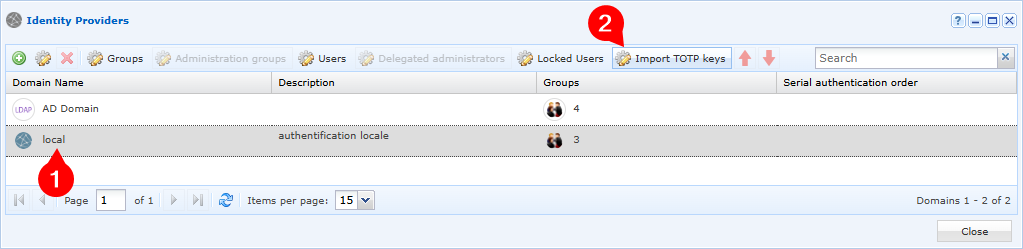
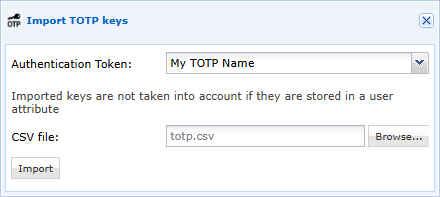
Once the CSV file has been prepared, it must be imported for a specific domain and TOTP token: