Adding a new organization
An organization, or tenant, is a logical isolation of all settings, archives, and possible accesses (users or Edge Gateway). All new installations require the creation of at least one organization; adding other organizations may be necessary depending on the intended use of the platform.
All newly declared organizations need to create a database (DB). There are three possible scenarios for accessing the DB server:
- Use of the local PostgreSQL on the Mediation Controller server (only valid for standalone architecture).
- Use of a database accessible directly from the Mediation Controller server.
- Use of a database accessible from a tunnel initiated by one or more Edge Gateways, generally used with cluster architecture.
Prerequisites
You will need the database connection information to declare it in cyberelements Cleanroom. To retrieve them, connect to the Mediation Controller server via SSH and use the following command, executed as root, to display the contents of the /etc/ipdiva/care/databasesettings.ini file:
1 | |
Inside this file, retrieve the username and password in the [database] section.
Example of databasesettings.ini file
1 2 3 4 5 6 7 | |
Access the Mediation Controller server's web interface with the URI /system.
Examples
If access to the Mediation Controller on its web IP address is 10.0.10.10, then access to the system interface will use the URL: https://10.0.10.10/system.
If access to the Mediation Controller is possible with a DNS name, for example cyberelements-cleanroom.domain.local, then access to the system interface will use the URL: https://cyberelements-cleanroom.domain.local/system.
Important !
For any changes to the password, license, or certificates (SSL Router, Watchdog, and cyberelements Cleanroom client), connect to the actual IP address for clusters (RIP_MED_WEB_MASTER or RIP_MED_WEB_SLAVE).
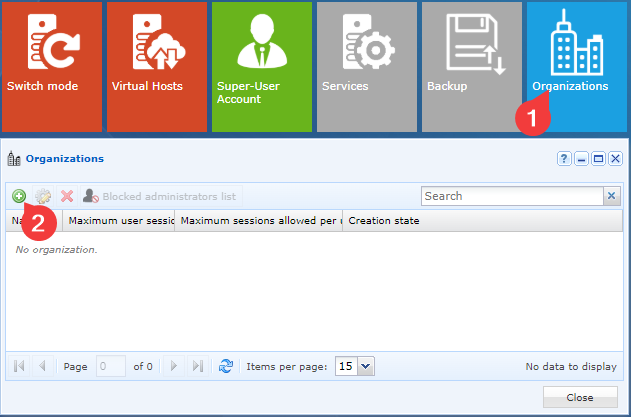
Add an organization by clicking on the Organizations tile and then clicking on the add icon:
An Add Organization window will open:
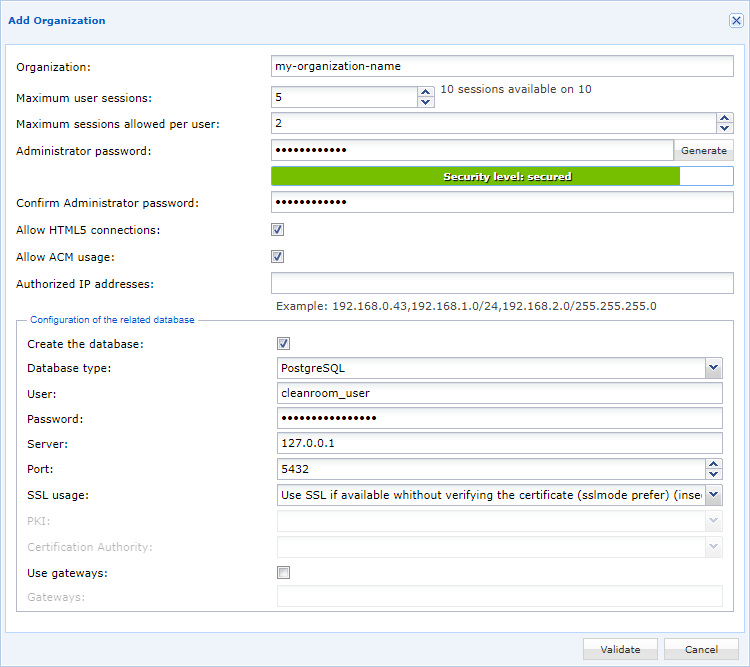
Fill in the following fields:
Organization: Name of the organization: cyberelements Cleanroom.Maximum user sessions: Indicate the number of licenses allocated to this organization.Maximum sessions allowed per user: Specify the number of simultaneous sessions per user.Administrator password: Generate the organization administrator password or specify a new password that is sufficiently secure.Allow HTML5 connections: Indicate whether the organization has HTML5 Gateway.Allow ACM usage: Indicate whether the organization will be able to use the ACM feature (retrieving the Vault ID via scripts).Authorized IP addresses: Specify the IP addresses that are authorized to connect to the organization as an administrator.Create the database: Check the box.Database type: Select the PostgreSQL database type.User: Enter the username used to log in to the database (obtained previously).Password: Enter the password for the database login account (retrieved previously).Server: Enter the IP address127.0.0.1.Port: Specify the database listening port5432.SSL Usage: Indicate thatUse SSL if available without verifying the certificate; for local connections to the server, this does not pose a security risk.Use gateways: Leave the option unchecked.
Information
You will need the database connection information to declare it in cyberelements Cleanroom.
The user account must have the rights to create a new database (unless reusing an old database).
Access the Mediation Controller server's web interface with the URI /system.
Examples
If access to the Mediation Controller on its web IP address is 10.0.10.10, then access to the system interface will use the URL: https://10.0.10.10/system.
If access to the Mediation Controller is possible with a DNS name, for example cyberelements-cleanroom.domain.local, then access to the system interface will use the URL: https://cyberelements-cleanroom.domain.local/system.
Important !
For any changes to the password, license, or certificates (SSL Router, Watchdog, and cyberelements Cleanroom client), connect to the actual IP address for clusters (RIP_MED_WEB_MASTER or RIP_MED_WEB_SLAVE).
Add an organization by clicking on the “Organizations” tile, then click on the add icon:
An Add Organization window will open:
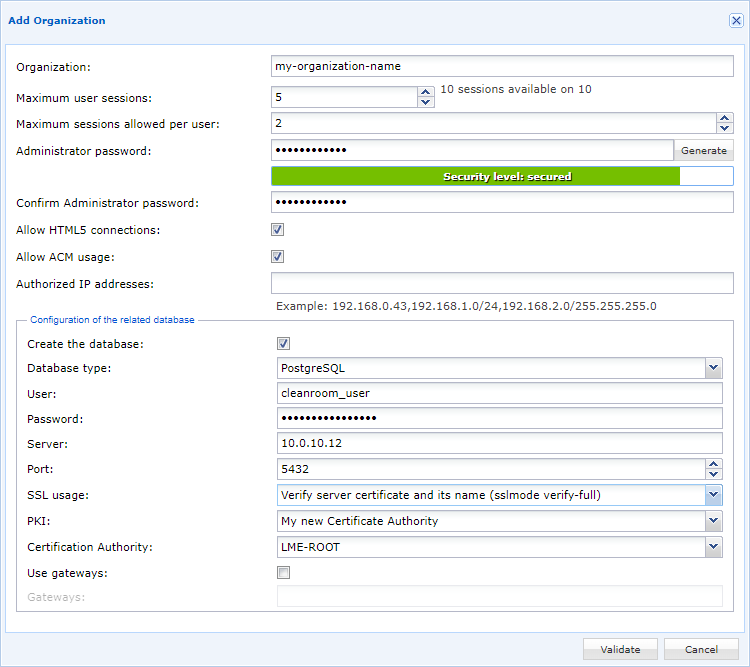
Fill in the following fields:
Organization: Name of the organization: cyberelements Cleanroom.Maximum user sessions: Indicate the number of licenses allocated to this organization.Maximum sessions allowed per user: Specify the number of simultaneous sessions per user.Administrator password: Generate the organization administrator password or specify a new password that is sufficiently secure.Allow HTML5 connections: Indicate whether the organization has HTML5 Gateway.Allow ACM usage: Indicate whether the organization will be able to use the ACM feature (retrieving the Vault ID via scripts).Authorized IP addresses: Specify the IP addresses that are authorized to connect to the organization as an administrator.Create the database: Check the box if the database does not already exist on the database server, with the database named after the organization.Database type: Select the database type between PostgreSQL and Microsoft SQL Server.User: Enter the username used to log in to the database.Password: Enter the password for the database login account.Server: Specify the IP address or DNS name (must be resolvable by the Mediation Controller) of the database server.Port: Specify the database listening port (PostgreSQL usually listens on TCP port 5432, while Microsoft SQL Server listens on TCP port 1433).SSL Usage(if using PostgreSQL): Specify whether the connection to the database should be made using TLS. For maximum security, use a TLS connection with certificate verification (requires PostgreSQL to be configured to work with TLS).PKI(if using PostgreSQL): Specify the PKI to be used for database certificate verification. If it does not exist, follow the configuration information for a trusted certification authority for the Mediation Controller.Certification Authority(if using PostgreSQL): Specify the certification authority used to create the database certificate.Use gateways: Leave the option unchecked.
Information
You will need the database connection information to declare it in cyberelements Cleanroom.
The user account must have the rights to create a new database (unless reusing an old database).
Access the Mediation Controller server's web interface with the URI /system.
Examples
If access to the Mediation Controller on its web IP address is 10.0.10.10, then access to the system interface will use the URL: https://10.0.10.10/system.
If access to the Mediation Controller is possible with a DNS name, for example cyberelements-cleanroom.domain.local, then access to the system interface will use the URL: https://cyberelements-cleanroom.domain.local/system.
Important !
For any changes to the password, license, or certificates (SSL Router, Watchdog, and cyberelements Cleanroom client), connect to the actual IP address for clusters (RIP_MED_WEB_MASTER or RIP_MED_WEB_SLAVE).
Add an organization by clicking on the “Organizations” tile, then click on the add icon:
An Add Organization window will open:
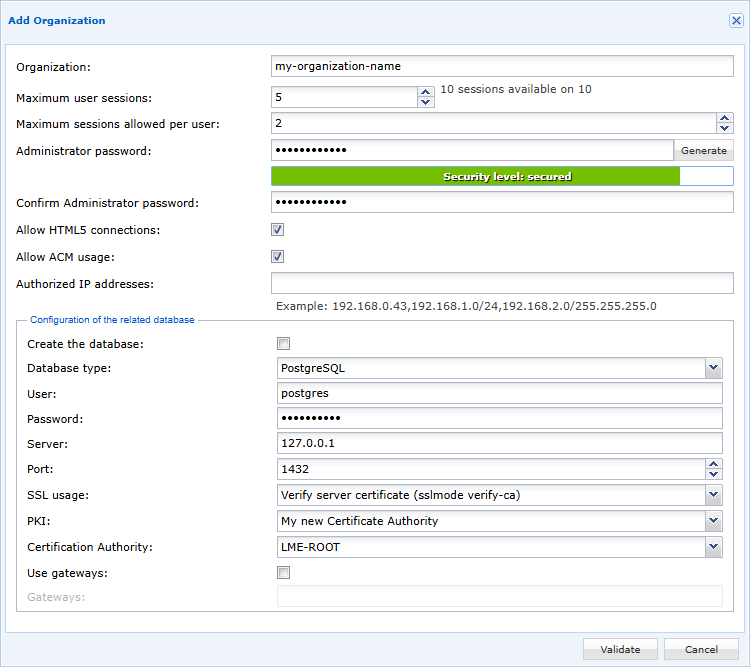
Fill in the following fields:
Organization: Name of the organization: cyberelements Cleanroom.Maximum user sessions: Indicate the number of licenses allocated to this organization.Maximum sessions allowed per user: Specify the number of simultaneous sessions per user.Administrator password: Generate the organization administrator password or specify a new password that is sufficiently secure.Allow HTML5 connections: Indicate whether the organization has HTML5 Gateway.Allow ACM usage: Indicate whether the organization will be able to use the ACM feature (retrieving the Vault ID via scripts).Authorized IP addresses: Specify the IP addresses that are authorized to connect to the organization as an administrator.Create the database: Check the box if the database does not already exist on the database server, with the database named after the organization.Database type: Select the database type between PostgreSQL and Microsoft SQL Server.User: Enter the username used to log in to the database.Password: Enter the password for the database login account.Server: Specify the IP address used during redirection through the tunnel, usually set to127.0.0.1.Port: Specify the listening port for the tunnel redirecting to the database, usually set to1432.SSL Usage(if using PostgreSQL): Indicate whether the connection to the database should be made using TLS. Due to redirection in the tunnel, the most restrictive security mode cannot be used. If desired, select the maximum certificate verification mode.PKI(if using PostgreSQL): Specify the PKI to be used for database certificate verification. If it does not exist, follow the configuration information for a trusted certification authority for the Mediation Controller.Certification Authority(if using PostgreSQL): Specify the certification authority used to create the database certificate.Use gateways: Leave the option unchecked.